Sign in for the first time, turn on notifications, and find your way around the app.
Who this is for: parents and carers opening the RollCall Parent App for the first time.
Before you start: your school has added you and linked your child, and you can open the email your school has on file for you.
Short on time? Do sections 2 and 4 now: sign in and turn on notifications. The rest can wait.
1. What this guide covers
Setting up the app takes about five minutes. You sign in, turn on the alerts you want, and take a quick look around. After that the app normally stays signed in, so you rarely need to do this again.
You need your phone, an internet connection, and the email address your school has on file for you. If you are not sure which email that is, your school office can check.
2. Sign in
The app starts with one email field and then shows only the screens that apply to you. What you see next depends on your account and your school.
Enter your email. Type the email address your school has on file and tap Continue.
Choose your school if asked. If your email is linked to more than one school, the app shows Select Your Organization. Tap the school you want to use now. Each school shows how you sign in there (for example Email & Password or SSO). If you have children at two schools, you sign in to one school at a time.
Follow the screen you are shown:
- Welcome Back: you already have a password. Enter it and tap Sign In.
- Single Sign-On: your school uses its own login. Tap Continue with SSO and sign in on your school's page. You do not need a RollCall password for this school.
- Verify Your Identity or Activation Required: your account needs setting up first. Go to section 3.
Once signed in, you land in the app, ready to follow the bus.
Tip: the app remembers your email. Tap Clear if you need to sign in with a different email.
3. Set up your account (only if the app asks)
You only see these steps if your account needs activating, for example the first time you use a school that uses RollCall passwords. If you already have a password, or your school uses SSO, you may not see them at all.
Choose how to get your code. On Verify Your Identity, pick Email or SMS and tap Continue. SMS only appears if the school has your mobile number.
Enter the code. Type the verification code and tap Verify. If it has not arrived, wait for the countdown and tap Resend, or go back and choose email.
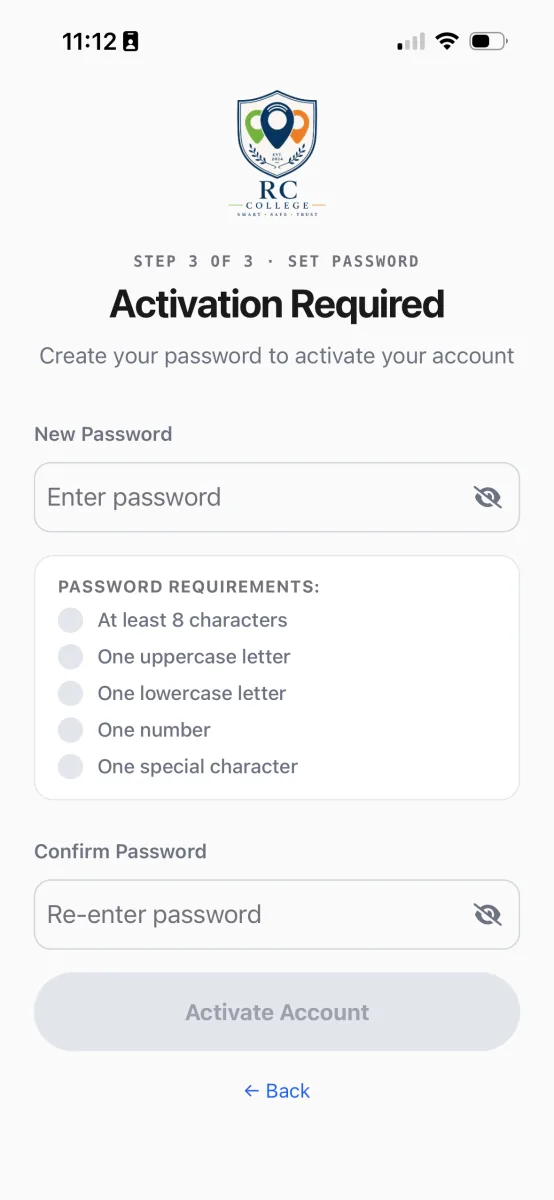
Create a password (if asked). On Activation Required, set a password that meets every requirement on the checklist, confirm it, and tap Activate Account.
Sign in. On Account Setup Complete, tap Continue to Login and sign in with your new password, or with SSO if your school uses it. Setup does not sign you in by itself.
Some schools that use SSO activate your account without asking you to create a RollCall password.
4. Turn on bus notifications
Notifications bring you the most useful updates: the bus getting close, your child scanning on and off, and messages from the school.
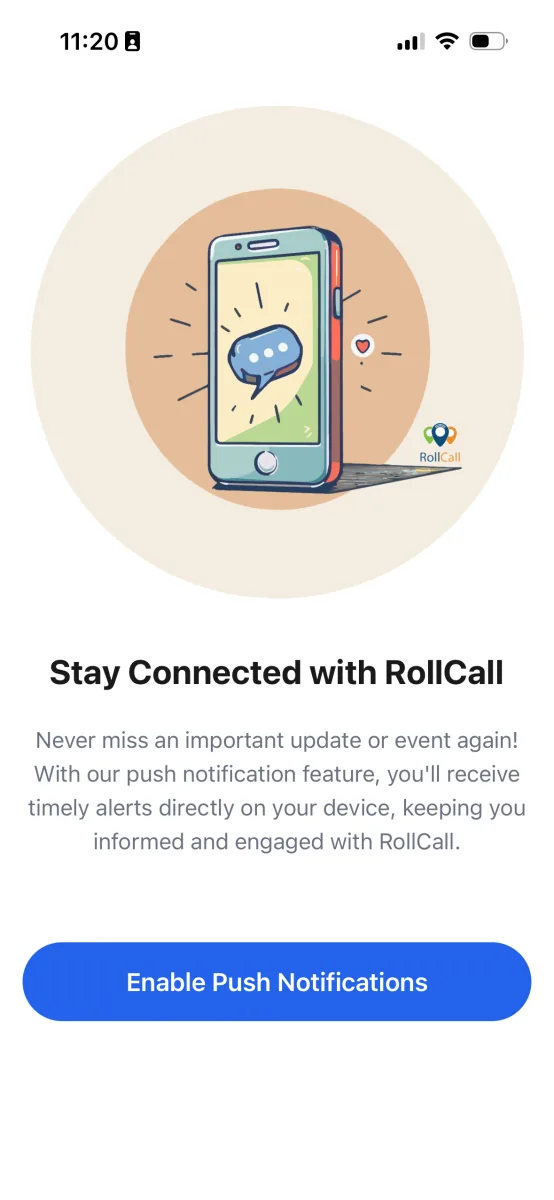
Tap Enable Push Notifications. After your first sign-in, a Stay Connected with RollCall screen appears. Tap Enable Push Notifications, then Allow when your phone asks.
Fine-tune your alerts. The Manage Alerts screen lets you choose Push and Email for each alert, for each child. Some emails your school requires show Email always on. Every alert also appears in the Messages tab. See Parent App – Stay informed with notifications.
Tip: if you tap Don't Allow by accident, turn notifications back on in your phone's settings for RollCall Parent.
5. Take the quick tour
The first time you use the app, a short welcome tour shows you around the main tabs.
- Tap Next (or swipe) to move through the cards. Try it now jumps straight to that part of the app.
- Tap Get started on the last card, or Skip to finish early. You can replay it from Account → Help → Take the tour again.
The tabs
- Bookings: see what is booked, change your child's travel, and review any New Bookings (seat offers or replies from your school).
- Transaction: check your balance and top up.
- Map: follow the bus live and see your child scan on and off.
- Messages: every alert and school message in one inbox.
- Account: your details, alerts, carers, password and sign-out.
Questions parents ask
My email is not recognised. What now?
The school may not have that email on file, or has it spelled differently. Tap Try Another Email and check the spelling. If you are sure it is right, ask your school office what they have on record.
The app says my account is inactive or has no linked students.
Your school needs to link your child to you or update your record. RollCall Support cannot link parents to students. Contact your school office.
I have forgotten my password.
On the password screen, tap Forgot Password?. Confirm your email and school, then tap Send Reset Link. Follow the link in the email, then sign in. If your school uses SSO, reset your password with your school instead.
My verification code never arrived.
SMS can be slow on some networks. Wait for Resend, or go back and choose email. Check your spam or junk folder.
I have children at two schools.
You use one email address, but you sign in to each school separately. The app asks you to choose a school when your email is linked to more than one. You may need to activate your account separately at a school you have not used before.
Do I have to sign in every time?
No. Once signed in, the app normally stays signed in. You sign in again if you log out, change your password, or have been away a long time.
The app says Update Required.
Tap Update Now, install the latest RollCall Parent App from the App Store or Google Play, then reopen it.
My child is not showing after I sign in.
Your account exists but your child has not been linked yet. Ask your school office to link your child.
Can another carer use the app too?
Yes. A carer signs in with their own email and sees what the primary parent has shared. See Parent App – Share access with carers.
Screens may differ slightly depending on your app version and your school's settings.
Was this article helpful?
That’s Great!
Thank you for your feedback
Sorry! We couldn't be helpful
Thank you for your feedback
Feedback sent
We appreciate your effort and will try to fix the article