ROLLCALL HOW-TO · PARENT APP
Parent App – Set up regular term travel
Book a morning and afternoon seat for the whole term, or respond to the seat your school offers.
Who this is for: parents and carers setting up a child's regular bus travel for a term.
Before you start: you are signed in and your child is linked to your account.
Which booking setup does your school use? Schools choose how long-term (term) bookings work, and it can differ from term to term:
- You book (self-service): you choose stops and days yourself while the booking window is open. Follow this guide as written.
- Your school approves: you can request a term booking, but the school reviews it first. Requests cover every day the bus runs; you do not pick weekdays. The school may also send you a seat offer to accept instead.
- Your school books: the school makes the booking. The app shows Controlled by your school and you cannot start a term booking yourself. You may receive a seat offer, or see the booking once the school has made it.
If you are not sure which applies, ask your school office.
1. What this guide covers
A term booking gives your child a regular seat for the term, so you do not need to book each week. This guide walks through the term booking wizard: choosing the child, term, stops and (where offered) days, then confirming. It also covers what you see when your school manages bookings, how to change a booking later, and where to find seat offers.
2. Start a term booking
Open the Bookings tab. Tap Bookings at the bottom. The Today section is at the top, with Week View, Term View and Calendar View below.
Check the child. Your child's name shows in the selector at the top. Tap it to switch children.
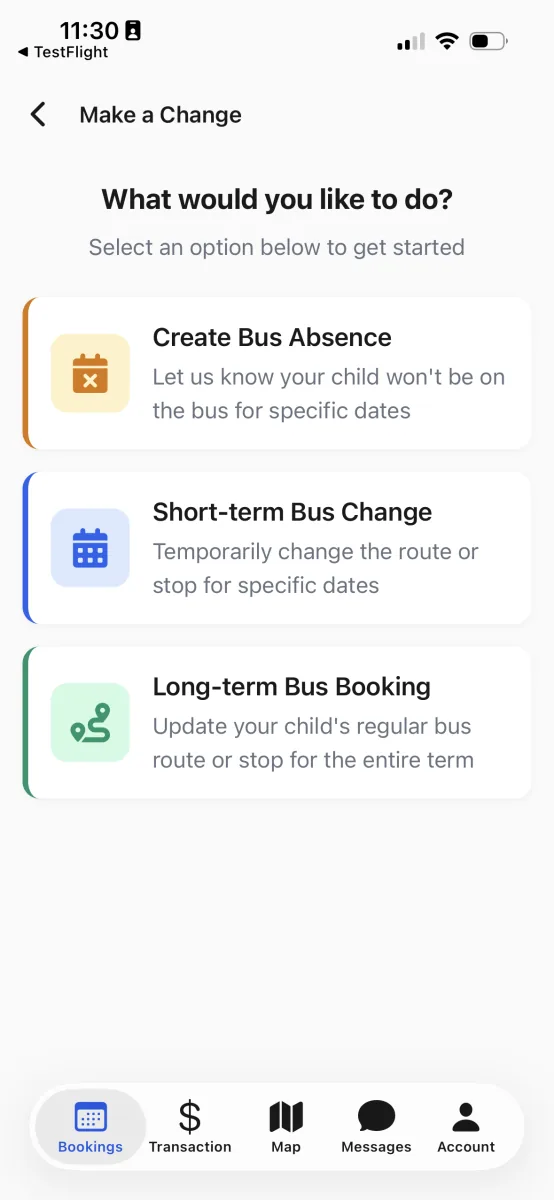
Open the wizard. Tap Make a change, then tap Long-term Bus Booking.
Confirm the child, then pick the term. Tap your child and Continue. Then tap a term and Continue. The current term has a Current badge.
If you cannot pick a term, the term card tells you why:
| Message | What it means |
|---|---|
| Booking window opens soon / Booking opens (date) | Your school's booking window has not opened yet. Come back on that date. |
| Booking window closed | The window for that term has closed. Contact your school if you still need a long-term booking. |
| Routes not confirmed yet | Your school has not confirmed the routes for that term. You can book once they do. |
| Controlled by your school | Your school makes bookings for this term. Contact your school, and watch New Bookings for any seat offer. |
Tip: setting up more than one child? Finish one child's booking, switch to the next child, and run the wizard again.
3. Choose your morning stop (and days, if offered)
Pick your morning stop. The map opens near your home with the nearest stops. Each route has its own colour and your school is marked. Tap a stop on the map or in the list. The list shows the route, distance, estimated arrival and seats left. Tap Continue.
Choose the days (self-service schools). If your school lets you choose days, you see Which days? with Mon–Fri. Tap a day to switch it off or on, then tap Continue. At least one day stays selected.
If your school approves bookings, you will not see a days step. Your request covers every day the bus runs.
Worth knowing: if your child only catches an afternoon bus, tap Skip on the stop step. You must keep at least one service, so the app will not let you skip both.
4. Choose your afternoon stop (and days, if offered)
Reuse or change the stop. Tap Use same stop as morning pickup, or pick a different stop. Tap Continue.
Choose the afternoon days (self-service schools only), then tap Continue.
If the morning stop has no afternoon service, the app tells you and asks you to pick an afternoon stop instead. If a term has no morning or no afternoon buses, the app skips that part.
5. Review and confirm
Check the summary. Each leg shows the stop, route, estimated arrival and days. To fix anything, go back, change it, and return.
Tap Confirm Booking.
What you see next depends on your school:
- Green tick: your term booking has been submitted. Tap Done. It shows in Week, Term and Calendar View.
- Sent to your school for approval: your request is with the school. It is not a confirmed seat yet. Track it under Bookings → New Bookings → Waiting. The school may approve it, approve it on a different stop or route, or decline it.
6. If your school offers you a seat
If your school assigns seats, you may see a banner such as 1 bus booking to review. Tap Review now to open New Bookings, then accept the seat, ask for a change (where offered), or decline it. See Parent App – Review seat offers, requests and outcomes.
7. Change or cancel a term booking
- Change the regular pattern (where allowed): run the wizard again from Make a change → Long-term Bus Booking. If your child already has a booking for that term, you can choose to Edit Existing or Add More.
- Change just a day or two: use Short-term Bus Change. See Parent App – Manage day-to-day bookings.
- Report a day away: use Create Bus Absence. See Parent App – Report an absence or one-off change.
- Cancel the rest of a term booking: open Bookings → Term View → Term bookings and tap the booking. If your school allows it, you'll see Cancel this booking; otherwise the app asks you to contact your school. See Parent App – Cancel a term booking.
Questions parents ask
I can't start a term booking.
Check the message on the term card (see section 2). The window may not be open, routes may not be confirmed, or your school may make the bookings. Your school office can tell you when you can book.
A stop I want is faded and I can't pick it.
That stop has no seat available right now. Choose another stop nearby, or ask your school about options.
Is my child's seat confirmed straight away?
It depends on your school. If you see the green tick, the booking has been submitted. If you see Sent to your school for approval, the seat is not confirmed until the school approves it. Check New Bookings for the outcome.
Why can't I choose days?
Your school reviews requests, so a request covers every day the bus runs. If your child only travels on some days, use Create Bus Absence for the days off, or tell the school.
My child needs different stops on different days.
A term booking sets one morning and one afternoon stop. Book the most common pattern, then use Short-term Bus Change for the odd day.
I'm a carer and I can't find Long-term Bus Booking.
What carers can do is set by the school and the primary parent. If the option is missing or greyed out, ask the primary parent or your school to check your access.
Screens may differ slightly depending on your app version and your school's booking settings.
Need help? Contact your school if you get stuck.
Next Steps / Related Articles
Was this article helpful?
That’s Great!
Thank you for your feedback
Sorry! We couldn't be helpful
Thank you for your feedback
Feedback sent
We appreciate your effort and will try to fix the article