This guide explains how to set up and use Single Sign-On (SSO) in RollCall. SSO allows your staff and parents to log in using your school’s identity provider (e.g., Microsoft 365, Google, Okta) instead of separate RollCall credentials.
Access the Integration from the menu option - Settings/SSO.
Overview
RollCall SSO is:
- Self-service – no manual configuration required
- Secure – uses SAML 2.0 authentication
- Flexible – supports multiple providers (Microsoft, Google, Okta, ADFS, etc.)
- Testable before launch – you can validate setup before enabling it
⚙️ Setting Up SSO (Admin Steps)
SSO is configured via a guided setup wizard in RollCall.
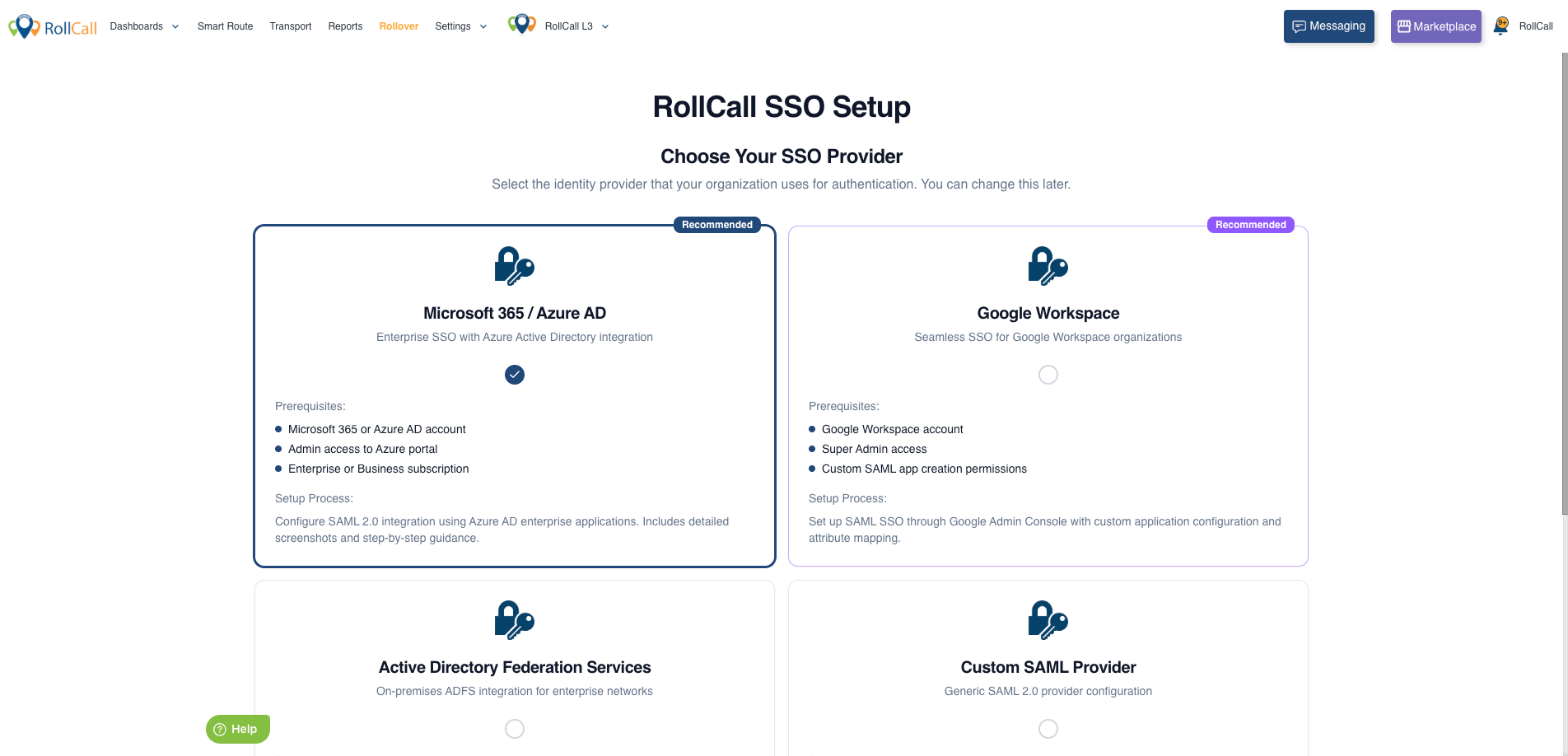
1. Choose Your Provider
Select your identity provider:
- Microsoft 365 (Azure AD)
- Google Workspace
- Okta / ADFS
- Custom SAML
2. Enter SAML Configuration
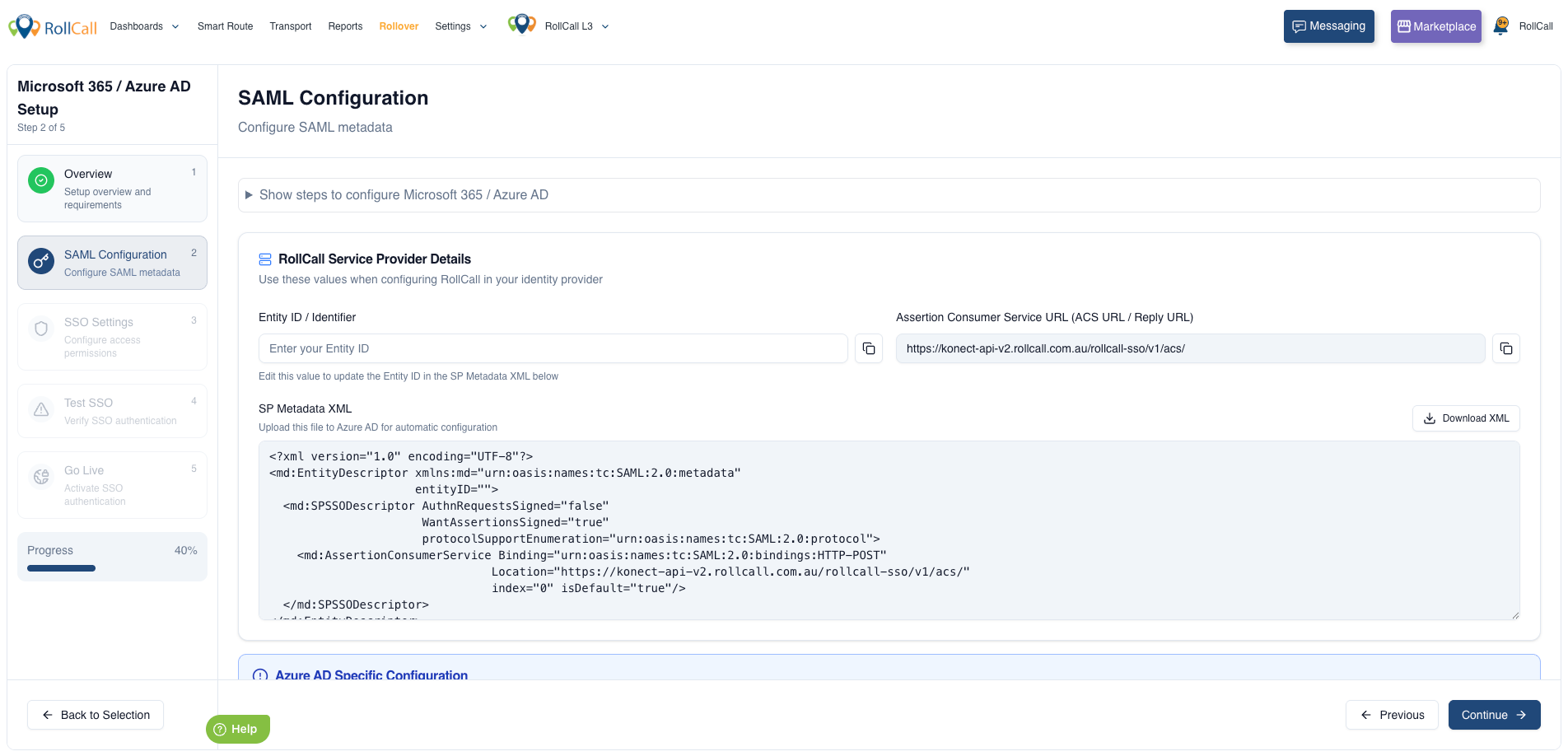
Provide details from your identity provider:
- SSO URL
- Entity ID
- Certificate
RollCall will also provide:
- SP Entity ID
- ACS URL
Steps on how to configure each of the SSO Providers:
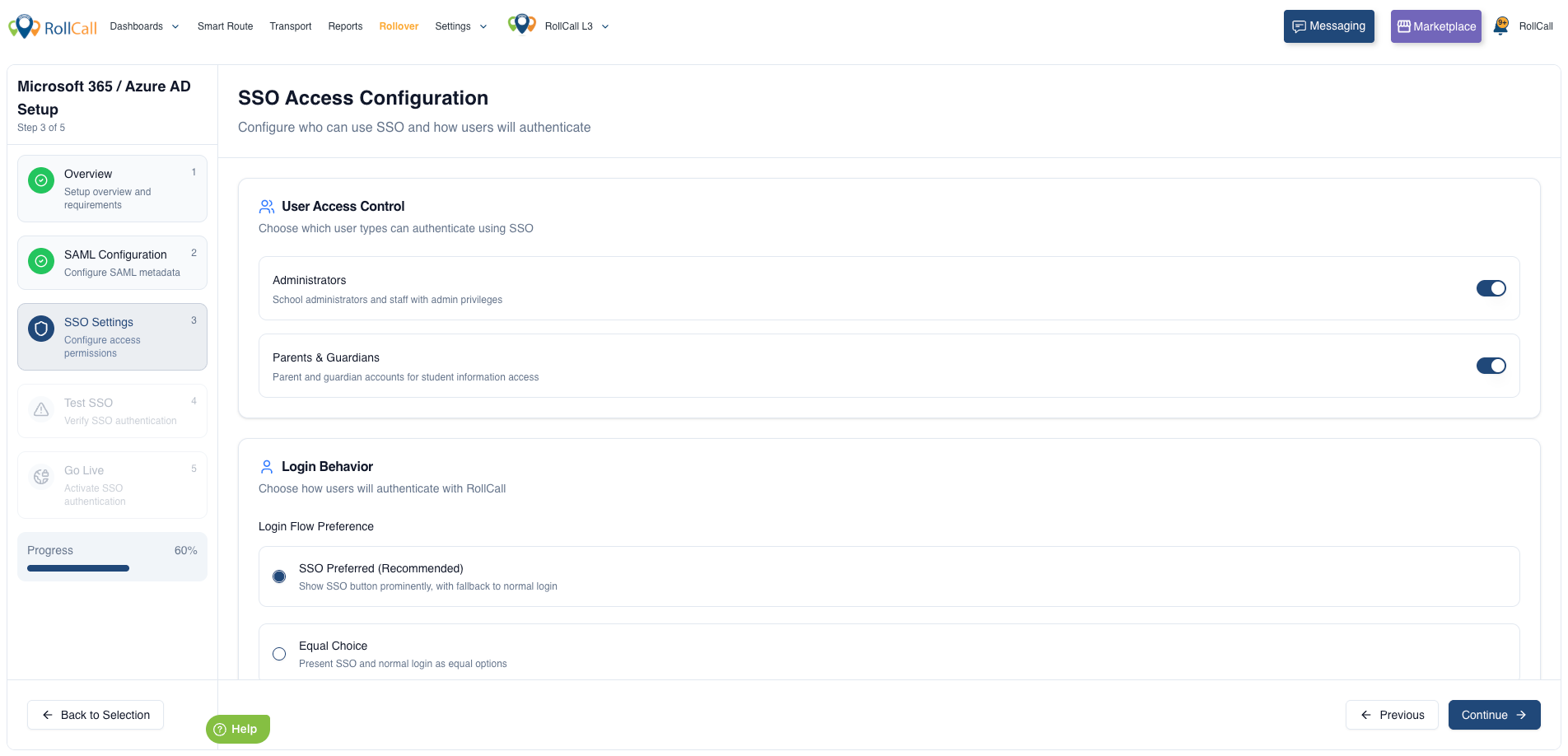
3. Configure User Access
Choose who can use SSO:
- Admins
- Parents
- Staff
Select login behaviour:
- SSO Only – all users must use SSO
- SSO Preferred – default option, fallback available
- User Choice – users choose login method
4. Test the Integration
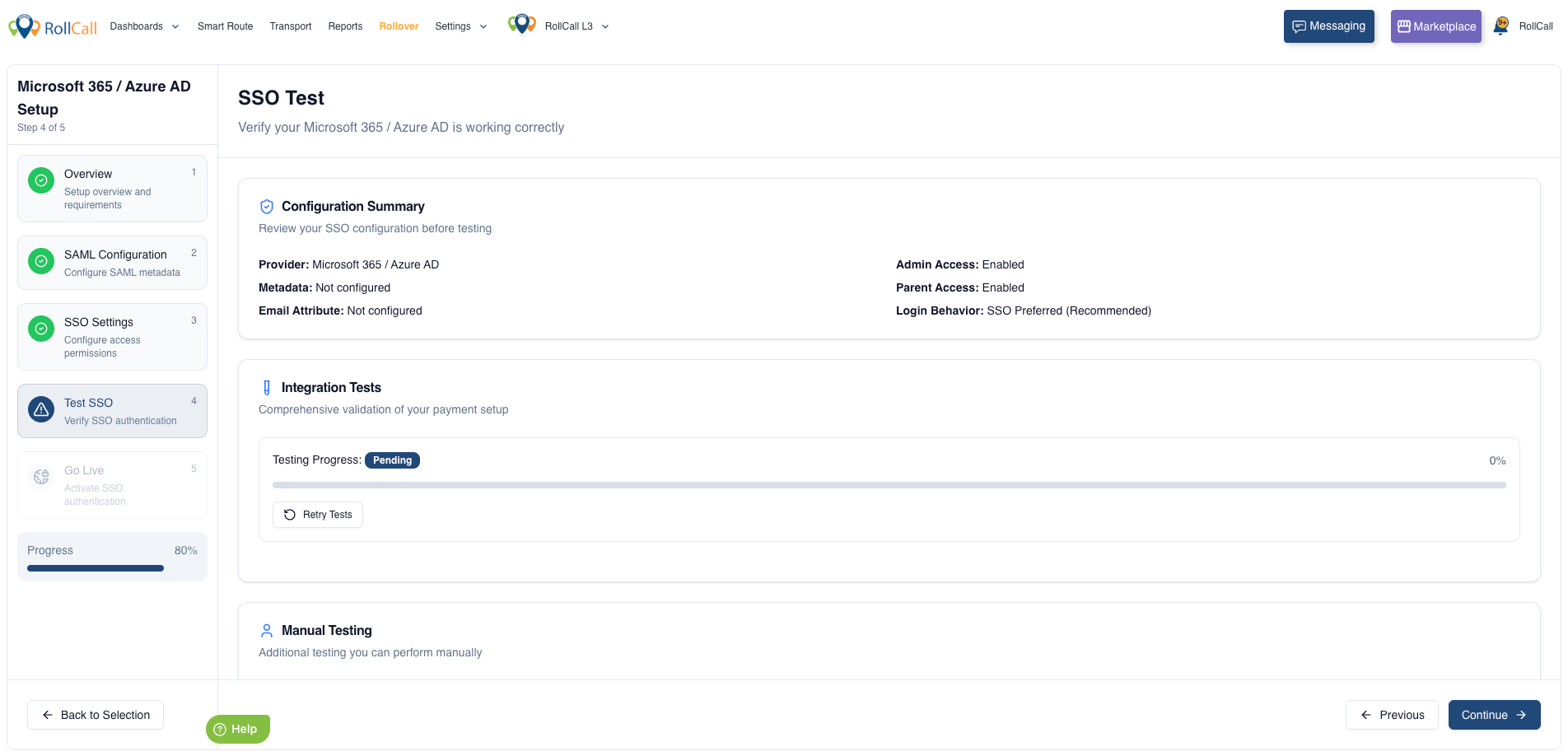
Before going live:
- Run a test login
- Confirm users can authenticate successfully
- Fix any mapping or configuration issues
5. Go Live
Once testing is successful:
- Activate SSO for your school
- Users can now log in using your identity provider
Important Notes
- User Matching:
Users must already exist in RollCall with the same email address as your identity provider. - Security:
All authentication is handled securely using industry-standard SAML protocols. - Multi-School Support:
Each school has its own isolated configuration (no overlap between schools).
❗ Troubleshooting Tips
If users cannot log in:
- Check their email matches RollCall exactly
- Confirm SSO has been activated (not just tested)
- Verify your identity provider configuration
- Re-run the Test Integration step
✅ Summary
With RollCall SSO:
- Users log in with existing school credentials
- Admins configure everything via a simple wizard
- You can safely test before enabling
- The system handles authentication securely end-to-end
Here to link to:
Was this article helpful?
That’s Great!
Thank you for your feedback
Sorry! We couldn't be helpful
Thank you for your feedback
Feedback sent
We appreciate your effort and will try to fix the article