Overview
Once the Compass integration setup is complete, the next step is to generate a Preview.
The Preview allows schools to:
Review sync changes before they are applied
Identify potential issues
Confirm student, parent, and relationship updates
No changes are applied during Preview generation.
Accessing the Preview Screen
Navigate to:
Integrations → LMS → Compass
Click:
Preview

Generating a Preview
No Existing Preview
If no preview currently exists:
Click:
Generate Preview

Existing Preview
If a preview already exists:
Click:
Regenerate Preview
This will create a new preview using the latest LMS data.

Preview Modes
When generating a preview, two sync modes are available:
| Mode | Description |
|---|---|
| Standard Sync | Syncs basic student fields only |
| Full Re-sync | Includes additional admission and grade-level fields |
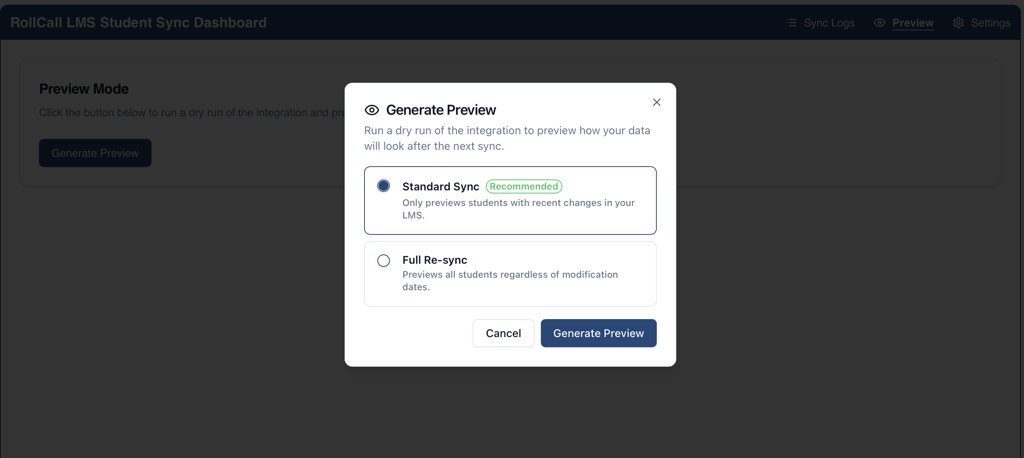
Standard Sync Includes
Name
Address
Date of Birth
Full Re-sync Includes
Admission Year
Admission Grade
⚠ Full Re-sync is typically only used when troubleshooting grade-level issues.
Preview Task Status
After generating a preview:
The task runs in the background
To update the task status:
Click:
Refresh
⚠ The page does not auto-refresh.
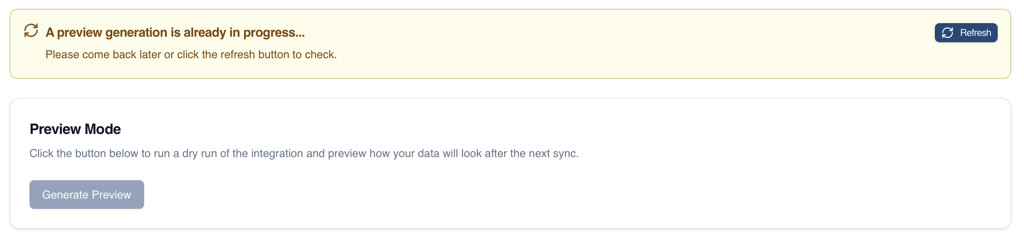
Preview Results
Once complete, the Preview screen displays:
Overview Panels
Summary counts for:
Students
Parents
Relationships
Including:
Added
Updated
Made Inactive
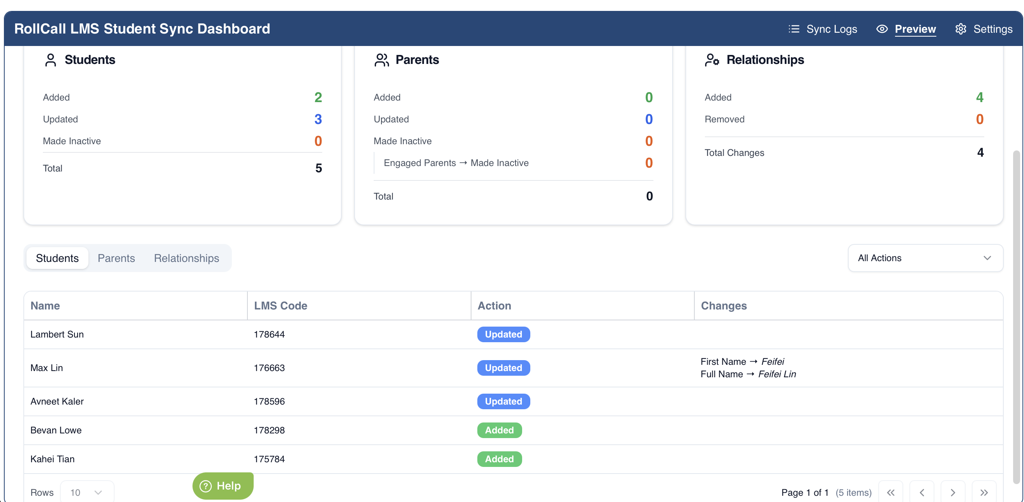
Engaged Parents Warning
If engaged parents are being deactivated:
A confirmation checkbox will appear
This must be acknowledged before running a manual sync
Result Categories
Results can be viewed by category:
Students
Parents
Relationships

Action Filters
Filter results by:
Added
Updated
Made Inactive
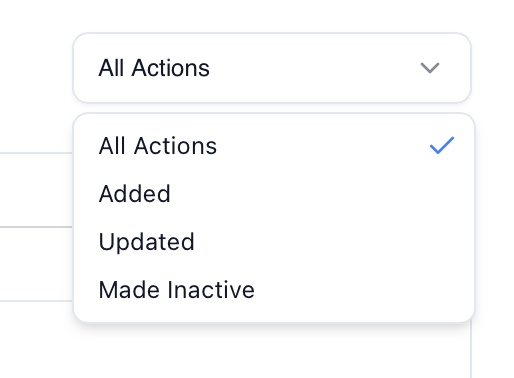
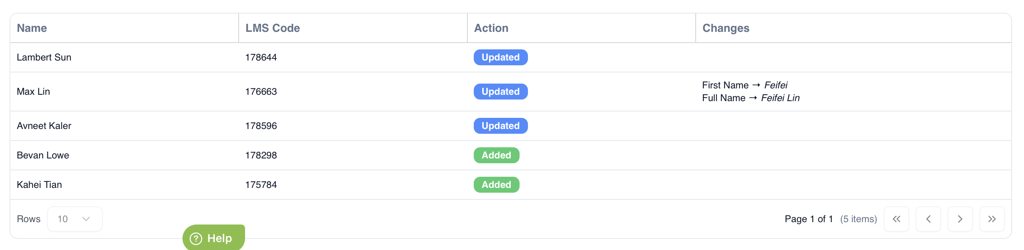
Results Table
The results table displays:
Names
LMS identifiers
Actions being performed
Field changes
Preview Red Flags
Large Student Creates & Deletes
May indicate:
LMS student identifiers have changed
Engaged Parents Being Deactivated
Review carefully before syncing.
Address Coordinate Swaps
May indicate:
Geocoding issues
LMS Fetch Errors
5XX Errors (500, 503...)
Usually indicates:
LMS-side issue
4XX Errors (401, 403...)
Usually indicates:
Invalid API key
Missing permissions
Best Practice Recommendations
✅ Always review the Preview before syncing
✅ Check for large numbers of deletions or deactivations
✅ Investigate engaged parent removals carefully
✅ Use Full Re-sync only when required
✅ Refresh the page regularly while previews are generating
Was this article helpful?
That’s Great!
Thank you for your feedback
Sorry! We couldn't be helpful
Thank you for your feedback
Feedback sent
We appreciate your effort and will try to fix the article