Overview
The Card Integration Wizard provides a guided, step-by-step process for setting up student card scanning within RollCall. This feature allows schools to seamlessly connect their card systems without requiring technical expertise.
Supported Providers
The wizard supports three integration options, each with a provider-specific setup flow:
PPC Software
Monitor WA
Custom Integration
Each option follows a consistent 4-step setup process while allowing for provider-specific configuration requirements.
How to Access Card Integration
Navigate to Settings in the Admin Console
Click Card Media Integrations
Wizard Structure
All providers follow the same four-step process:
Overview
Introduction and summary of the integration processConfiguration
Enter provider-specific setup detailsTest Integration
Validate the configuration before activationGo Live
Enable the integration for use within RollCall
All supported providers follow the same guided setup process within the Card Integration Wizard.
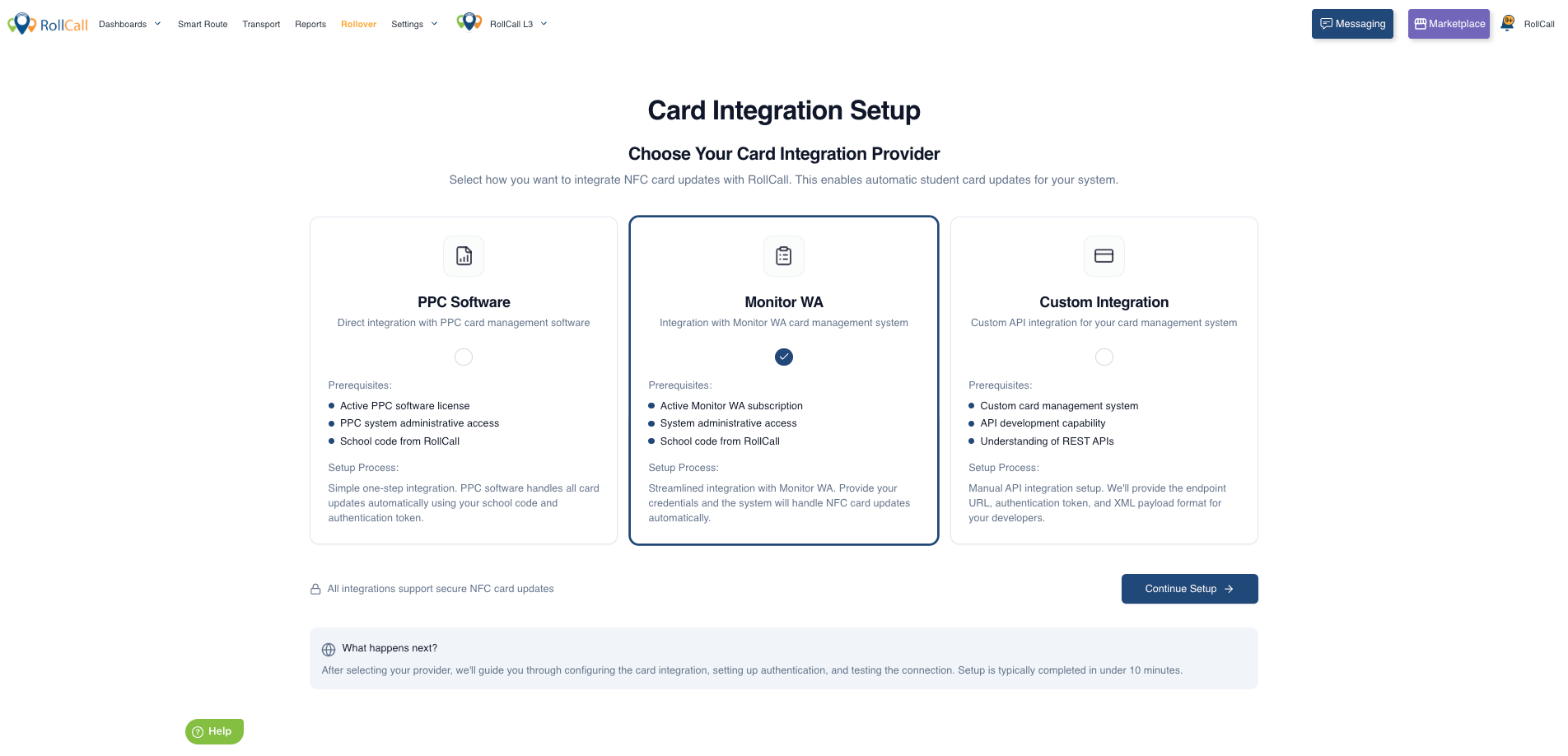
Step 1: Select Provider
Navigate to the provider selection screen
Choose one of the following integration options:
PPC Software
Monitor WA
Custom Integration
Step 2: Overview
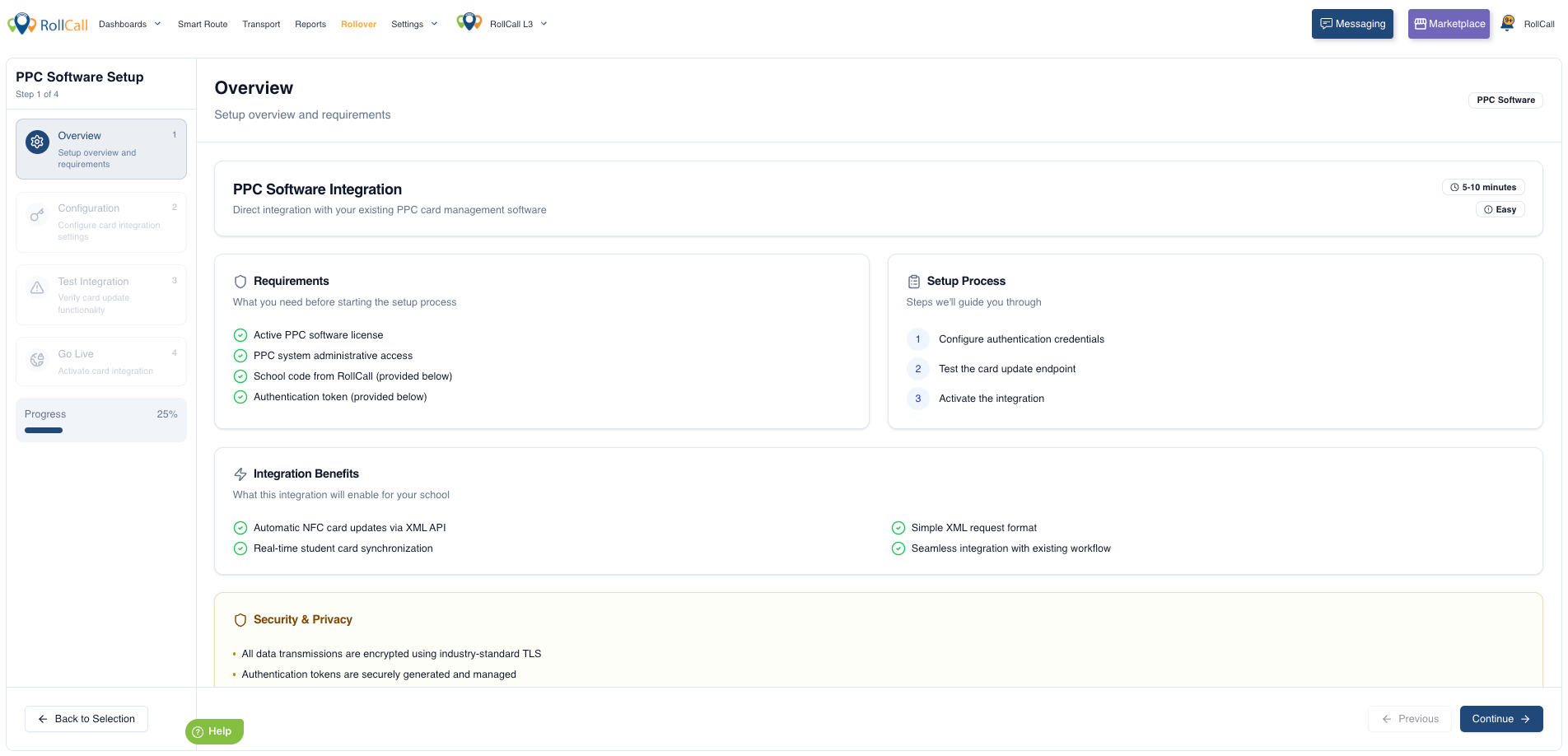
Review the overview information provided
Confirm your understanding of the setup process before proceeding
Step 3: Configuration
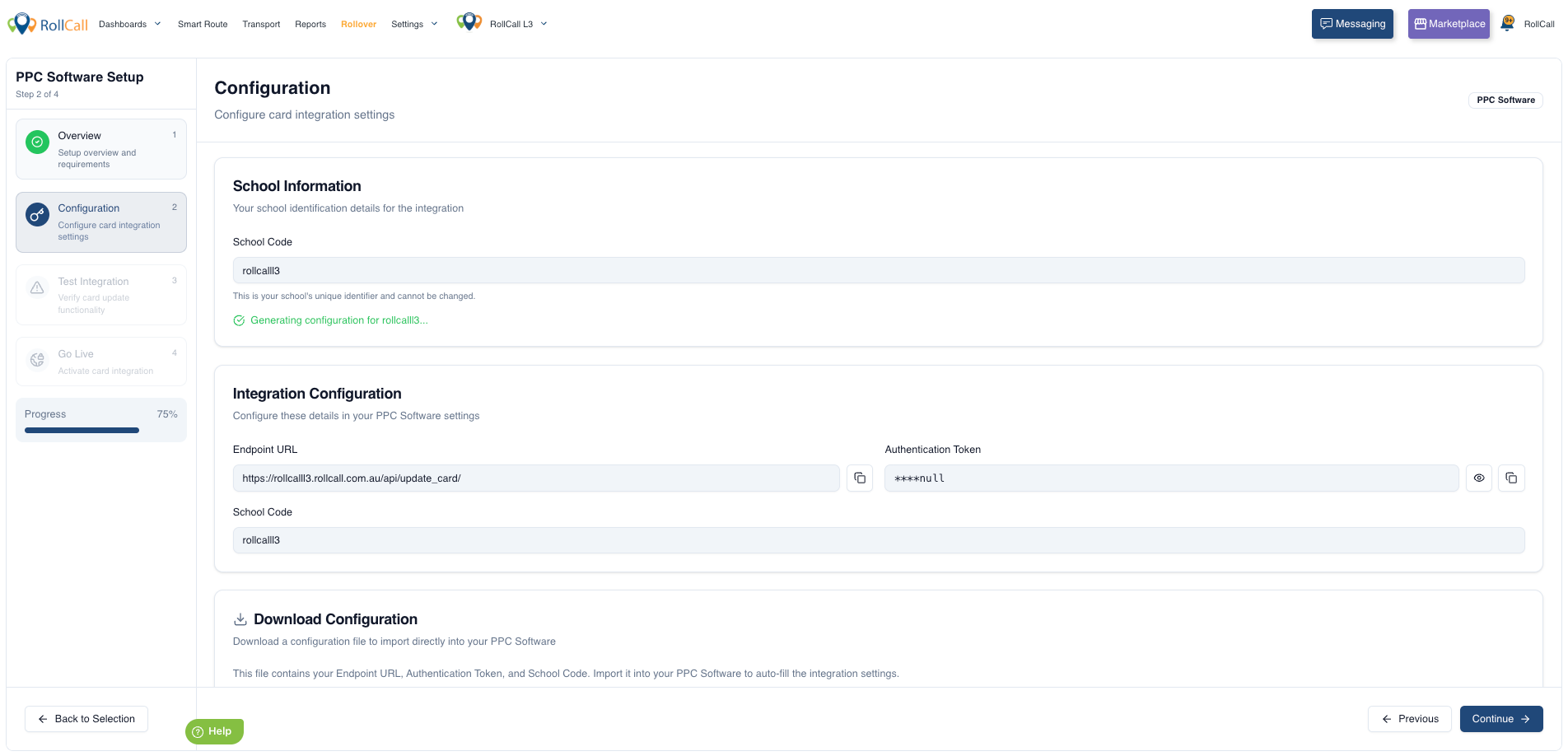
Complete the required configuration details for your selected provider
For supported providers, the required fields may already be pre-populated to make setup easier
Review all displayed values carefully to ensure they are correct for your school
Download the configuration file if required
JSON file attached for PPC
- For Monitor WA - Copy the Endpoint URL and Authentication Token above and Paste credential in your Integration Settings
Important:
Pre-filled fields are designed to simplify setup and reduce manual input
Some providers may require additional implementation details during configuration
Ensure the configuration file is downloaded successfully before proceeding
Step 4: Test Integration
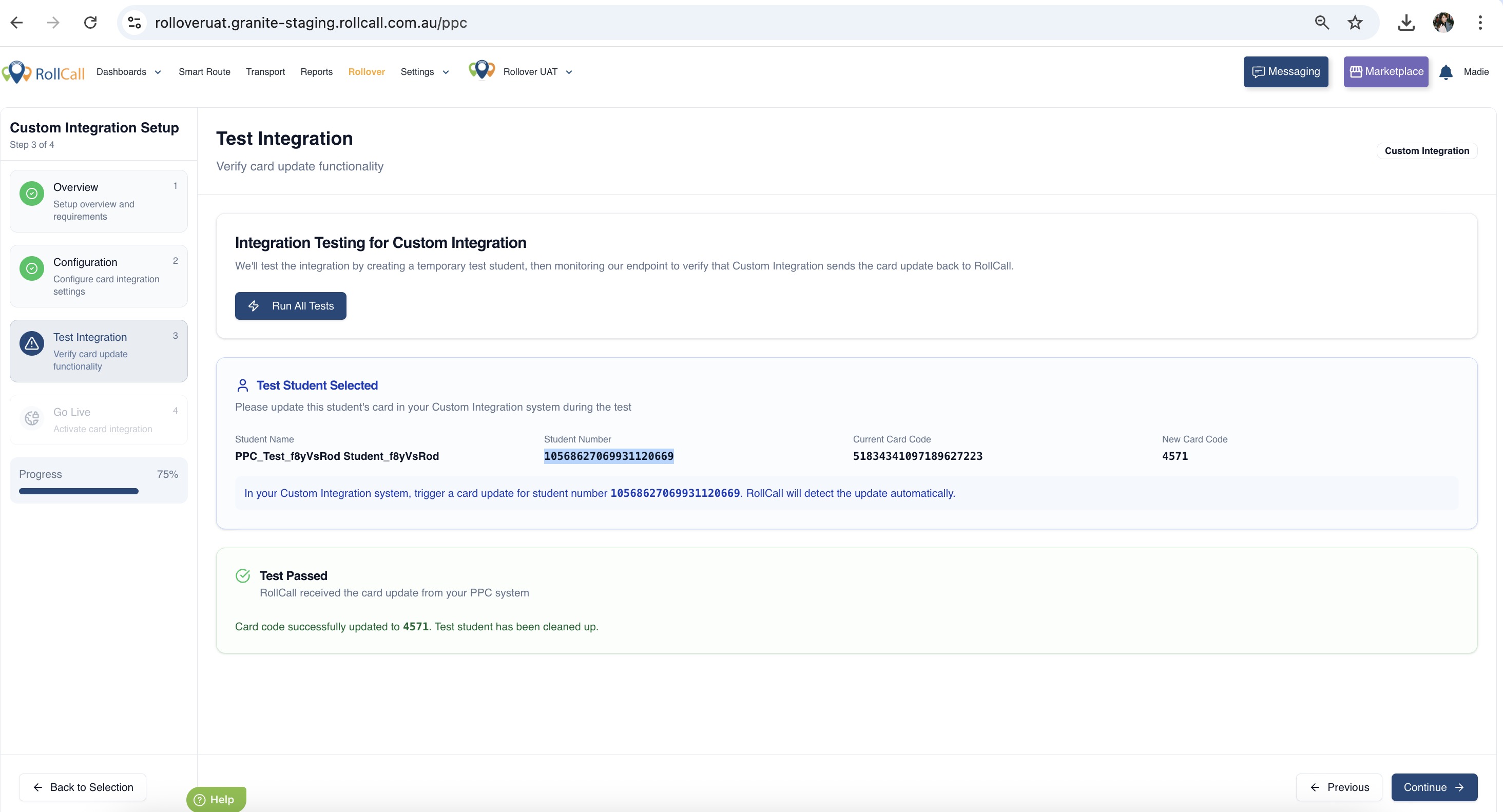
Run a test to confirm the connection is working correctly
The system will generate a random Student Number / ID, Student Name, and RollCall Student Code (HEX/DEC)
Use these details to test the integration with your configured card setup
Confirm the scan is successfully recognised in RollCall before proceeding
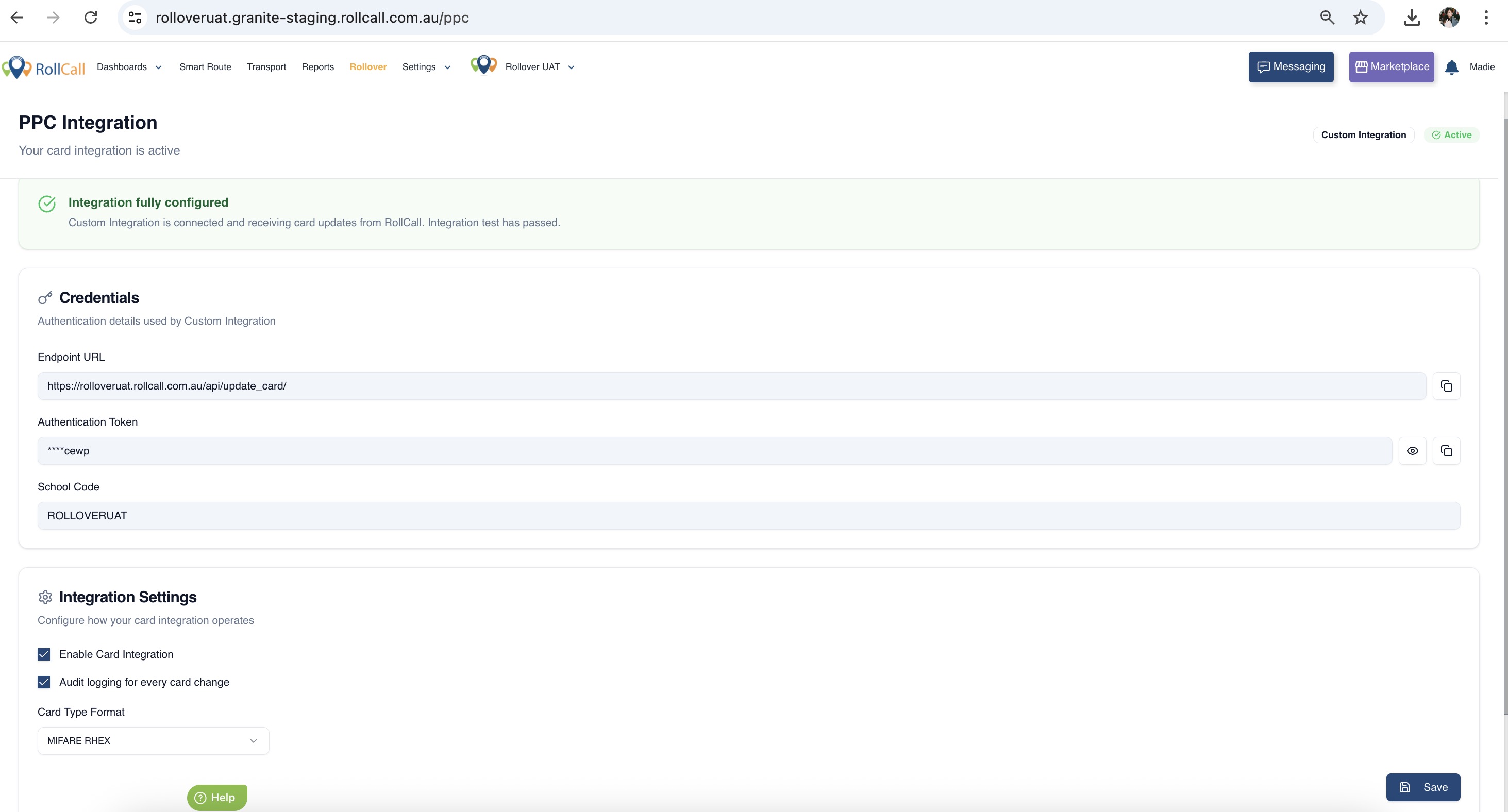
Step 5: Go Live
Activate the integration once testing is successful
Confirm the provider is ready for live use within RollCall
Restarting the Configuration
The wizard includes a Restart Configuration option.
What This Does
Clears all current setup progress
Resets the integration configuration
Redirects the user back to the provider selection screen
When to Use
If incorrect details were entered
If you need to switch providers
If you want to restart the setup process from the beginning
Important Notes
All providers follow the same structured 4-step setup process
Testing is required before going live
Configuration requirements vary depending on the selected provider
Restarting configuration will remove all unsaved progress
Summary
The Card Integration Wizard provides a simple and structured way to connect student card systems to RollCall. With guided steps, built-in testing, and flexible provider options, schools can confidently configure and activate card scanning with minimal effort.
Then to link to:
Was this article helpful?
That’s Great!
Thank you for your feedback
Sorry! We couldn't be helpful
Thank you for your feedback
Feedback sent
We appreciate your effort and will try to fix the article