Objective
This SOP explains how to manually enter a child’s card code into the student code field so the child can tap their tag or card on the driver device and appear on the manifest. It is intended to help staff complete the process accurately and avoid confusion between the student code and student number.
Key Steps
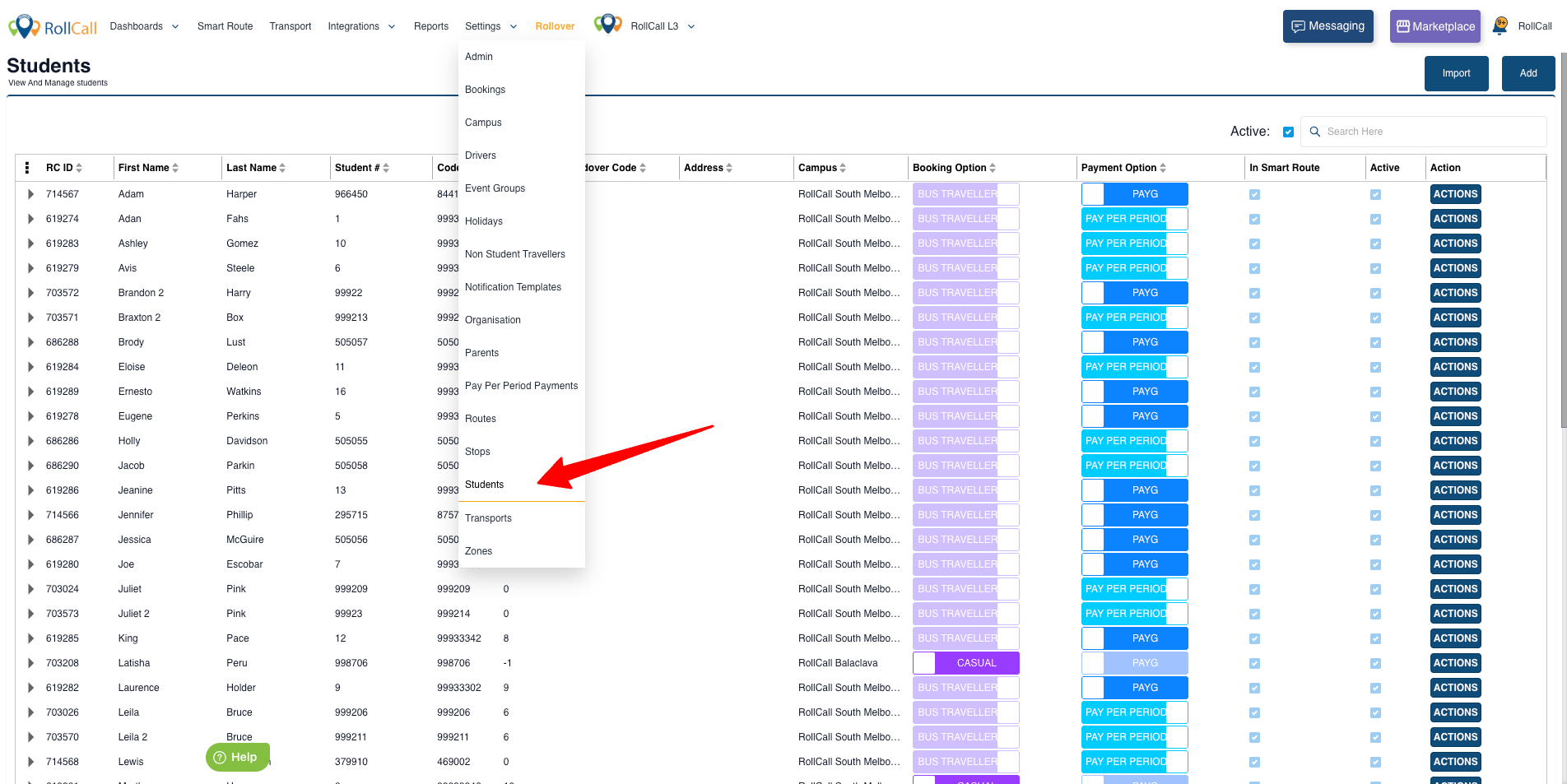
1. Navigate to Student Settings
Open the admin console.
Go to Settings.
Select Students.
This is the starting point for editing a child’s card code.
2. Select the Correct Child Record
In Student Settings, locate and select the correct child.
Confirm you are editing the correct student profile before making changes.
Open the field labeled Student Code for editing.
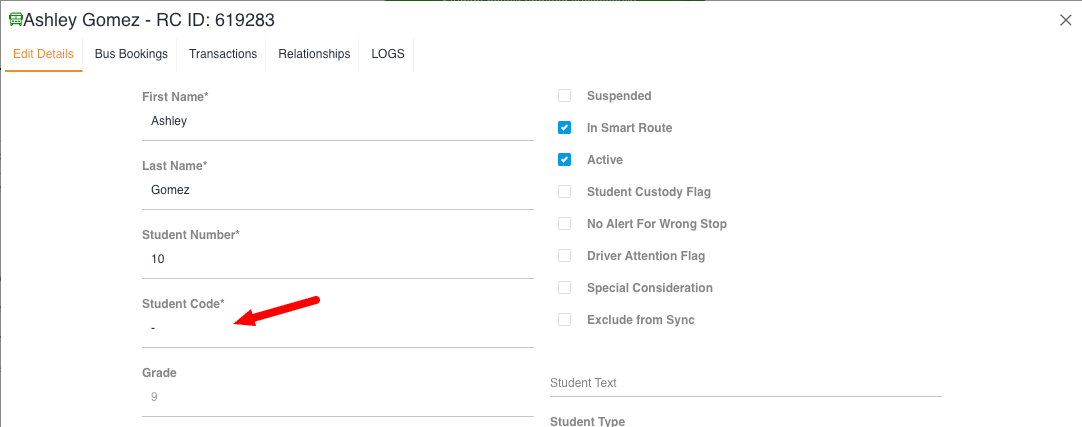
3. Confirm You Are Editing the Student Code Field
Make sure you are editing the Student Code field, not the Student Number.
The Student Number is a unique identifier and should not be changed for this task.
The Student Code is the card code that will be used for tapping.
4. Enter the Card Code from the Tag or Card
Enter the card code into the Student Code field.
Example format shown in the transcript: 999-3340.
If the child has a roll-call supply tag, find the number on the back of the tag.
If the card was supplied by a photographer, contact IT to have the code entered for you.
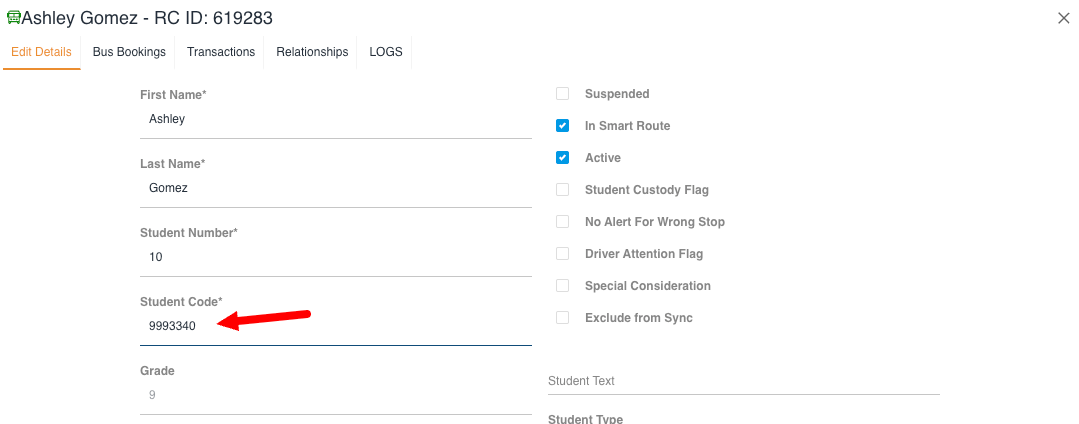
5. Save the Updated Student Code
After entering the correct card code, click Save.
Confirm the update has been stored in the admin console.
Verify the child’s record now reflects the new card code.
6. Test the Card on the Driver Device
Once the card code is saved, the child can use their tag or card.
Have the child tap the tag/card on the back of the driver device.
Confirm the child appears automatically on the manifest.
Cautionary Notes
Do not confuse Student Code with Student Number. The student number is a unique identifier and should not be edited for this process.
Ensure the correct child profile is selected before saving changes.
If the card/tag was provided by a photographer, do not guess the code—contact IT for assistance.
Double-check the card code before saving to avoid tap-in issues later.
Tips for Efficiency
Keep the physical tag/card nearby while entering the code so you can copy it accurately.
Use a consistent verification step: confirm the child’s name, then confirm the code, then save.
If your team frequently receives photographer-supplied cards, create a quick internal process for routing those requests to IT.
After saving, perform a quick tap test on the driver device to confirm the setup worked.
Link to Loom
Was this article helpful?
That’s Great!
Thank you for your feedback
Sorry! We couldn't be helpful
Thank you for your feedback
Feedback sent
We appreciate your effort and will try to fix the article