Overview
Once the FACTS integration has been configured, the next step is to generate a Preview.
The Preview allows schools to review all changes that will occur during the sync before any data is updated in RollCall.
This is recommended before running a manual sync, particularly when configuring the integration for the first time or after changing sync settings.
Accessing the Preview Screen
Navigate to:
Integrations → Student Sync → FACTS
Select:
Preview

Generating a Preview
No Existing Preview
If no preview currently exists:
Click:
Generate Preview
RollCall will begin generating the preview in the background.

Existing Preview
If a preview already exists:
Click:
Regenerate Preview
This will create a new preview using the latest FACTS data.

Preview Modes
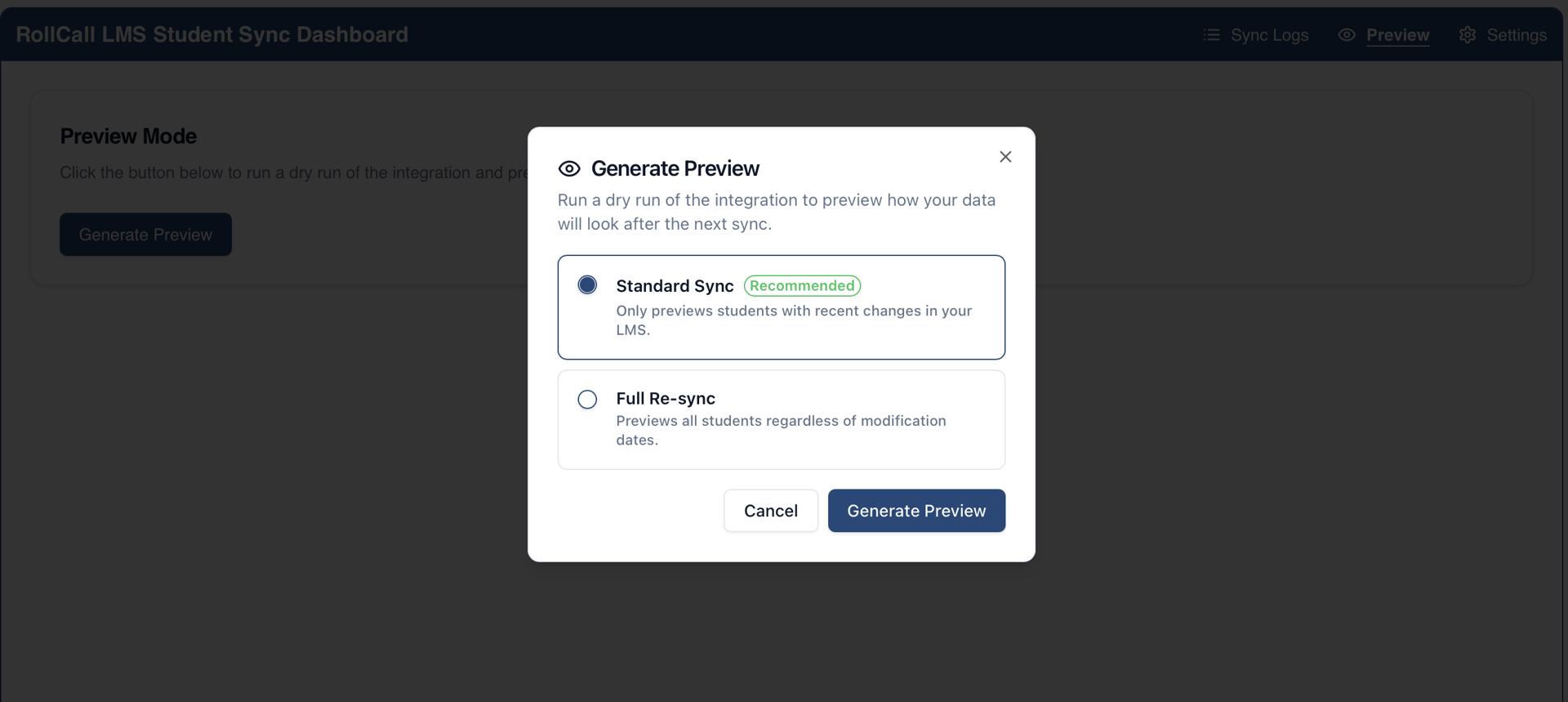
When generating a preview, two sync modes are available.
Standard Sync
Updates the standard student fields only:
Name
Address
Date of Birth
Full Re-sync
Includes all Standard Sync fields plus:
Admission Year
Admission Grade
When Should Full Re-sync Be Used?
Typically only when troubleshooting student grade-level issues.
Important
If a student's grade level is showing as 0, a Full Re-sync will not resolve the issue.
This usually indicates that:
The grade level in FACTS is not stored as a valid numerical value
The data in FACTS must be corrected before RollCall can import it correctly
Preview Task Status
After selecting a preview mode:
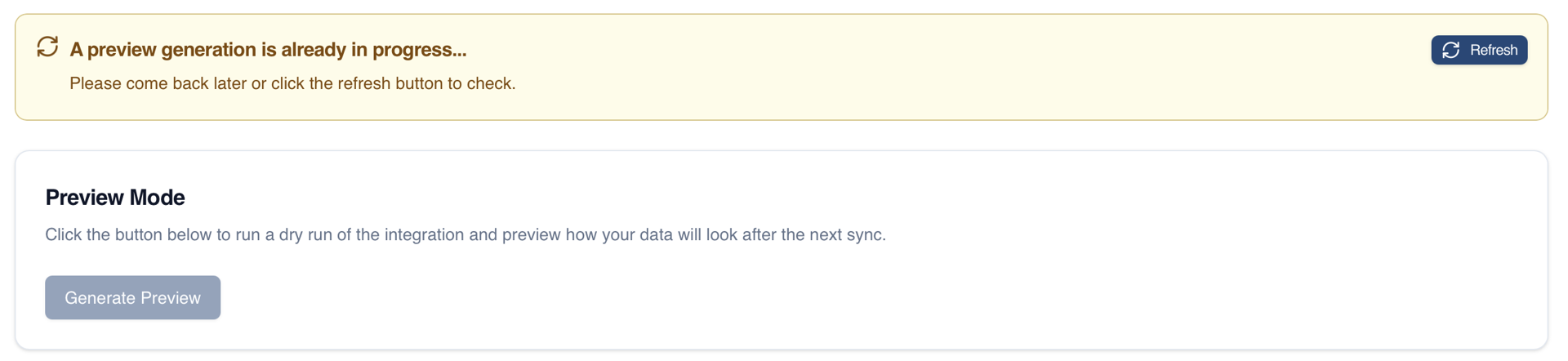
The preview runs in the background
To update the task status:
Click:
Refresh
Important
The page does not automatically refresh.
Preview results will not appear until:
The task is complete
The page has been refreshed
Preview Results
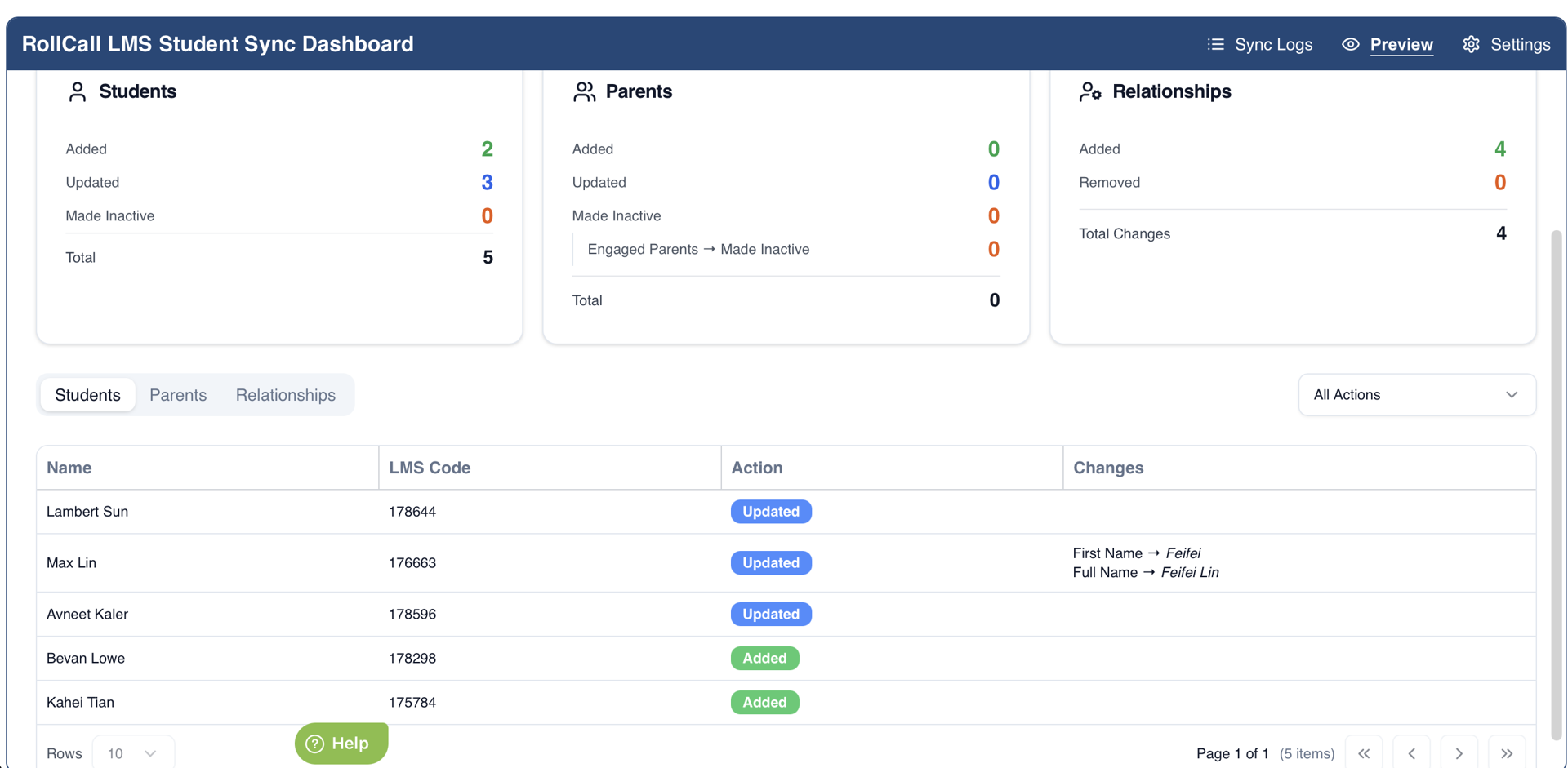
Once the preview has completed, the results screen displays a summary of all pending changes.
Overview Panel
The Overview section displays changes for:
Students
Added
Updated
Made Inactive
Parents
Added
Updated
Made Inactive
Relationships
Created
Deleted
Relationships are counted per student-parent pair.
Engaged Parent Warning
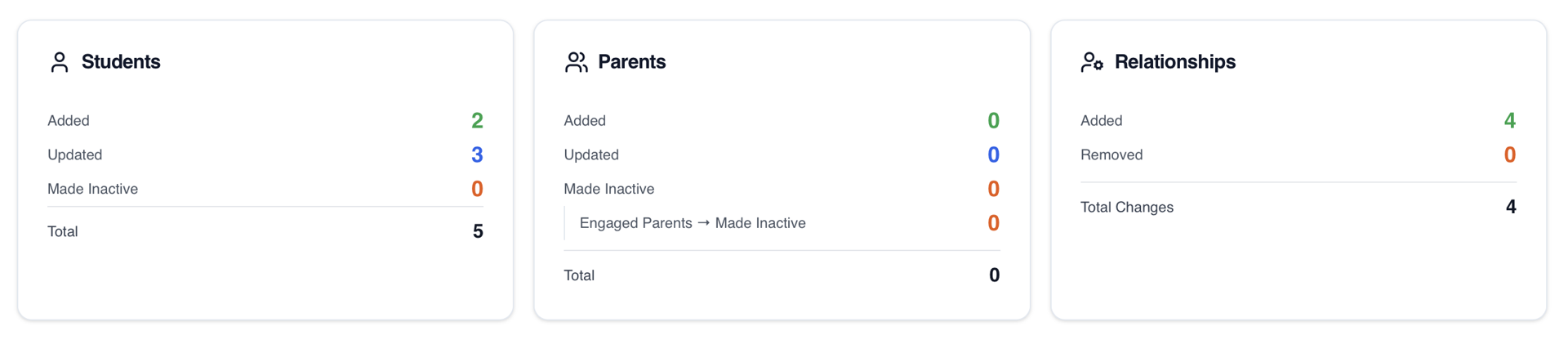
If engaged parents will be made inactive:
An additional warning is displayed
A confirmation checkbox must be ticked before a manual sync can proceed
This helps prevent accidental deactivation of active parents.
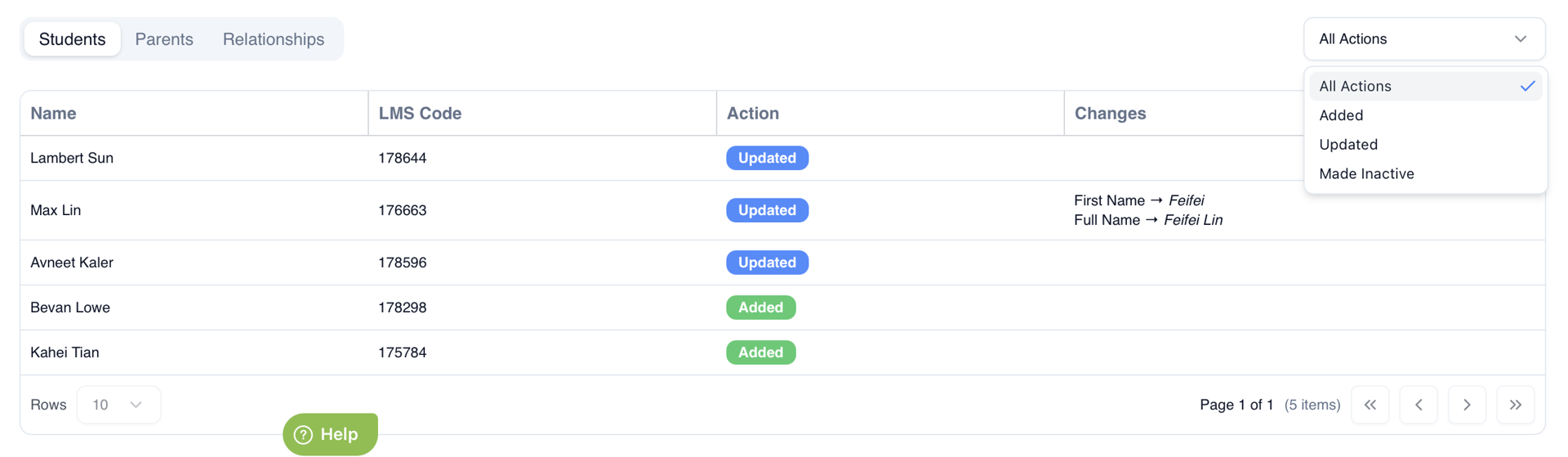
Viewing Result Details
Below the Overview panel is a detailed results table.
Categories
Results can be filtered by category:
Students
Parents
Relationships

Action Filters
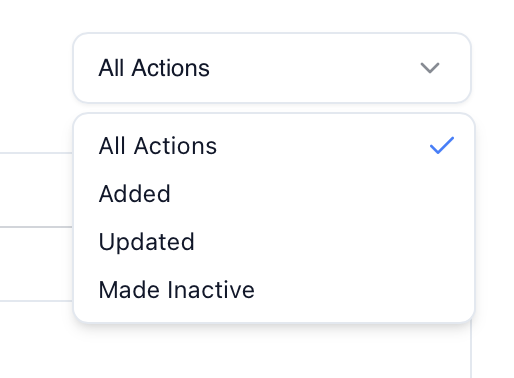
Results can also be filtered by action:
| Action | Description |
|---|---|
| Added | New records that will be created |
| Updated | Existing records that will be updated |
| Made Inactive | Records that will be deactivated |
Additional Notes
Parents marked as Made Inactive become Past Parents
Relationships marked as Made Inactive will be removed
Results Table
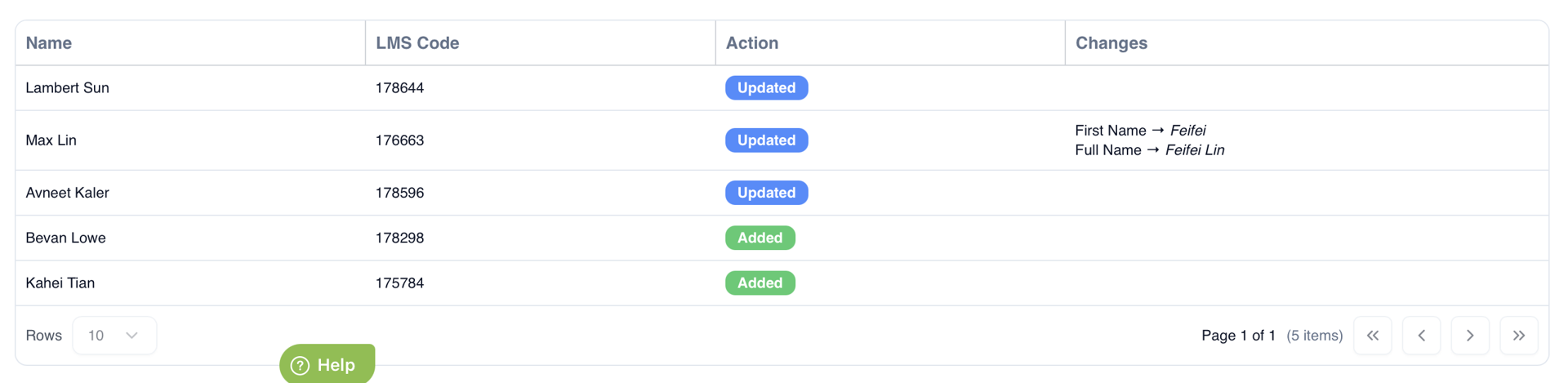
The results table displays details about each change.
Student Results
| Field | Description |
|---|---|
| Name | Student name |
| LMS Code | FACTS Student ID |
| Action | Added, Updated or Made Inactive |
| Changes | Field updates that will occur |
Parent Results
| Field | Description |
|---|---|
| Name | Parent name |
| LMS Code | FACTS Member ID |
| Action | Added, Updated or Made Inactive |
| Changes | Field updates that will occur |
Important
Parent matching is based on:
Email Address
Not:
FACTS Member ID
Relationship Results
| Field | Description |
|---|---|
| Student | Student name |
| Parent | Parent name |
| Parent Email | Parent email |
| Changes | Relationship changes |
Preview Red Flags
The following items should always be reviewed before proceeding with a sync.
Engaged Parents Being Deactivated
A small number may be expected if:
Parents have been removed from students within FACTS
A large number may indicate:
Incorrect filtering settings
Data issues in FACTS
Further investigation is recommended before syncing.
Large Numbers of Student Creates and Deletes
This often indicates that student identifiers have changed in FACTS.
Example
Original Student ID:
stud-1
New FACTS Student ID:
stud-A
RollCall cannot determine these are the same student.
Result:
Old student becomes inactive
New student is created
Address Coordinates Being Swapped
Example:
Old: (100, 200)
New: (200, 100)
This may indicate:
Geocoding issues
Incorrect location processing
These changes should be reviewed before syncing.
Error Fetching Data from FACTS
5XX Errors
Examples:
500
503
Usually indicate:
FACTS service issue
FACTS API outage
These are not typically caused by RollCall.
4XX Errors
Examples:
401
403
Usually indicate:
Invalid API Key
Incorrect API permissions
Malformed credentials
RollCall IP Address not whitelisted by FACTS
Best Practice Recommendations
✅ Always generate a Preview before running a manual sync
✅ Review large numbers of Adds and Deactivations carefully
✅ Check Engaged Parent deactivations before proceeding
✅ Investigate any 4XX or 5XX errors before syncing
✅ Use Full Re-sync only when troubleshooting grade-related issues
✅ Refresh the page while previews are generating to view the latest status
Summary
The Preview feature allows schools to safely review all pending student, parent, and relationship changes before synchronising FACTS data into RollCall.
Reviewing Preview results before each sync helps prevent unexpected record changes and ensures data is synchronised accurately.
Was this article helpful?
That’s Great!
Thank you for your feedback
Sorry! We couldn't be helpful
Thank you for your feedback
Feedback sent
We appreciate your effort and will try to fix the article