Overview
The Parent Import Wizard allows schools to efficiently manage parent records in bulk using a CSV file.
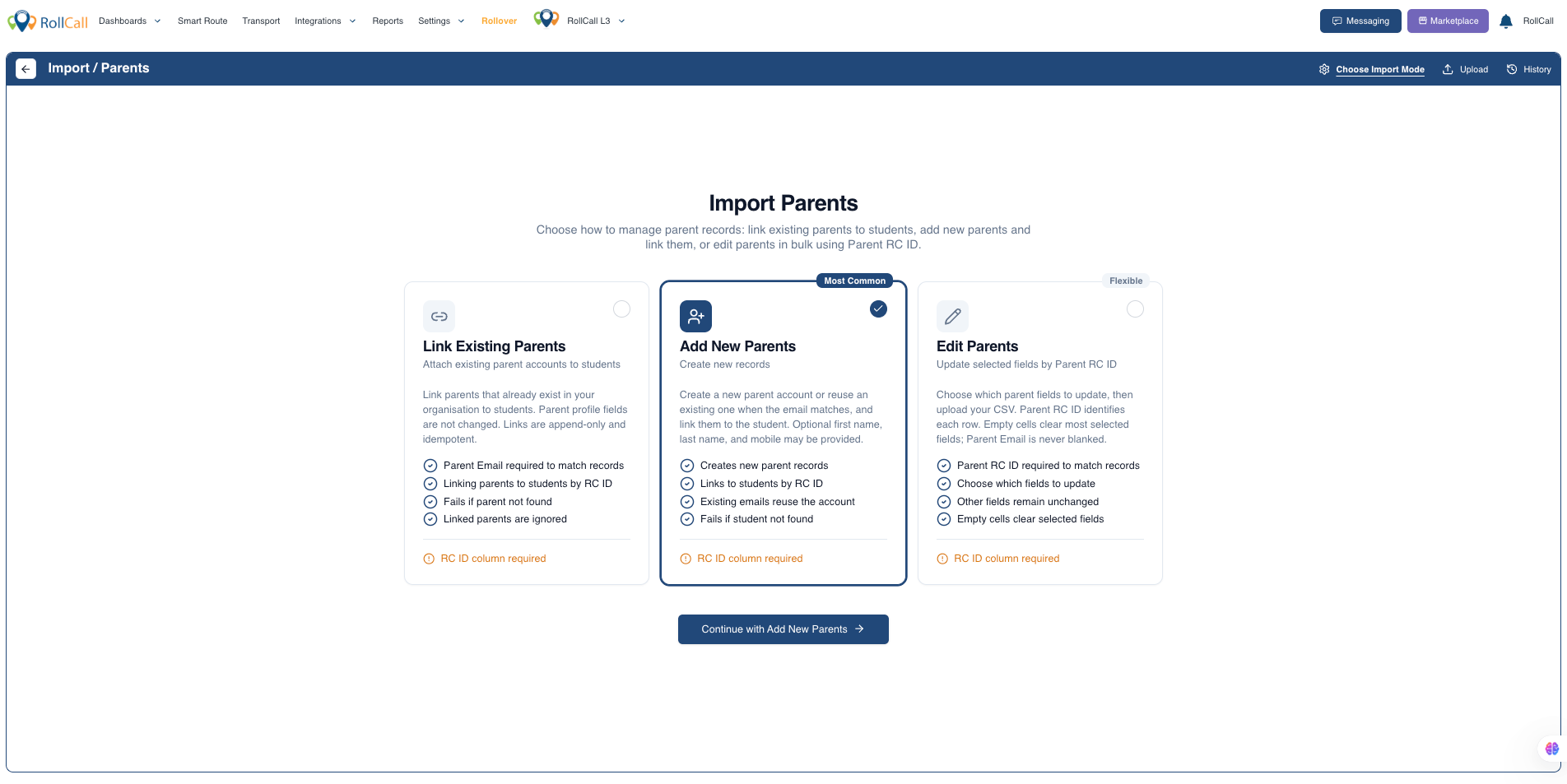
There are three import modes available:
Link Existing Parents – Link an existing parent to one or more students.
Add New Parents – Create new parent records and automatically link them to students.
Edit Parents – Update existing parent information in bulk.
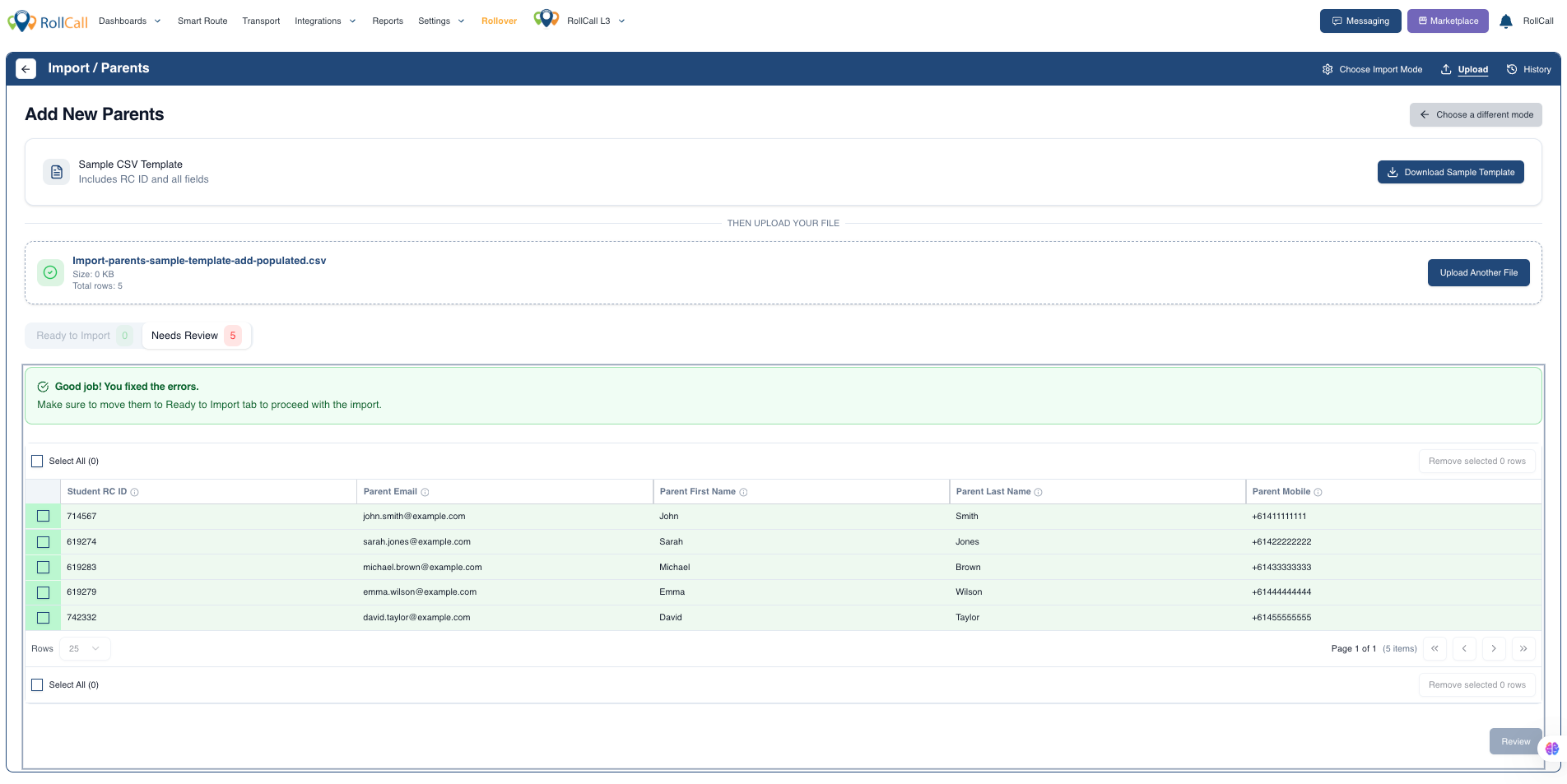
The wizard includes a preview step, allowing you to review all changes before they are applied.
Accessing the Parent Import Wizard
Navigate to:
Settings → Parents → Import
The Parent Import Wizard will open.

Step 1 – Select an Import Mode
Choose the appropriate import mode:
Link Existing Parents
Use this option to link an existing parent record to one or more students.
Add New Parents
Use this option to create new parent records and automatically link them to students.
Edit Parents
Use this option to update existing parent details, including contact information, status, and access settings.
Step 2 – Download the Sample Template
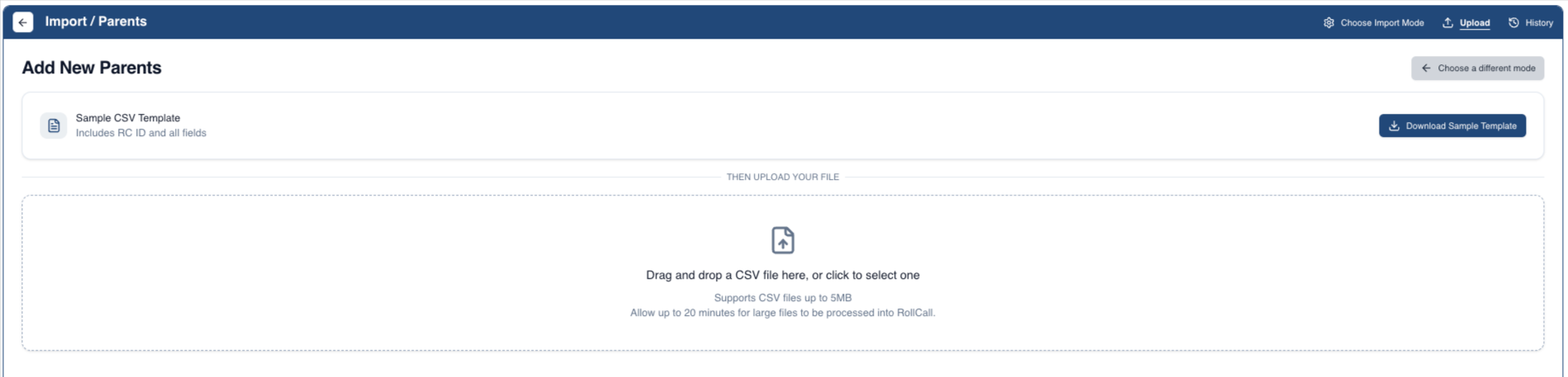
Click Download Sample Template.
A CSV template specific to the selected import mode will be downloaded.
Complete the template using your school's parent information.
Step 3 – Upload the CSV
Upload the completed CSV file by:
Dragging and dropping the file
Or selecting the file from your computer
RollCall will validate the file before continuing.
Step 4 – Map the Fields
Review the field mappings to ensure each CSV column matches the correct RollCall field.
Once confirmed, continue to the Preview screen.
Step 6 – Confirm the Import
Once satisfied with the preview:
Click Confirm Import
RollCall will process the CSV and apply the changes.
Import Mode Behaviour
Link Existing Parents
Links an existing parent to the selected student.
Existing relationships are preserved.
Duplicate relationships are not created.
Add New Parents
Creates new parent records.
Automatically links parents to the selected students.
If the email address already exists, the existing parent record is reused rather than creating a duplicate.
Edit Parents
Allows bulk updates to:
Parent name
Email address
Mobile number
Parent Status
Access Status
Supported Parent Status values include:
Engaged
Unengaged
Past Parent
Supported Access Status values include:
Enabled
Disabled
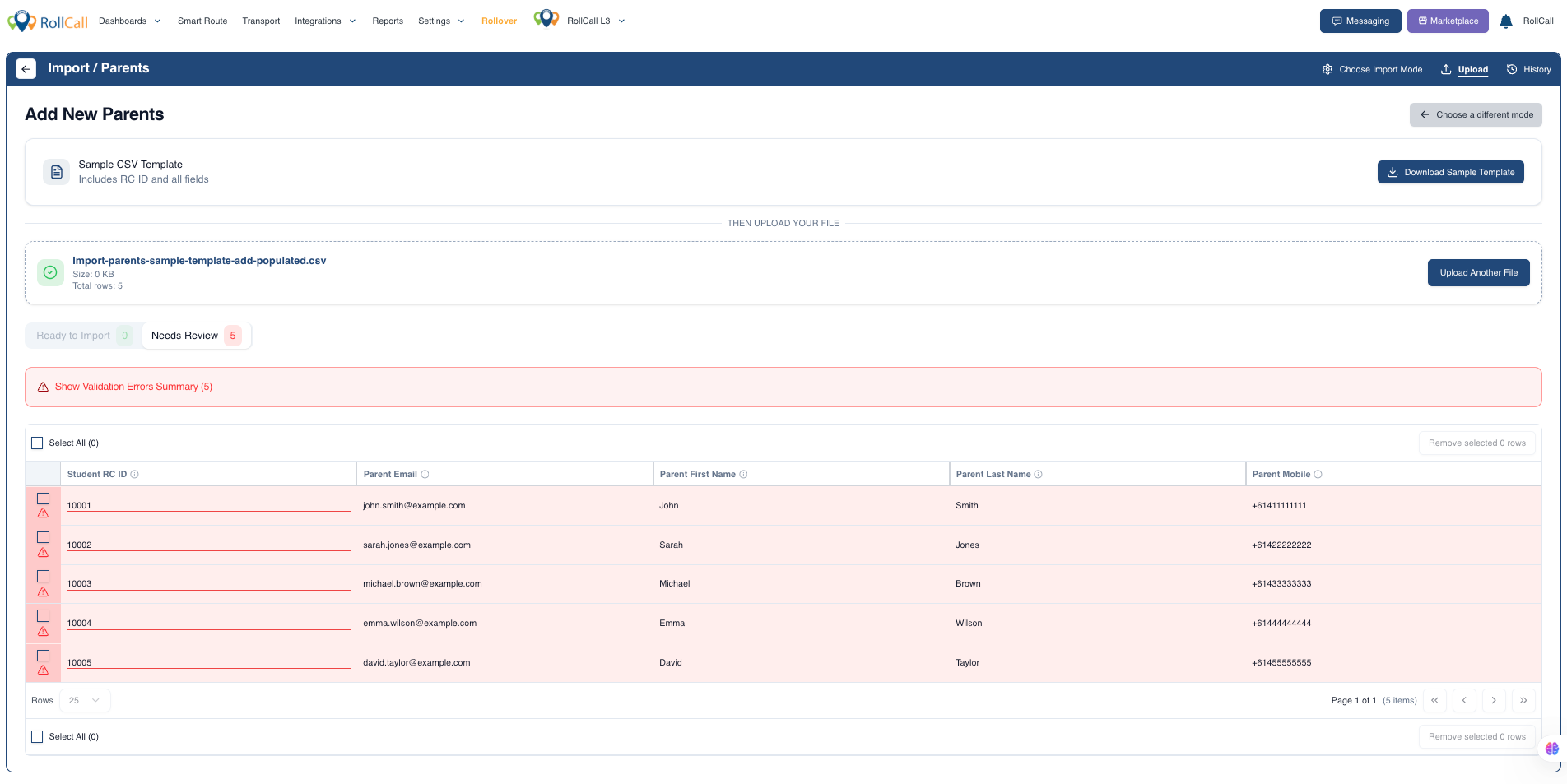
Validation
The import wizard validates data before processing.
Validation includes:
Missing required fields
Invalid Student RCIDs
Invalid Parent RCIDs
Unknown parent email addresses
Duplicate parent-student relationships
Invalid CSV format or headers
Any validation errors are displayed on a row-by-row basis for correction.
Important Notes
Existing parent-student relationships are preserved during imports.
Re-importing the same file will not create duplicate parent accounts or duplicate relationships.
Existing parent records are matched using their email address.
The Preview step allows changes to be reviewed before they are committed.
Cancelling the import from the Preview screen will result in no changes being applied.
Best Practice Recommendations
✅ Always download the latest sample template before preparing your CSV.
✅ Review the Preview carefully before confirming the import.
✅ Correct any validation errors before proceeding.
✅ Use the Link Existing Parents mode when adding relationships to existing parent records.
✅ Use the Edit Parents mode for updating existing parent information rather than creating new records.
Was this article helpful?
That’s Great!
Thank you for your feedback
Sorry! We couldn't be helpful
Thank you for your feedback
Feedback sent
We appreciate your effort and will try to fix the article