Removing a stop from a route is now much easier.
If students are still booked at that stop, RollCall will show you who is affected and let you fix their bookings in the same place. This means you can update student bookings and remove the stop without leaving Route Builder.
Step 1: Open Route Builder
First, open the route you want to update.
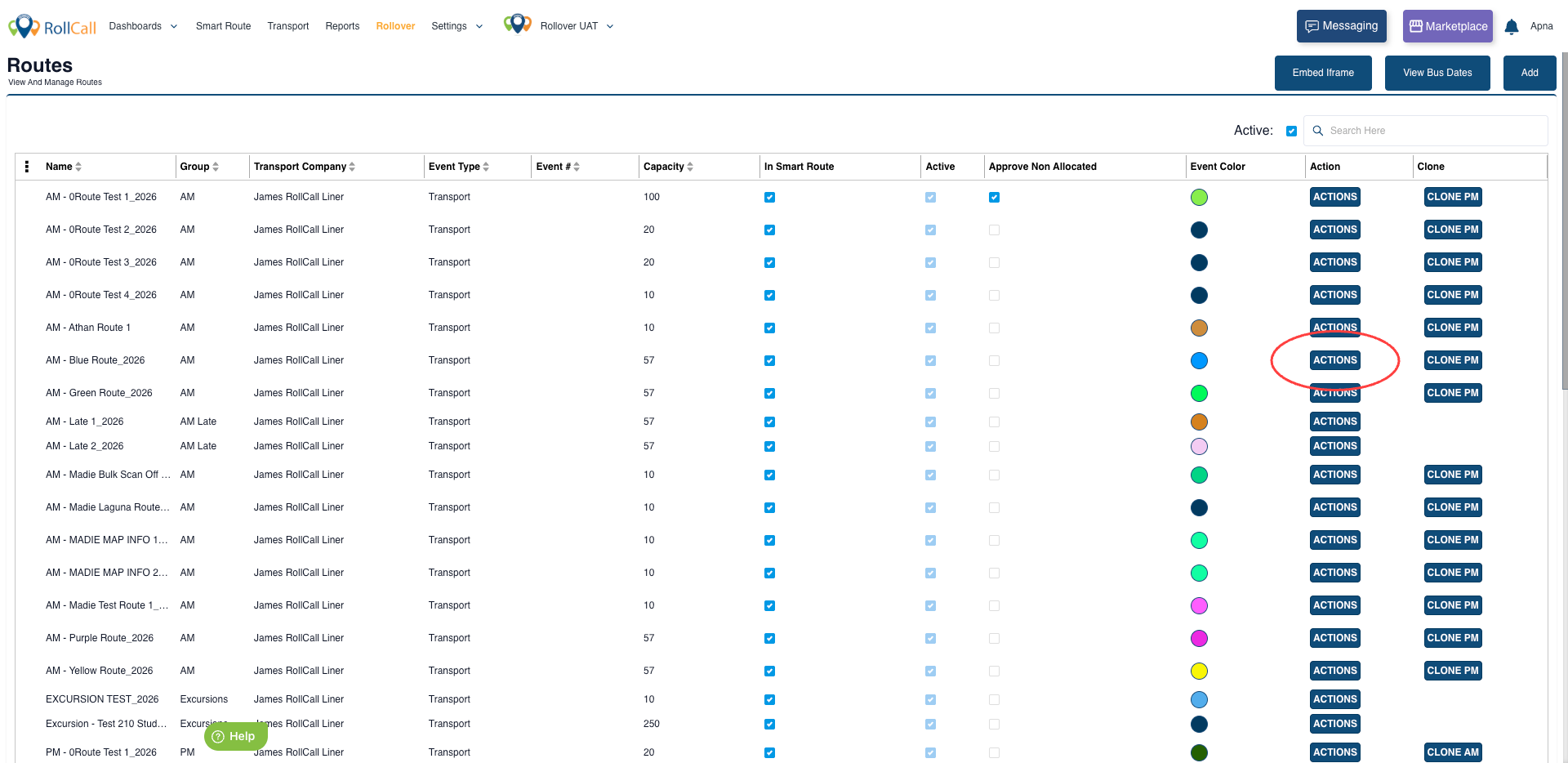
- Go to: Settings → Routes
- Find the route you want to edit.
- Click Actions and select Route Builder.
Step 2: Start removing the stop
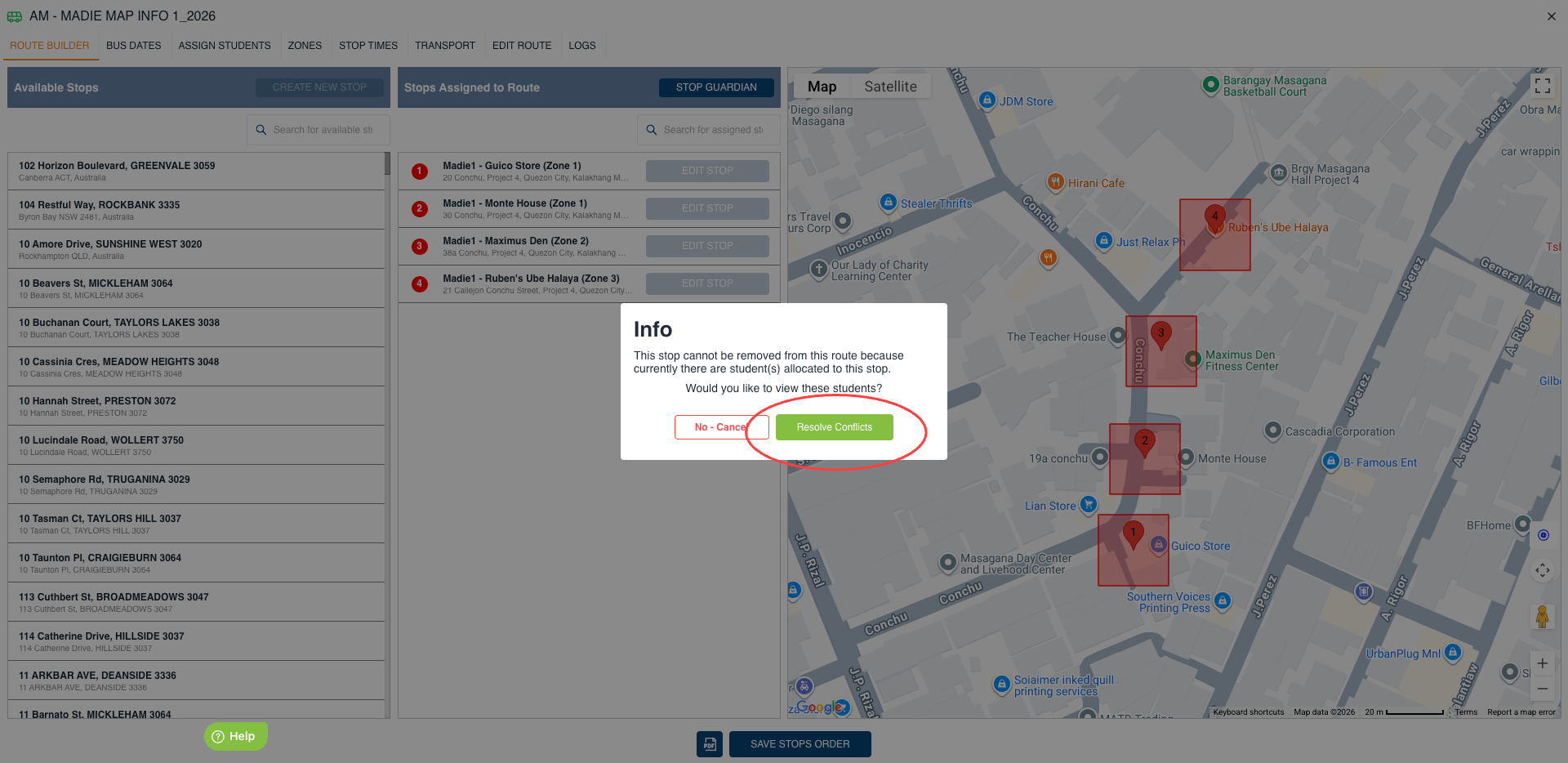
In Route Builder, find the stop you want to remove.
Drag the stop from the route stop list back to the available stop pool.
If no students are booked at that stop, it will be removed immediately.
If students still have bookings, RollCall will open a popup message with "Resolve Conflicts".
Step 3: See which students are affected
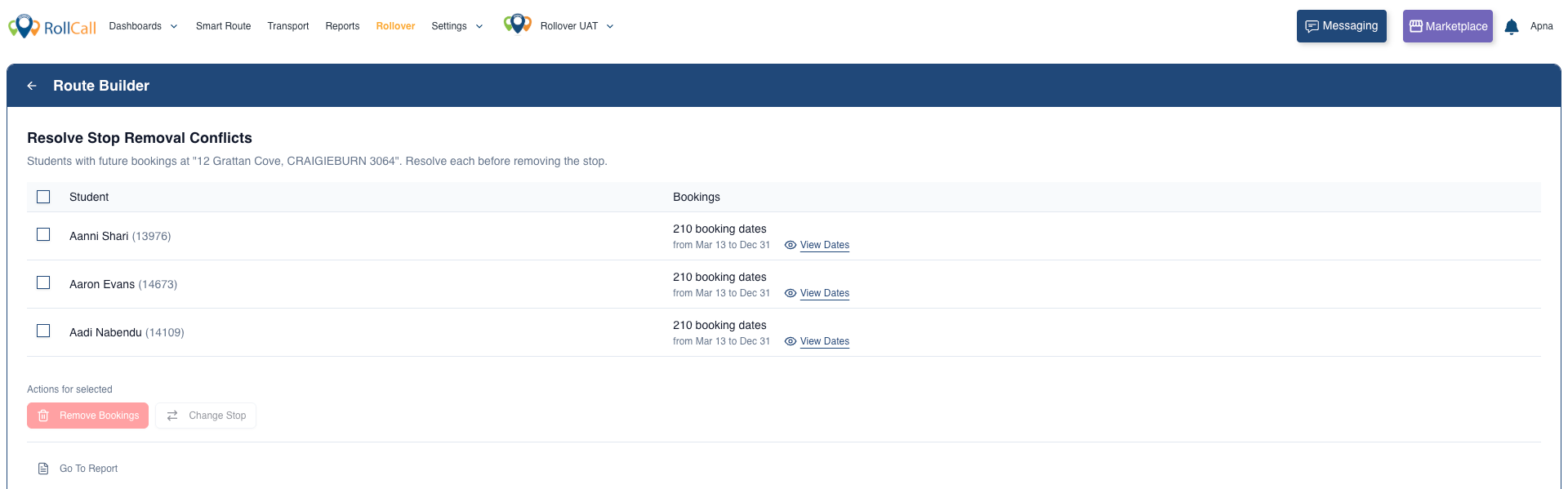
If students have future bookings at the stop, RollCall will display a Stop Resolution screen.
This screen shows all students who currently have bookings for that stop so you can update their transport before removing it.
Each student row includes:
Student name
Booking information
A checkbox to select the student
You can select one or multiple students to update bookings together.
Step 4: Remove bookings if the student no longer uses this stop
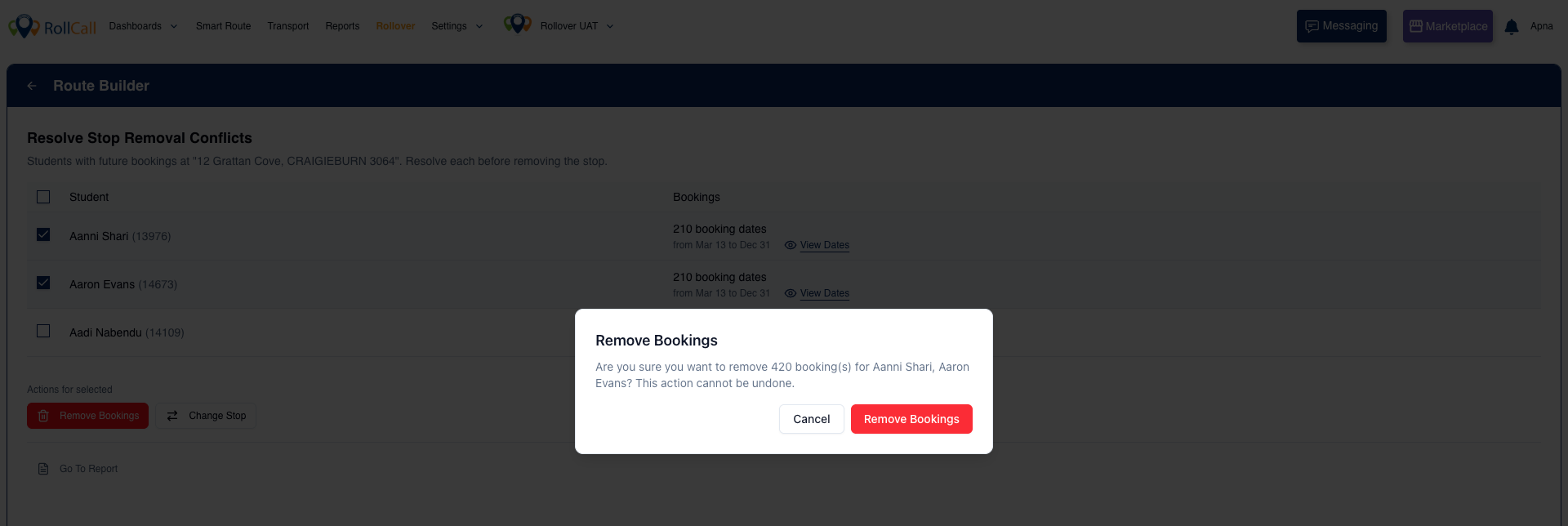
If a student no longer needs this stop, you can remove their bookings.
Select one or more students.
Click Remove Bookings.
Confirm the action.
All future bookings for those students at this stop will be removed.
Step 5: Move the student to a different stop
If the student still needs bus transport, you can move them to another stop.
Select one or more students.
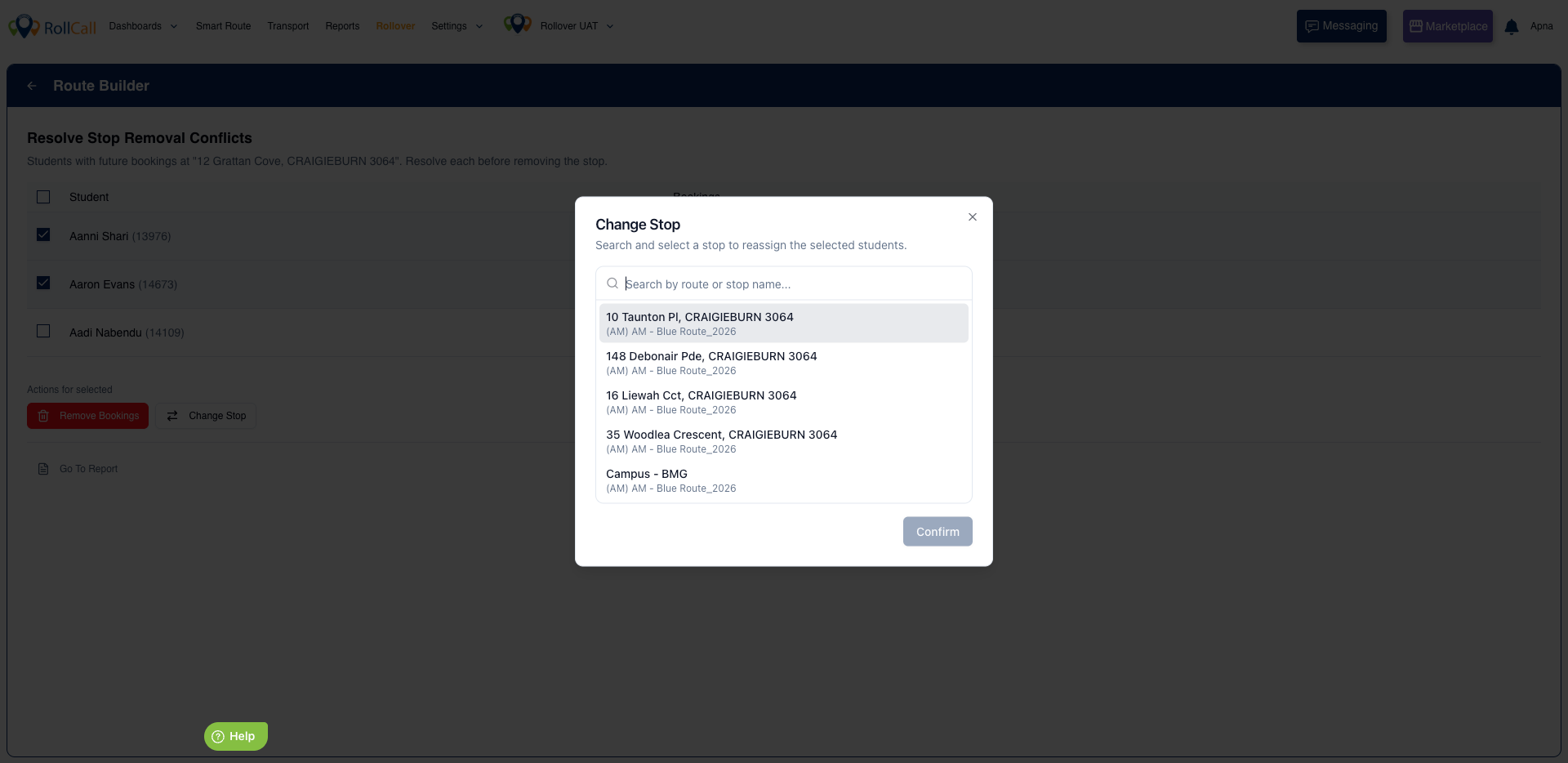
Click Change Stop.
Search for the new stop.
Select the correct route and stop.
Confirm
The selected students will now be booked at the new stop.
Step 6: Remove the stop
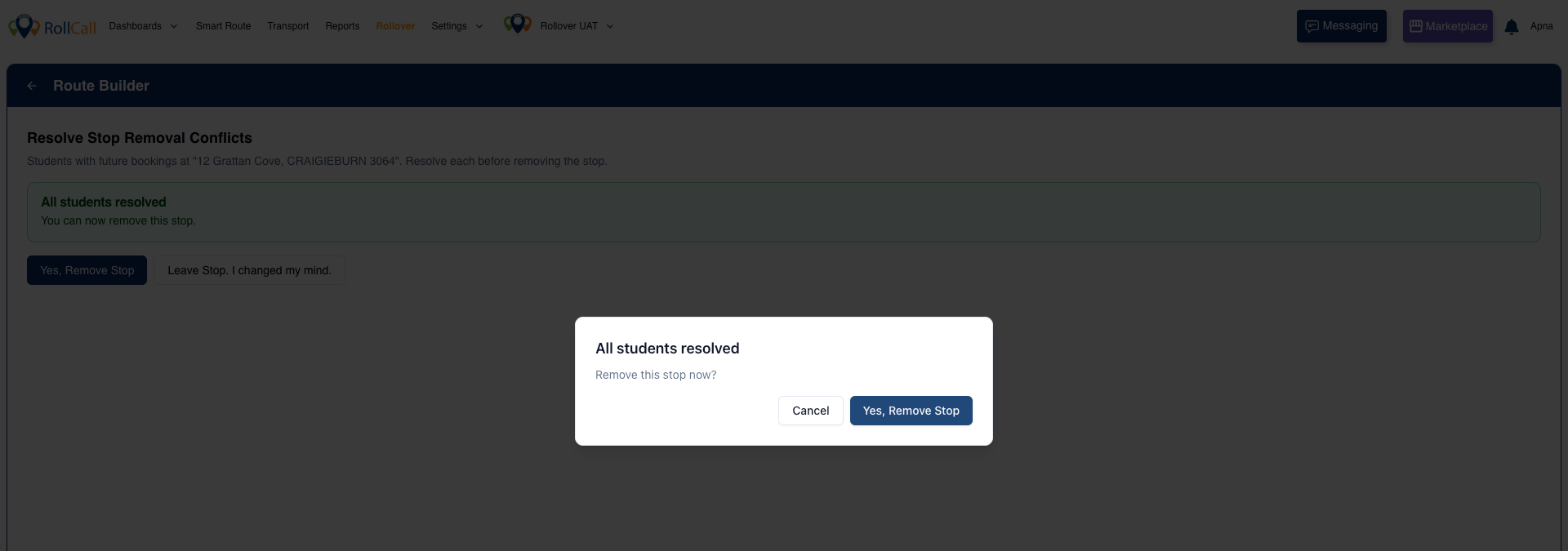
Once all affected students have been updated, RollCall will ask if you want to remove the stop.
Select Yes, Remove Stop to complete the change.
*There will be an option "Leave Stop. I change my mind"
The stop will now be removed from the route.
Important
A stop cannot be removed while students still have bookings assigned to it.
If you close the screen before resolving all students, the stop will stay on the route.
Any booking changes you made before closing the screen will still be saved.
Optional: View the Student Stop Report
If you prefer to review bookings in a report first, you can select Go To Report.
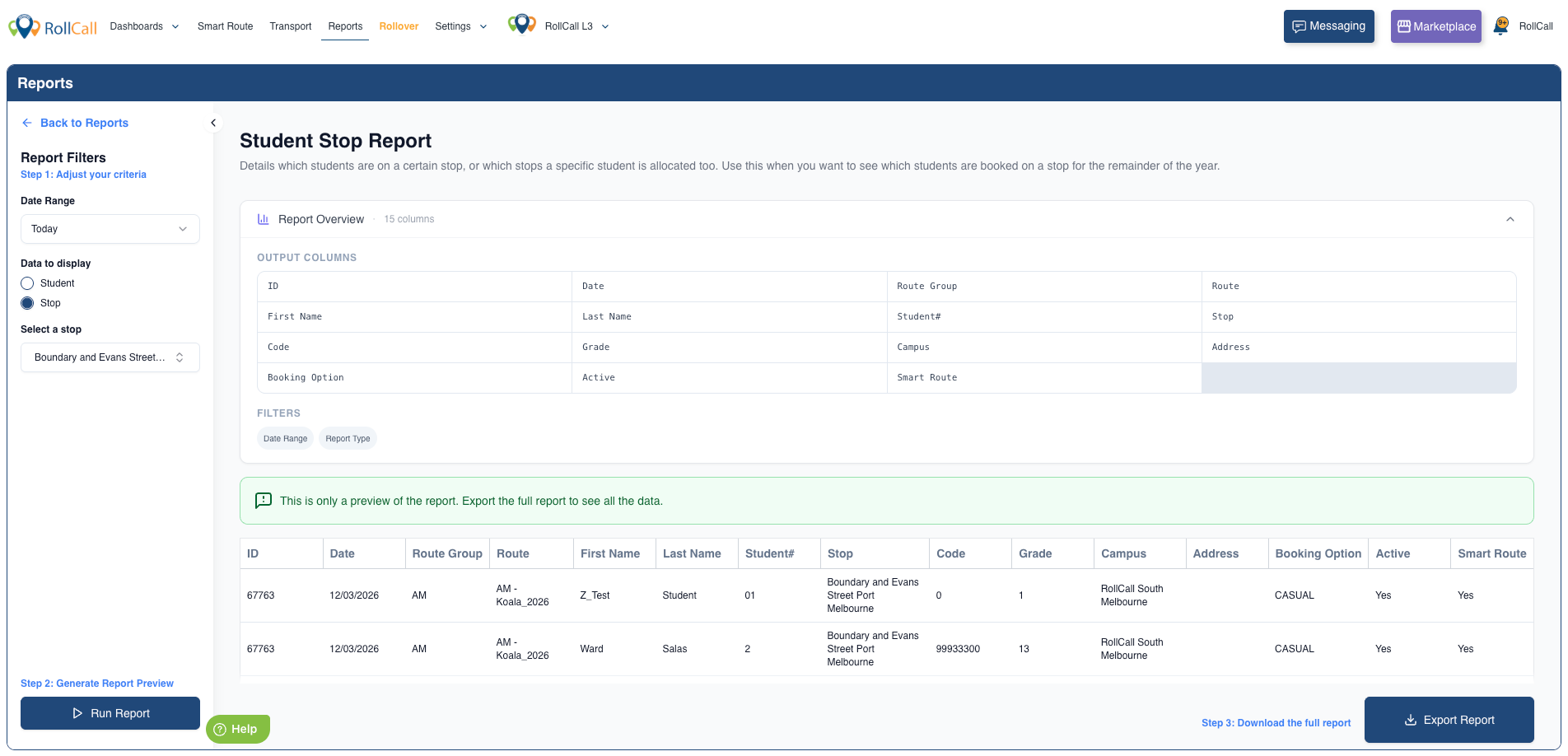
This will open the Reports page where you can run the Student Stop Report.
Set the Date Range from Today to 31 December.
In the filters, select the stop you want to remove.
Click Run Report.
Click Export to Excel.
To then get a list of all affected students
- Open the Excel file you downloaded.
- Turn on filters (if they are not already on).
- In the Student # column, apply a filter so you can see the list clearly.
This will show you all students who are booked onto that stop for the year.
Result
After completing this process:
Students will either be moved to a new stop, or
Their future bookings will be removed, and
The stop will be removed from the route.
Was this article helpful?
That’s Great!
Thank you for your feedback
Sorry! We couldn't be helpful
Thank you for your feedback
Feedback sent
We appreciate your effort and will try to fix the article