Open the live map, see where the bus is, and check when your child scans on and off.
Who this is for: Parents and carers with a child booked on a bus route.
Where it lives: The RollCall Parent App, on the Map tab.
Before you start: You are signed in, and your child has a booking on a route that is running today.
Short on time? If you only read two, make it sections 4 and 5, your child's scan status and what the tracking dot colours mean. They answer the everyday questions.
1. What this guide covers
No more wondering whether your child made it onto the bus. When they tap on, the app shows it, and you can follow the bus on a live map all the way to school.
This guide shows you how to open the map, read what is on the screen without guesswork, and follow the bus during the morning or afternoon run.
2. Open the live map
- Open the Map tab. The map is the first thing you see when you open the app. If you are on another tab, tap Map in the bar along the bottom.
- Wait for the map to connect. You may briefly see a Connecting live map message with a small spinner. Give it a moment while the app fetches live positions.
The map settles, with a tray along the bottom showing your child's routes.
Tip: If the Connecting live map message stays for more than ten or fifteen seconds, you are likely on a weak signal. Move somewhere with better reception, or close the app fully and reopen it.
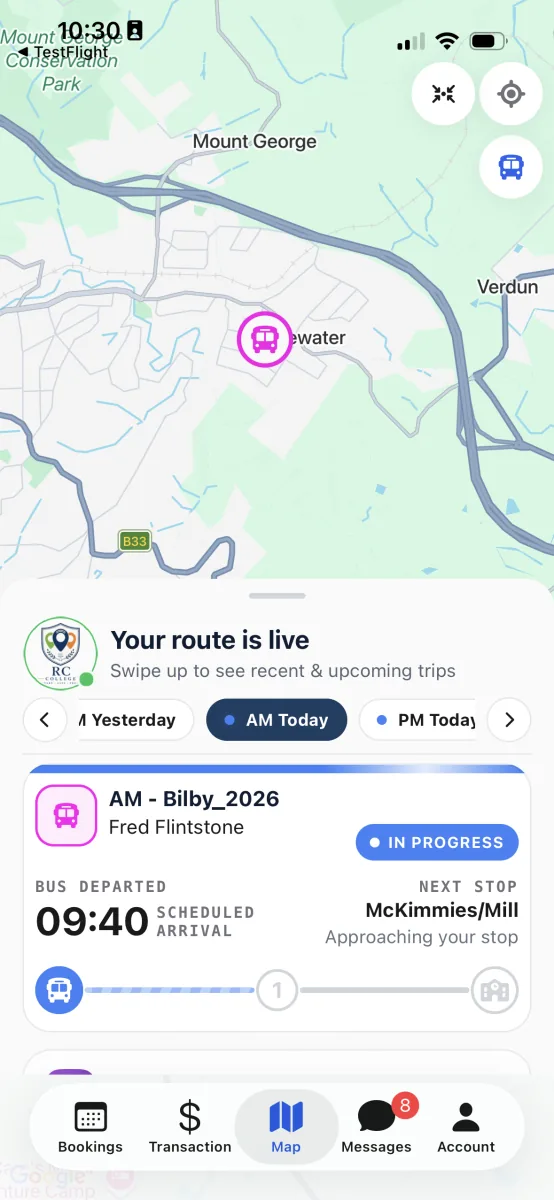
The Map tab during a run: the bus moves on the map while the card below tracks its progress.
3. Choose the trip you want to watch
- Pick the run. In the tray at the bottom, tap the pill for the day and run you want, such as this morning or this afternoon.
- Pick the route if you are asked. If your child is booked on more than one route, a second row of pills appears. Tap the route you want, and the map narrows down to that bus and its stops.
- Read the activity card. A card below the pills tells you whether the trip is not started, in progress, running late, or completed, and where the bus is up to along the route.
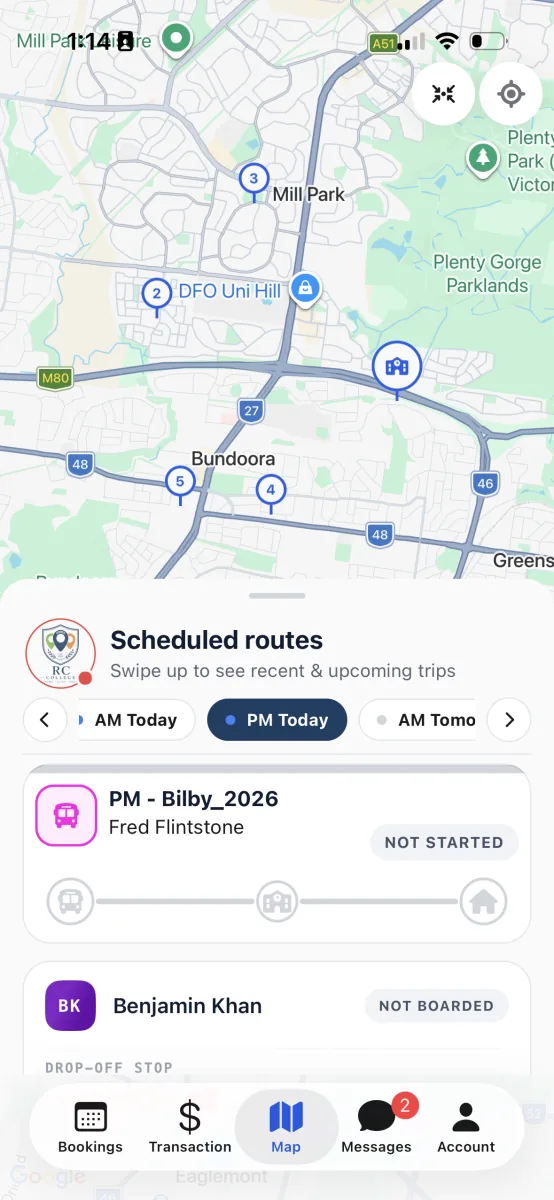
Before the run begins, the trip card sits at Not started and comes to life once the bus departs.
4. Check your child's scan status
In the list at the bottom, each child shows a photo or initials, their name, a status, and their stop. There is nothing to tap or expand, it is all there on the row.
- Find your child's row. Look for your child in the students list below the activity card.
- Read the status. A grey pill means they have not boarded yet, a blue pill means they are on board, and a green pill means they are off the bus or arrived, with the time.
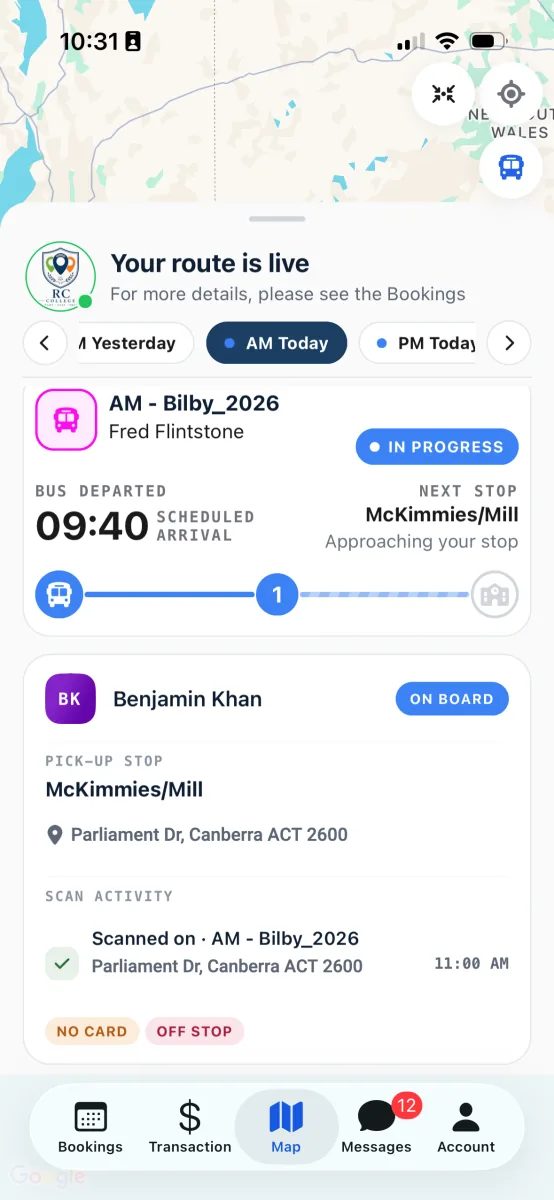
On board: scanned on, with the tap recorded in the scan activity.
Worth knowing: A quick colour guide: grey is not boarded, blue is on the bus, and green is safely off. You also get a push notification for these if you have turned alerts on.
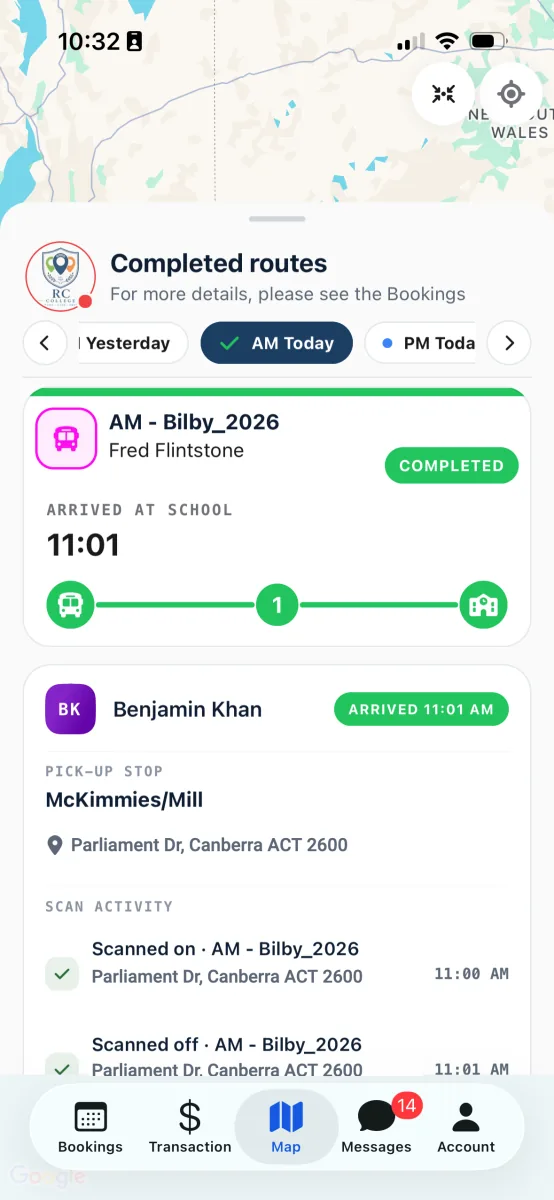
After the run: Completed on the route card, Arrived on your child's row.
5. What the tracking dot colours mean
Next to your school's logo in the tray, a small coloured dot tells you how fresh the tracking is. Once you know what it means, it is the most useful thing on the screen.
Green means the bus is sending its position and what you see is current. This is the normal state during a run.
Amber means the last update is a few minutes old, usually because the bus has driven into a patch of weak mobile coverage. The bus keeps its last known spot and catches up on its own when the signal returns.
Red or grey means there is nothing to track right now. You will see this before the morning run starts, after the afternoon run finishes, and on weekends and holidays.
6. Follow the bus and find your way
- Follow the bus. Tap the bus icon on the right edge of the map, just below the crosshairs. The map zooms in and keeps the bus centred as it moves, so you do not have to chase it. Tap it again to stop following.
- Centre on yourself. When you are ready to walk to the stop, tap the crosshairs at the top right. The map slides to where you are. On an Android phone, tap Allow the first time so the app can use your location.
Now you can see the bus, your child's progress, and where you are, all at once.
Tip: Lost your bearings? Tap Fit route, the round button to the left of the crosshairs, to frame the whole route on screen again.
Questions parents ask
Why can't I see the bus on the map?
Check the coloured dot next to your school's logo: red or grey means nothing is being tracked right now, often because the driver has not started the run yet. Also check you have picked today's run in the tray, and that your child has a booking for the day. If everything looks right, contact your school office.
The bus has not moved for a few minutes.
Many country routes pass through patches of weak coverage. When the dot next to the logo turns amber, the last update is a few minutes old and the app is waiting for the next one. The position catches up on its own once the signal returns.
It still says my child is on board, but they got off.
Scan-off can lag the moment your child actually steps off, especially in poor coverage. Give it two or three minutes. If the status still has not updated, trust what you saw at the stop and let your school office know during business hours so they can correct the record.
Why can I only see my child's stop and the school?
That is a school setting. Some schools show parents every stop on the route, others show just your child's own stop plus the school. Both are normal. If you would like to see the whole route, ask your school.
The map is grey or blank on my Android phone.
Occasionally the map background fails to load on Android and a small chip says map tiles are unavailable. Check your connection, then close the app fully and reopen it. The bus and stop markers still update even when the background is missing.
The panel at the bottom is covering the map.
Drag the handle at the top of the panel down to its smallest size to see more of the map. The panel is designed to stay on screen, so it cannot be swiped away completely.
Can another carer track the bus too?
Yes. A carer who has been given access sees the same live map for the children shared with them. If you expect to see a child and cannot, ask the primary parent to check your access.
This guide describes the RollCall Parent App version 4.0.0. Updated July 2026.
Was this article helpful?
That’s Great!
Thank you for your feedback
Sorry! We couldn't be helpful
Thank you for your feedback
Feedback sent
We appreciate your effort and will try to fix the article