Sign in for the first time, turn on notifications, and find your way around the app.
Who this is for: Parents and carers opening the RollCall Parent App for the first time.
Where it lives: The RollCall Parent App, on the sign-in screen.
Before you start: Your school has set up your account and linked your child, and you can open the email your school has on file for you.
Short on time? Do sections 2 and 4 now, sign in and turn on notifications. The rest can wait until you next open the app.
1. What this guide covers
Setting up the RollCall Parent App takes about five minutes. You sign in once, turn on the alerts you want, and take a quick look around. After that the app stays signed in for months, so you rarely need to do any of this again.
You will need your phone, an internet connection, and the email address your school has on file for you. If you are not sure which email that is, your school office can check.
2. Sign in for the first time
The app uses one email field and works out the rest: which school you belong to, and whether you sign in with a password or through your school's own login. You only see the screens that apply to you.
- Open the app and enter your email. Type the email address your school has on file for you and tap Continue.
- Pick your school if you are asked. If your email is on file at more than one school, tap the school you want. Most parents have just one school and skip this step.
- Sign in. At most schools you type your password and tap Sign In. If your school uses single sign-on, tap Continue with SSO and sign in on your school's own page.
You land on the live map, ready to follow the bus.
Tip: The app remembers your email between visits, so next time it is already filled in. Tap Clear if you ever need to sign in with a different email.
3. Set up your account (first time only)
The very first time you sign in, the app asks you to confirm it is really you and choose a password. You do this once per school.
- Choose how to get your code.On the Verify Your Identity screen, pick email or SMS, then tap Continue. A six-character code is sent to you.
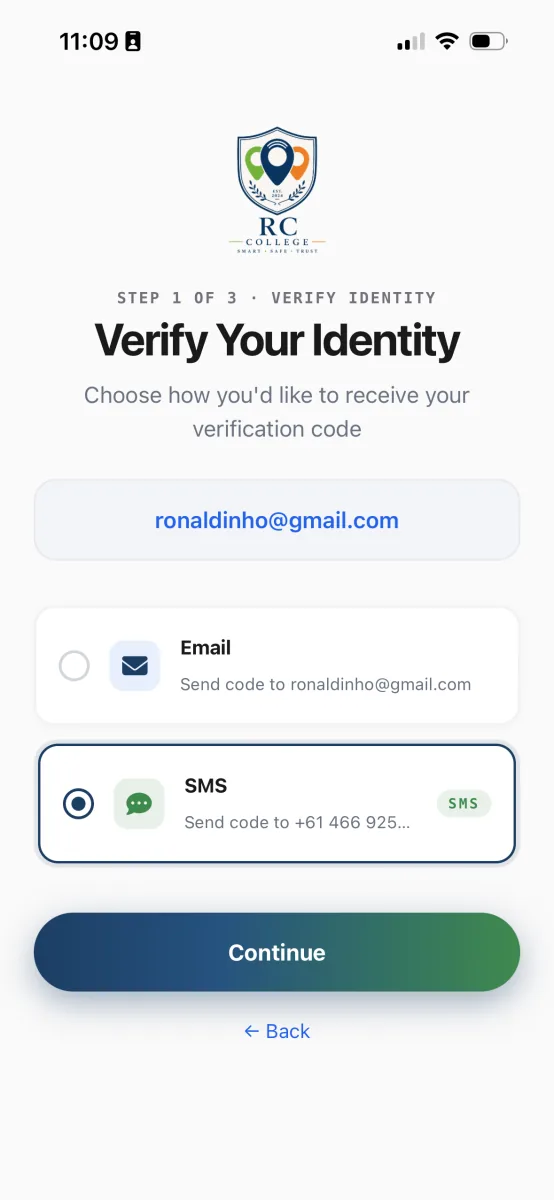
Pick email or SMS for your one-time code.
- Enter the code.Type the code into the six boxes and tap Verify. If it has not arrived within a minute, tap Resend, or go back and choose email instead.
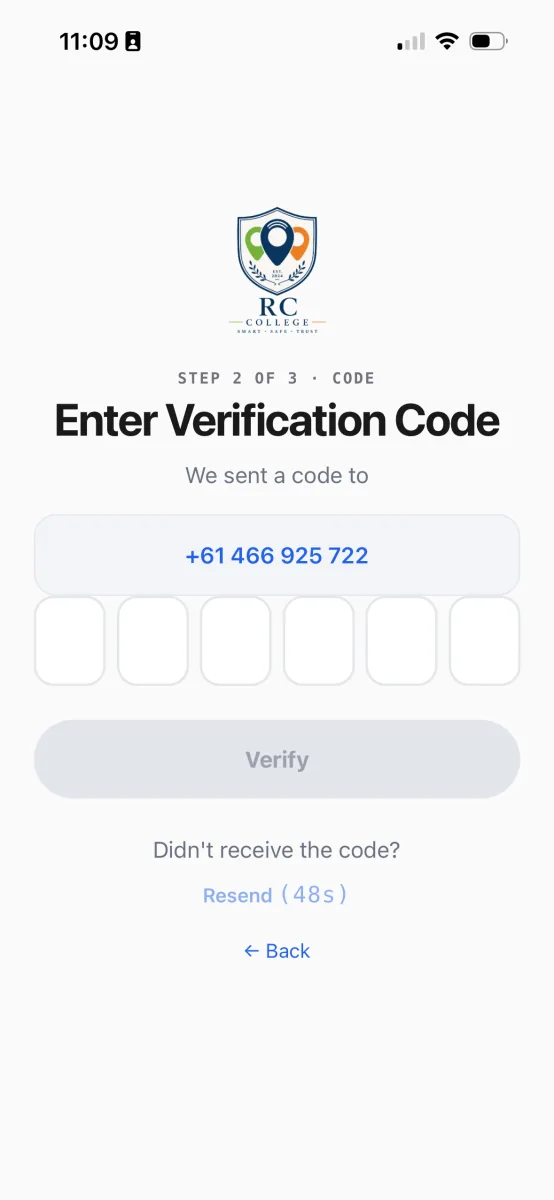
Resend unlocks after the countdown if the code has not arrived.
- Choose a password. Set a password that meets the checklist (a mix of upper and lower case, a number, and a special character), confirm it, and tap Activate Account.
Your account is set up. Tap Continue to Login and sign in with your new password.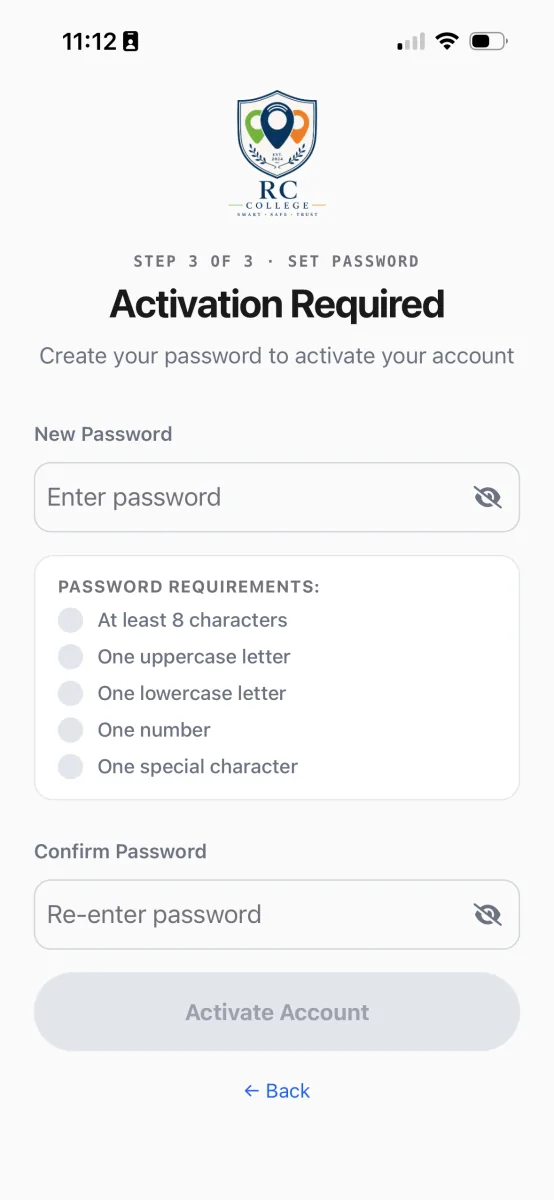
Choose a password that ticks every requirement, then tap Activate Account.
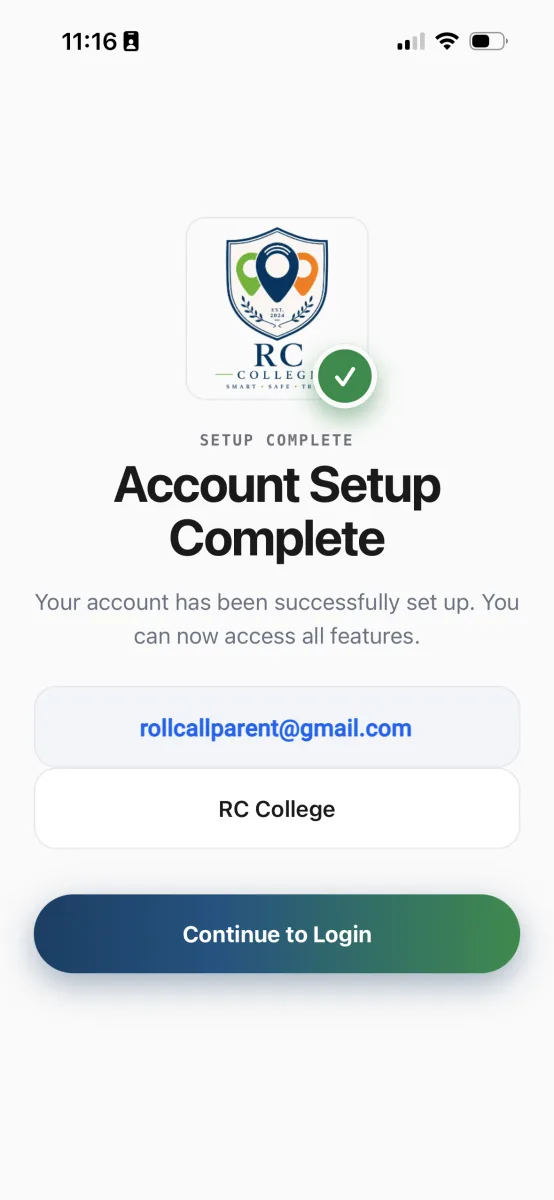
Setup done. Continue to Login signs you in with your new password.
4. Turn on bus notifications
Notifications are how the most useful updates reach you: the bus getting close, your child scanning on and off, and messages from the school. It is worth turning them on.
- Tap Enable Push Notifications.After your first sign-in, a Stay Connected with RollCall screen appears. Tap Enable Push Notifications, then tap Allow when your phone asks.
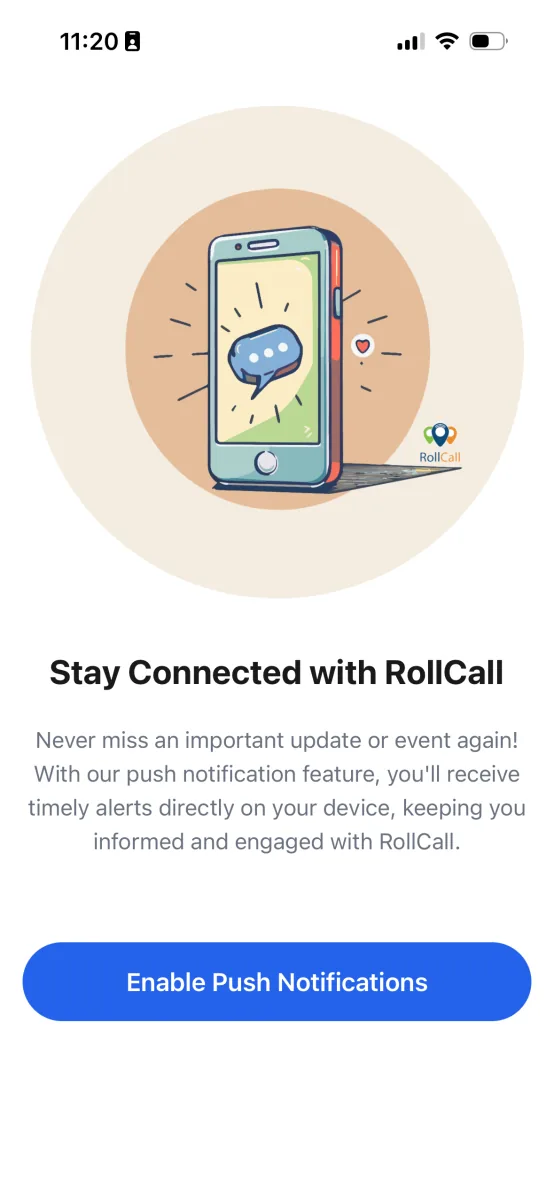
One tap here, then Allow on your phone's own prompt.
- Fine-tune your alerts. The app opens the Manage Alerts screen, where you choose which alerts you receive and whether they come by push, email, or both. You can change these any time from the Account tab.
Tip: If you tap Don't Allow by accident, you can turn notifications back on later in your phone's settings under Notifications, RollCall Parent.
5. Take the quick tour
The first time you use the app, a short welcome tour slides up from the bottom. It is a set of cards that show you around the main tabs: Bookings, Map, Transactions, Messages, and Account.
- Swipe through the cards. Tap Next (or swipe) to move through the tour. Each card has a Try it now link that jumps you straight into that part of the app.
- Finish the tour. Tap Get started on the last card. In a hurry, tap Skip in the top corner.
You land back on the app, ready to go. You can replay the tour any time from Account, Help, Take the tour again.
- Bookings: See what is booked and change your child's travel.
- Map: Follow the bus live and see your child scan on and off.
- Transactions: Check your balance and top up when it runs low.
- Messages: Read the alerts and notes from the school, all in one inbox.
- Account: Manage your details, alerts, carers, and password.
Questions parents ask
My email is not recognised. What now?
The school may not have that email on file, or has it spelled differently. Tap Try Another Email and check the spelling. If you are sure the email is right, your school office can confirm what they have on record.
I have forgotten my password.
On the password screen, tap Forgot Password. Confirm your email and school, then tap Send Reset Link. Open the email on any device and follow the link to set a new password, then come back to the app and sign in.
My verification code never arrived.
SMS can be slow on some networks. Wait for the Resend link to count down and tap it, or tap Back and switch to email instead. Email is the reliable fall-back.
Do I have to sign in every time I open the app?
No. Once you are signed in, the app stays signed in for weeks or months. You only sign in again if you sign out, change your password, or come back after a long break.
The app says I need to update before I can sign in.
Your school keeps everyone on a supported version. Tap Update Now to install the latest RollCall Parent App from the App Store or Google Play, then reopen the app and sign in.
My child is not showing after I sign in.
Your account exists but your child has not been linked to it yet. That is a step the school does. Get in touch with your school office and ask them to link your child.
Can another carer use the app too?
Yes. A grandparent, partner, or after-school helper can sign in with their own email and see the children the primary parent has shared with them. They follow the same steps in this guide.
This guide describes the RollCall Parent App version 4.0.0. Updated July 2026.
Was this article helpful?
That’s Great!
Thank you for your feedback
Sorry! We couldn't be helpful
Thank you for your feedback
Feedback sent
We appreciate your effort and will try to fix the article