Add another adult so they can follow the bus and help with pick-ups and drop-offs.
Who this is for: Primary parents who want another adult to help follow the bus and manage travel.
Where it lives: The RollCall Parent App, on the Account tab under Manage Carers.
Before you start: You are signed in as the primary parent, and you have the carer's name and email address to hand.
Short on time? Sections 3 and 4 get a carer up and running, adding them and switching them on. Come back to the rest as your needs change.
1. What this guide covers
Very few children are looked after by one adult all week. The morning drop-off might be one parent, the afternoon pick-up another, and a Wednesday a grandparent. Sharing access lets you add another adult to your child's bus account so you can split the work of the school run.
This guide shows you what a carer can do, how to add one, how to get them up and running, and how to update or pause their access later. Only the primary parent can manage carers, so these steps are for the main account holder.
2. What a carer can see and do
A carer is a second adult you trust with your child's bus, such as a partner, a grandparent, a co-parent, or a regular after-school helper. Once they are set up, they sign in with their own account and see your child's bus information and their own notifications, so they know whether to head to the stop yet without having to ring you.
Which parts of the app a carer can use, such as the live map, bookings, or notifications, is set by your school, not chosen in the app. A carer cannot add or manage other carers; that stays with you as the primary parent.
3. Add a carer
Adding a carer is one short form. You will need their full name and an email address they actually use, since that email becomes their sign-in.
- Open Manage Carers. Tap the Account tab, then tap Manage Carers in the Settings card. Any carers you have already added appear as cards you can swipe through.
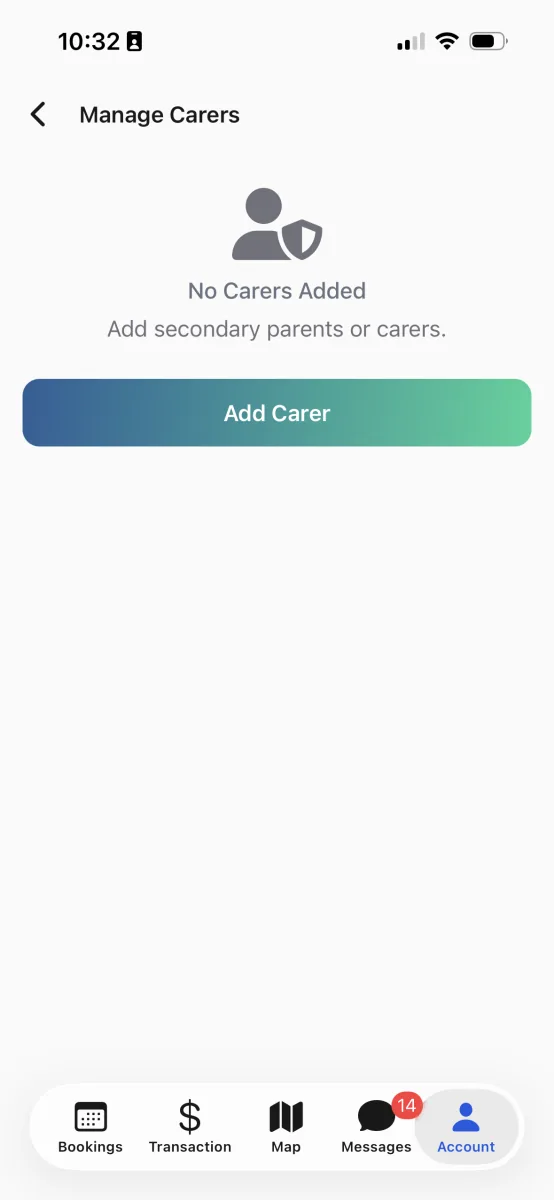
Manage Carers before anyone is added. One button starts the form.
- Tap Add Carer. Tap the Add Carer button at the bottom. Choose how the carer is related to your child from the dropdown, such as Parent, Grandparent, or Babysitter.
- Enter their details and save. Type the carer's first name, last name, and email. Add a phone number if you like, though it is optional. Tap Save, then tap OK on the confirmation.
The carer appears in your list with an Inactive badge, ready to be activated.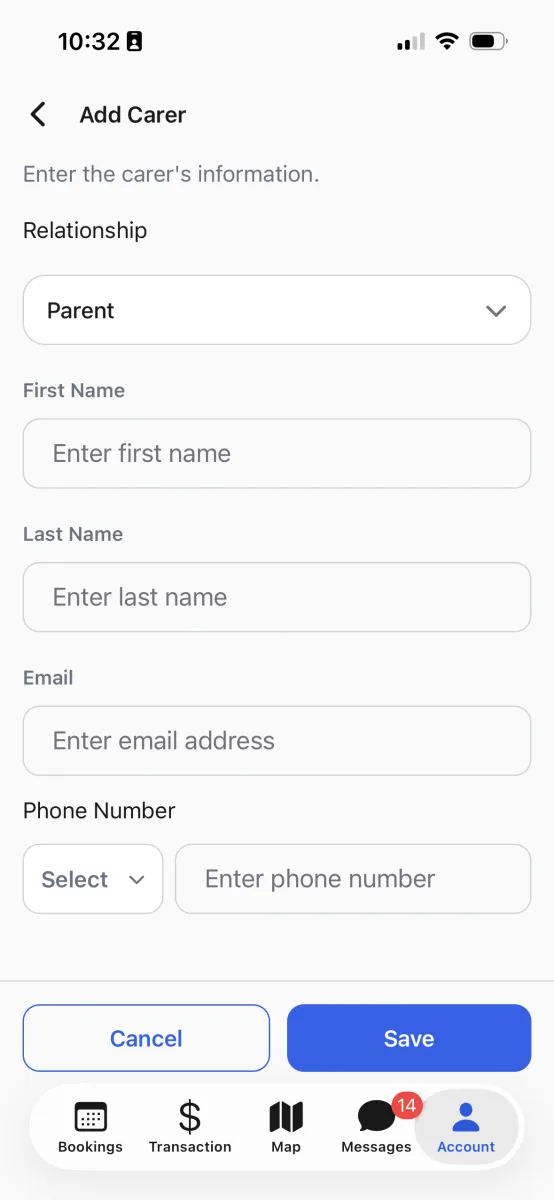
One short form: their name, their email, and how they are related.
Tip: Double-check the email address. It is how the carer signs in, so a typo means they cannot get in. You can fix it later from Edit Carer if you need to.
4. Get the carer up and running
A new carer starts switched off. Two things get them going: you activating them, and the carer signing in for the first time.
- Activate the carer. On Manage Carers, swipe to the carer's card and tap Edit Carer. Turn the status switch on, so it reads Activate, and tap Save.
- Ask the carer to sign in. The carer opens the RollCall Parent App and signs in with the email address you entered, following the same first-time steps you did. Once they are in, they see your child's bus.
The carer's badge moves on from Inactive as they set up and start using the app.
Worth knowing: The status badge tells you where a carer is up to. Inactive means they are switched off, Unengaged means they are switched on but have not started using the app yet, and Engaged means they are signed in and using it.
5. Update or pause a carer
Life changes, and a carer's details or access can change with it. Everything is handled from the carer's Edit Carer screen.
- Update their details. On Manage Carers, tap Edit Carer on the carer's card. Change their name, email, phone, or relationship, then tap Save.
- Pause their access. To take a carer offline, open Edit Carer, turn the status switch off so it reads Inactive, and tap Save. Their card stays in your list, so you can switch them back on whenever you need to.
A paused carer can no longer see your child's bus until you activate them again.
Worth knowing: There is no delete button in the app; pausing is the way to take a carer offline. If you need a carer removed for good, for example after a separation, contact your school office and they can remove the link on their side.
Questions parents ask
My carer hasn't received an invite or can't sign in.
First check the email on their card is spelled correctly, and fix it from Edit Carer if not. Ask the carer to look in their spam or junk folder too. Your school's setup controls how carers are welcomed and when any invite is sent, so if the carer still cannot sign in, contact your school office.
My carer can't see all of my children.
The school controls which children a carer is linked to. If a carer is missing a child, check they are activated on their card first, then contact your school office to review what they can see.
How do I remove a carer's access?
Open Manage Carers, tap Edit Carer on their card, turn the status switch off so it reads Inactive, and tap Save. That pauses their access while keeping the record. For permanent removal, contact your school office.
Can a carer see our payments and balance?
That depends on your school's setup. Some schools let carers see the Transactions tab, others keep payments with the primary parent. If a carer needs access and does not have it, your school office can review it.
Can a carer add or manage other carers?
No. Adding, editing, and pausing carers is a primary-parent job. A carer signs in and uses the app for your child, but they cannot bring in other carers or change another carer's details.
I can't find Manage Carers on my Account tab.
Manage Carers appears once your school has carer accounts turned on. Most schools do, but a few do not. If it is missing, contact your school office to check whether carers are available at your school.
Can I add more than one carer?
Yes. Add them one at a time, each with their own name and email. There is no fixed limit in the app, though some schools keep the number small so everyone with access is someone you trust with your child's bus.
This guide describes the RollCall Parent App version 4.0.0. Updated July 2026.
Was this article helpful?
That’s Great!
Thank you for your feedback
Sorry! We couldn't be helpful
Thank you for your feedback
Feedback sent
We appreciate your effort and will try to fix the article