ROLLCALL HOW-TO · STUDENTS
Students – Individually Allocating Students to a Route
Use this method to book one student onto a route from their student record.
Quick path: Settings → Students
Allocate a student to a route
- Go to Settings → Students.
- Find the student who needs a bus allocation.
- Select the ACTIONS button.
- Open the Bus Bookings tab.
- Select the event Group, Bus, Stop and Date Range.
- Select Apply.
- Confirm the week and day repeats.
- Select Apply.
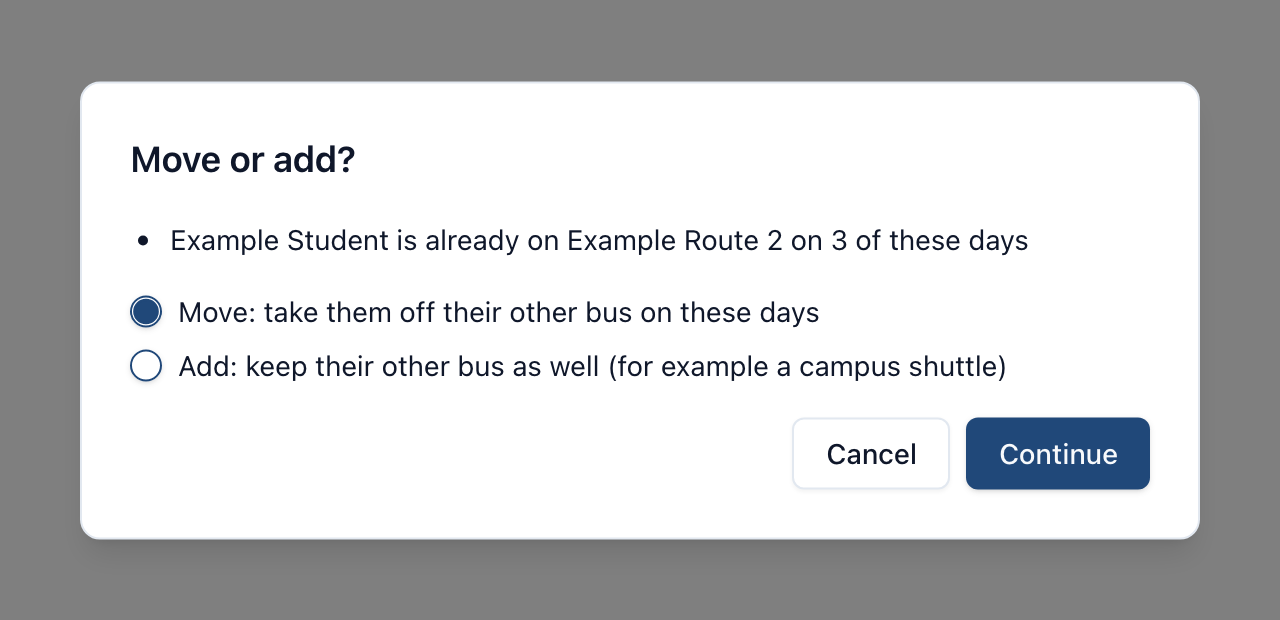
- If RollCall shows Move or add?, read the listed conflicts and choose an option (see below), then select Continue.
A coloured heatmap now shows the days the student is allocated to each bus.
If the student is already on another bus: Move or add?
Each event group (for example AM or PM) has a Restrict Multiple setting.
- Restrict Multiple on: a student can have only one booking in that group on a given day.
- Restrict Multiple off:if the student is already on another route in the same group on some of the chosen days, RollCall asks before saving:
- Move: take them off their other bus on these days (selected to start with), or
- Add: keep their other bus as well (for example a campus shuttle).
- Cancel saves nothing.
Use Add only when the student genuinely needs both services on those days, for example a regular bus plus a campus shuttle. If you are unsure, choose Move or Cancel and check with the family first.
If your school needs students to hold more than one AM or PM booking and you are not sure how your event groups are set up, contact RollCall Support.
Removing a student from a bus
Follow the same steps, but in step 5 leave Bus as No Bus (and Stop as No Stop) for the dates to remove, then confirm with Clear. Review the selected event group and dates carefully before confirming. Do not use Clear for a temporary absence.
If the student will only be away for a while (for example on camp), record a bus absence instead so the booking stays in place. See Bulk Booking Cancellation (Absence) Tool.
Good to know
- Students should be booked onto the bus they intend to catch each day. A RollCall administrator can change bookings as needed. Parents and carers can too, if your school allows it, until the trip starts.
- Students can still scan onto a bus they are not booked on using their tag or card. The trip is then recorded with an exception, such as Not Allocated.
- If your school uses booking controls with School approves, the confirmation may offer Book directly or Offer to parent. An offer only becomes a confirmed seat once the parent accepts it or your school resolves it. See Guide to Managing RollCall Bookings.
Need help? Contact the RollCall support team if you get stuck.
Next Steps / Related Articles
Was this article helpful?
That’s Great!
Thank you for your feedback
Sorry! We couldn't be helpful
Thank you for your feedback
Feedback sent
We appreciate your effort and will try to fix the article