ROLLCALL HOW-TO · BOOKINGS
Guide to Managing RollCall Bookings
Introduction
Bus bookings in RollCall assign students to transport routes. They cover regular, longer-term travel (for a term, semester or year) and one-off changes for a single day. Once your routes are built and have bus dates, you can allocate students one at a time or in bulk. Where your school allows it, parents can also make their own long-term bookings in the RollCall Parent App.
Some schools also use Smart Route to plan routes. Smart Route is set up separately for each school. Read Smart Route Overview or ask RollCall Support whether it is available to you.
Key components
- Student bookings (long-term): a student is allocated to a route and stop for a period such as a term, using a travel pattern (for example, every weekday or every second week).
- Bus changes (short-term): one-off changes to a student's travel on a specific date, such as adding or removing one trip.
- Parent booking access: an optional feature that lets parents book in the Parent App within the windows and rules your school sets.
- Bus absences: records that a booked student will not travel on certain dates. You can enter them for one student or for a whole group.
Student bookings
Purpose: allocate students to routes and stops for longer-term travel.
Key points
- Bookings can be made by school administrators, or by parents if your school allows it.
- Each booking needs a student, route, stop, date range and travel pattern.
- How an existing booking is treated depends on your event group's settings. Event groups (for example AM and PM) have a Restrict Multiplesetting:
- Restrict Multiple on: a student can have only one booking in the group on any day.
- Restrict Multiple off: if the student is already on another route in the same group on some of the chosen days, RollCall asks Move or add? before saving anything (see below).
- To stop a pattern of travel, see Removing or pausing a student's travel below.
Where to manage them
- Student record → Bus Bookings tab (one student)
- Route settings → Assign Students (bulk allocation)
- Transport screen, or Route settings → Transport tab (to view the route manifest)
- Settings → Bookings (the Booking Workspace): booking setup, intake of applications, seating, and a list of bookings
- RollCall Parent App → Bookings tab (parents, where allowed)
Related guides: Routes – Bulk Assign Students to a Route, Students – Individually Allocating Students to a Route, Transport Screen Overview, Parent App – Set up regular term travel.
When a student is already on another route: Move or add?
If Restrict Multiple is off for the event group and the student you are booking is already on another route in that group on some of the same days, RollCall shows Move or add? before saving:
- Move: take them off their other bus on these days. This is selected to start with. Choose it when the new route replaces the old one.
- Add: keep their other bus as well (for example a campus shuttle). Choose it only when the student really does need both services.
- Cancel saves nothing. The booking you were making is not created.
The dialog lists the students affected and how many days overlap, so check it before you choose.
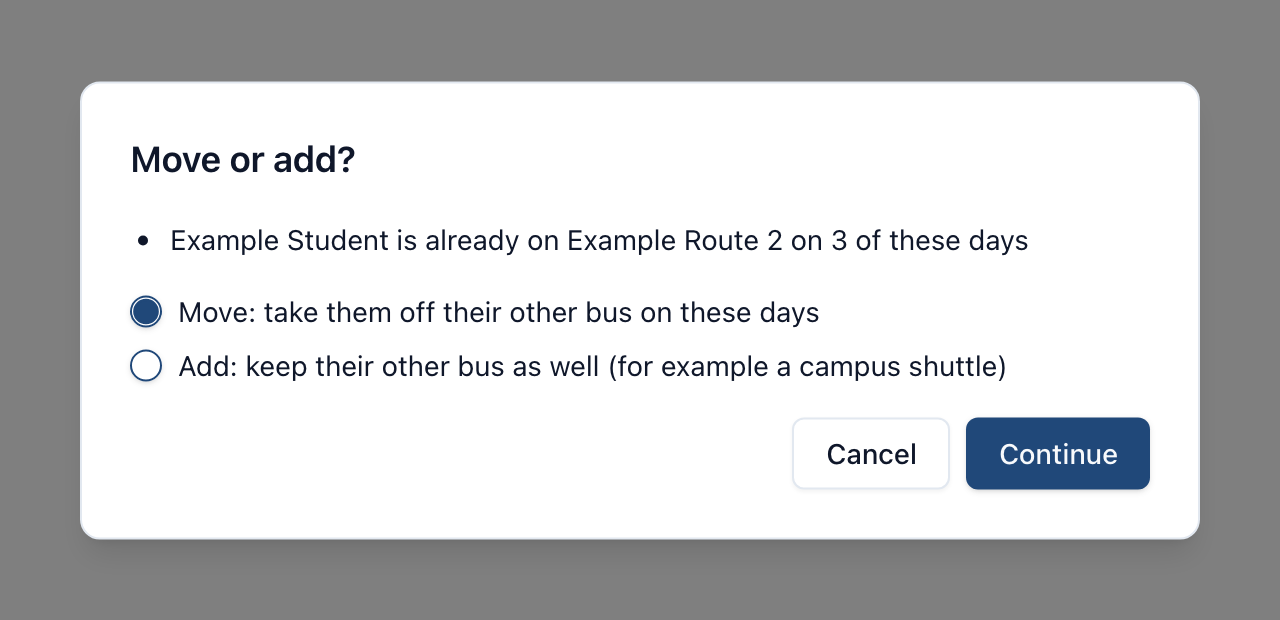
The same question appears when you allocate one student from the Bus Bookings tab and when you assign students in bulk on a route.
Bus changes
Purpose: make one-off or irregular changes to a student's travel.
- Managed by school administrators, and by parents if your school allows it.
- Adds or removes a single trip for a specific route and date.
Where to manage them: the Transport screen (trash and pencil icons), and the Parent App (Bookings → Make a change → Short-term Bus Change).
Related guides: Transport Screen Overview, Parent App – Manage day-to-day bookings.
Parent booking access and booking controls
Parents can only make long-term bookings in the app when your school has set this up:
- The Bookings tab in the Parent App must be turned on for your school. Contact RollCall Support if you are unsure whether it is.
- Your school sets booking windows (when parents may book) in Settings → Bookings → Setup. See Bookings – Add a Booking Window for Parents.
Some schools also have booking controls switched on by RollCall. These let your school choose, term by term, how long-term bookings are managed:
| Setting | What it means |
|---|---|
| Parents book | Parents make long-term bookings themselves in the app, inside your booking window. |
| School approves | Parents request bookings and your team approves each one. Your team can also offer a seat, which parents accept, ask to change, or decline. |
| School books | Your team makes every long-term booking. Parents request a seat through your intake form and can see their booking. |
If your school uses School approves, the booking confirmation may give you two choices: Book directly (the booking is made straight away) or Offer to parent (the parent is asked to accept).
An offer is not a confirmed seat until the parent accepts it, or until it is resolved in another way your school has set up. Check the Bookings tab of the Booking Workspace to see each booking's status.
If booking controls are not switched on for your school, these options do not appear and you book students directly as described in this guide.
Related guide: Bookings Intake Workflow.
Removing or pausing a student's travel
Choose the method that matches what you want to happen:
| Situation | What to use |
|---|---|
| The student will miss travel for a known period (camp, excursion, illness) and should come back afterwards | A bus absence: for one student from Bus Absence & Changes, or for a group with Bulk Booking Cancellation (Absence) Tool. Bulk absence batches can be reinstated from that tool. |
| The student no longer needs a route for a period | Student record → Bus Bookings → choose No Bus and No Stop for the period and pattern, then select Clear. This removes the bookings; it is not an absence batch that can be reinstated. |
| One single trip | A bus change on the Transport screen. |
To clear a booking pattern for one student:
- Open the student record and go to the Bus Bookings tab.
- Select the event group.
- Choose No Bus and No Stop for the dates you want to clear.
- Choose the travel pattern for the trips to remove.
- Select Clear to confirm.
Review the selected event group, dates and pattern carefully before you confirm Clear, then check the student's Bus Bookings tab afterwards. Do not use Clear for a temporary absence.
How the parts fit together
Bookings and bus changes appear on the Transport screen, on student records and in the Parent App. The Booking Workspace (Settings → Bookings) brings together setup, intake, seating and the list of bookings for schools that use it.
User roles
School administrators can:
- create, edit and remove bookings
- allocate students in bulk
- manage route settings, booking windows and (where available) booking controls
- review intake applications and offers
Parents, where your school allows it, can:
- make long-term bookings, or respond to offers your school sends
- make short-term bus changes and report absences
- see upcoming trips in the Parent App
Best practice
- Tell parents early how bookings will work at your school and when windows open.
- Publish route, stop and timetable information, for example with the RollCall route iFrame.
- Set clear booking windows and use route capacity to manage seats.
- When the Move or add? question appears, check the listed conflicts before you choose. Use Add only when a student really needs both buses.
- Use reports to monitor bookings and bus use.
Common tasks
Allocate students to a route in bulk
- Go to Routes and open the route.
- Open Assign Students and assign students to their stops.
- Select Save Booking, then set the repeat, days and dates.
- If Move or add? appears, choose for the listed students and select Continue.
A parent books in the app (when your school uses Parents book or School approves)
The parent opens Bookings → Make a change → Long-term Bus Booking, chooses the child, term, stops and (where offered) days, then confirms. If your school approves bookings, the request waits for your team. Parent instructions: Parent App – Set up regular term travel.
Reports and other features
- Student Transport Report: all bookings within a date range.
- Bus Utilisation Report: capacity and usage.
- Parent App: shows parents their upcoming trips.
Getting started checklist
- Build your routes.
- Activate routes by adding bus dates.
- Decide how long-term bookings will be managed: by your team, by parents, or (if booking controls are available) with school approval.
- Set terms and booking windows in Settings → Bookings → Setup.
- Check each event group's Restrict Multiple setting.
- Allocate students individually or in bulk.
- Train staff and tell parents how booking works.
Need help?
If you have questions about bus bookings, contact RollCall Support at support@rollcall.com.au and quote this article's title.
Was this article helpful?
That’s Great!
Thank you for your feedback
Sorry! We couldn't be helpful
Thank you for your feedback
Feedback sent
We appreciate your effort and will try to fix the article