Introduction
The Smart Route feature in RollCall is a powerful, map-based tool that helps schools plan, build, and optimise bus routes based on real student locations and travel patterns. This guide walks you through how to use Smart Route effectively—from initial setup through to finalising routes and preparing for communication with parents.
Accessing Smart Route
Smart Route is an optional module in RollCall and must be activated by RollCall support.
Navigate to the Smart Route option in the RollCall Menu Bar.
Choose to either create a new version or load a previously saved version.
Create a New Smart Route and click Apply to start with a fresh view.
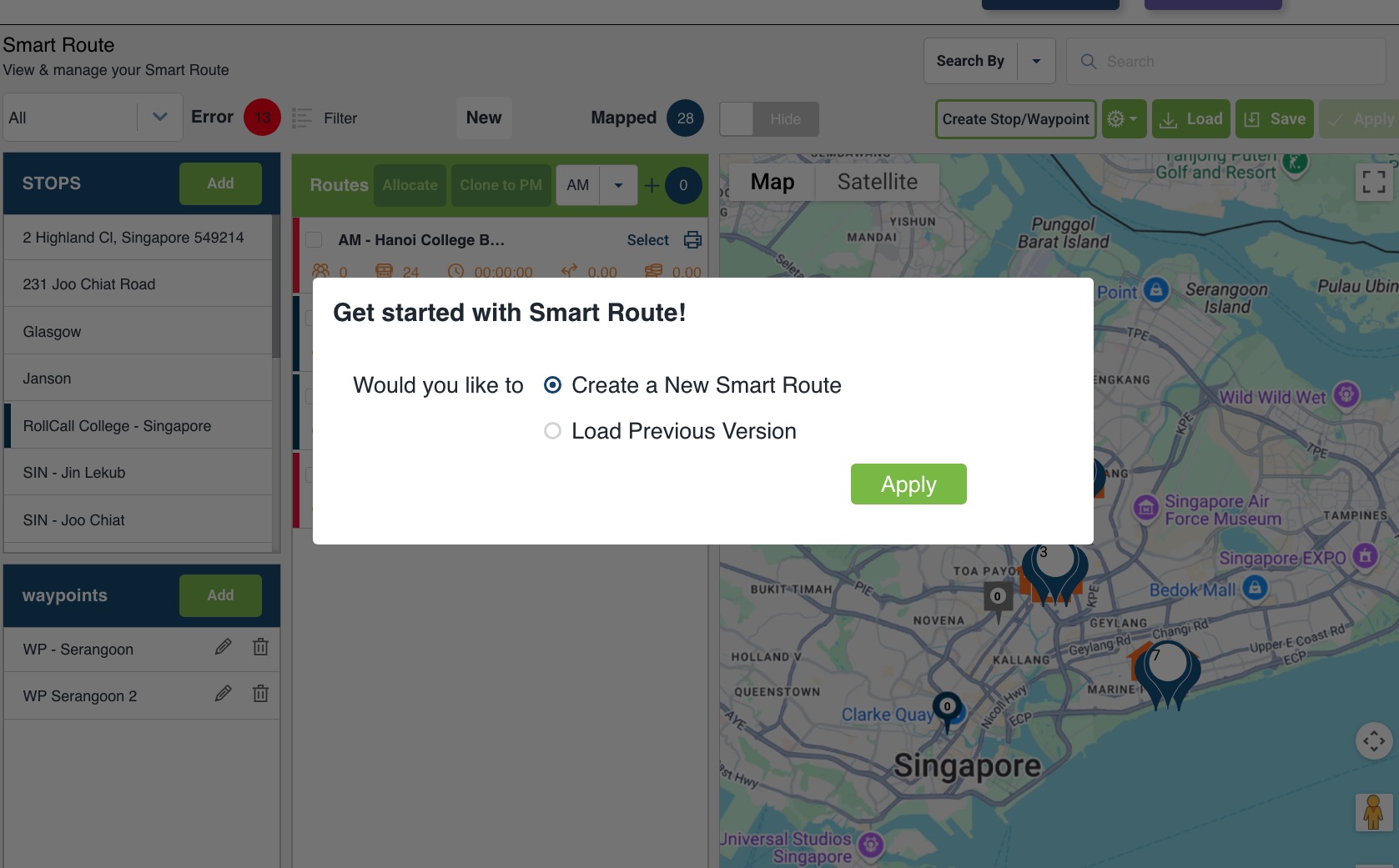
Initial View and Student Mapping
Upon launching Smart Route:
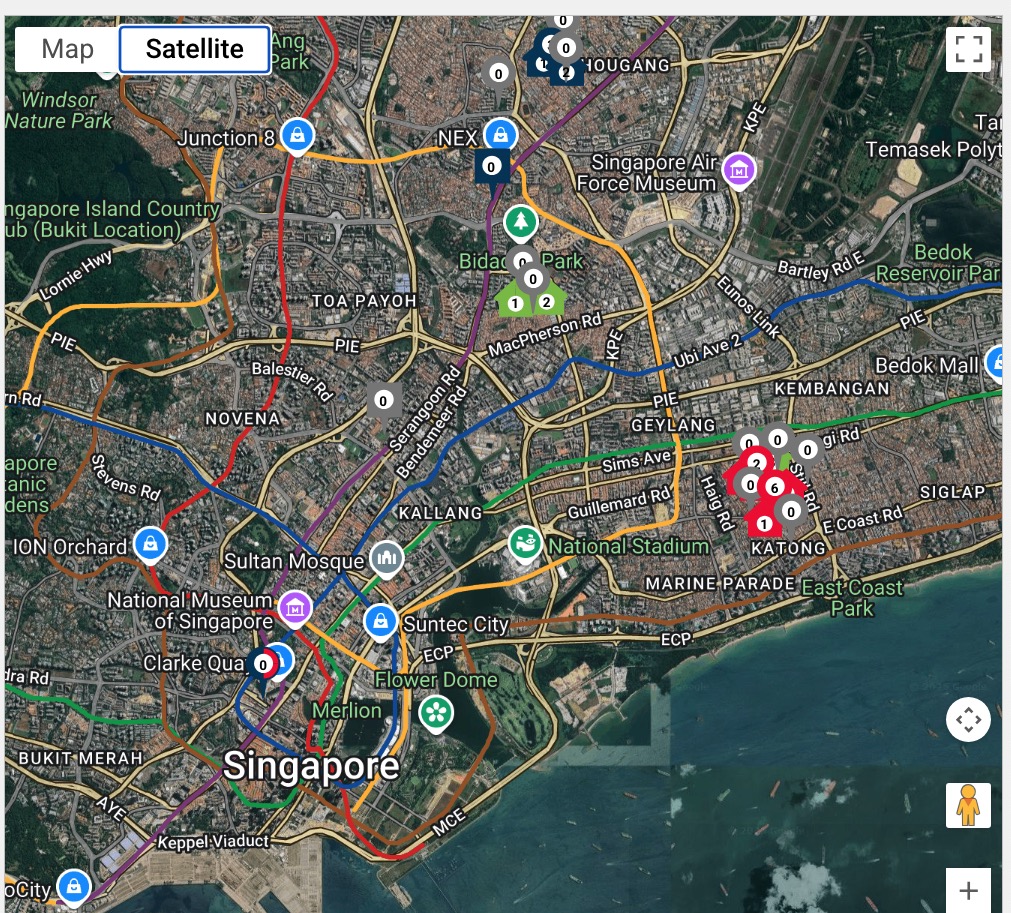
The map shows all students who are Bus Travellers for their system booking option.
Mapped Bus Traveller students are shown in orange (clustered) or green (individual home).
Casuals can be displayed by enabling the "Hide" toggle at the top of screen
Casuals appear in dark pink.
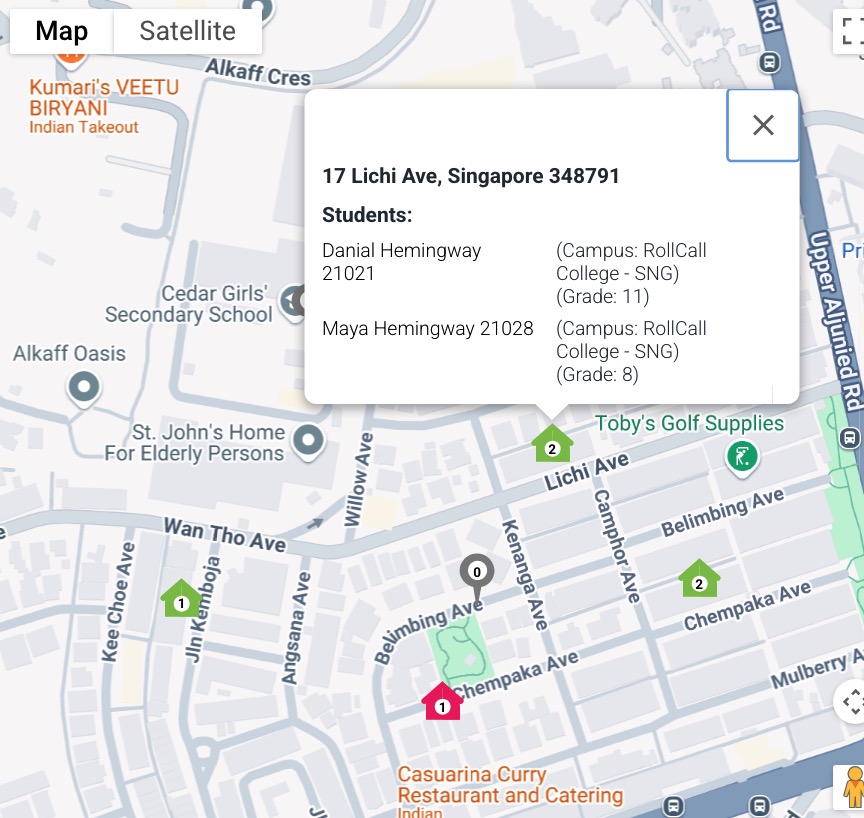
Each icon also shows the number of students represented by its location
Stops are shown As a round pin drop for Stops and a Square pin drop for Waypoints and are colour coded grey until allocated to a route build
Zooming out clusters students and stops
Click on a Home or Stop icon to see details
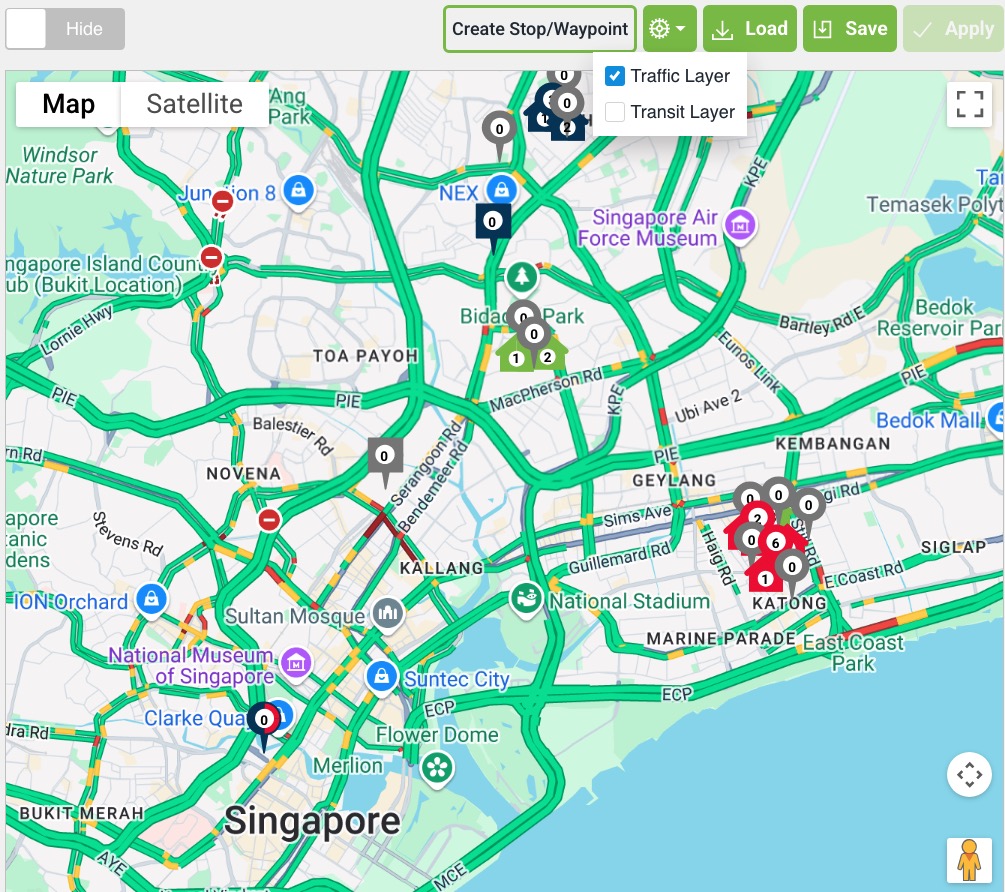
Optional Map features
Traffic Layer - Show typical traffic for major roads
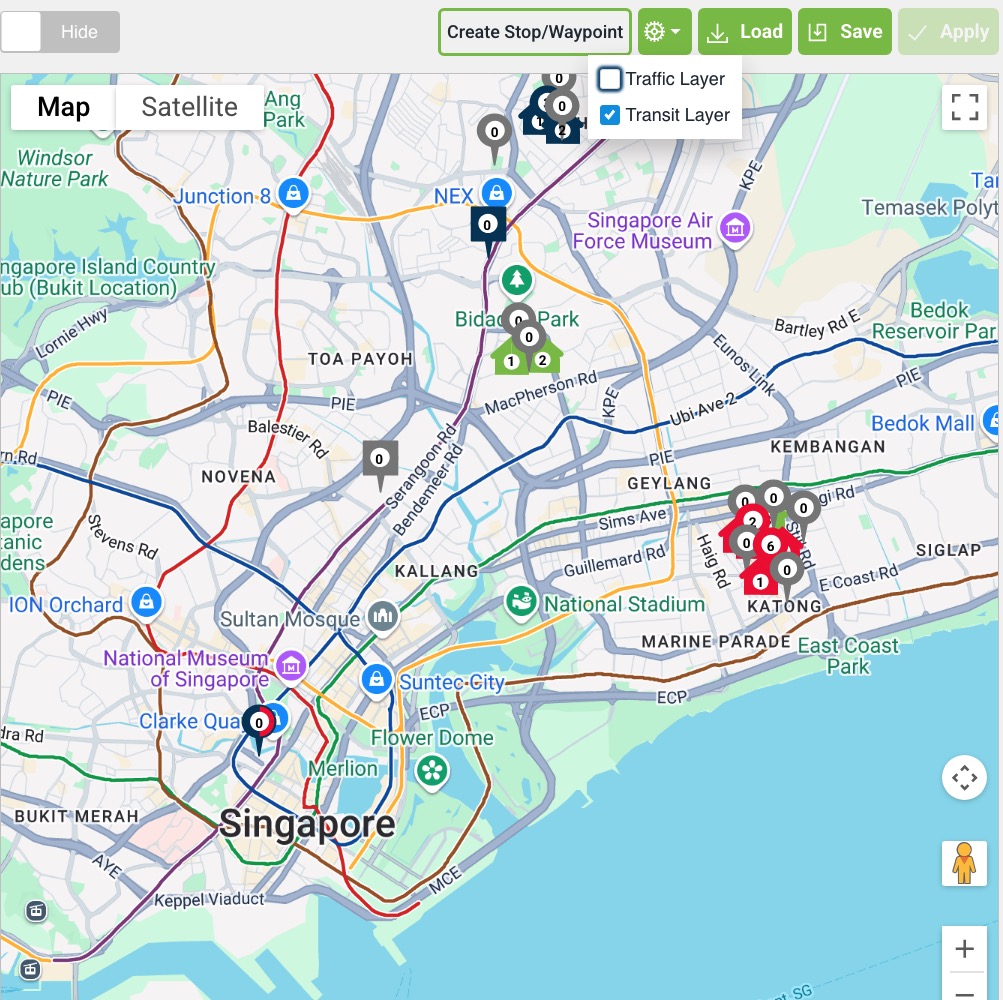
Transit layer - Show major Public transport routes in the map area
Satellite - View the Map in Satellite
Filtering Students
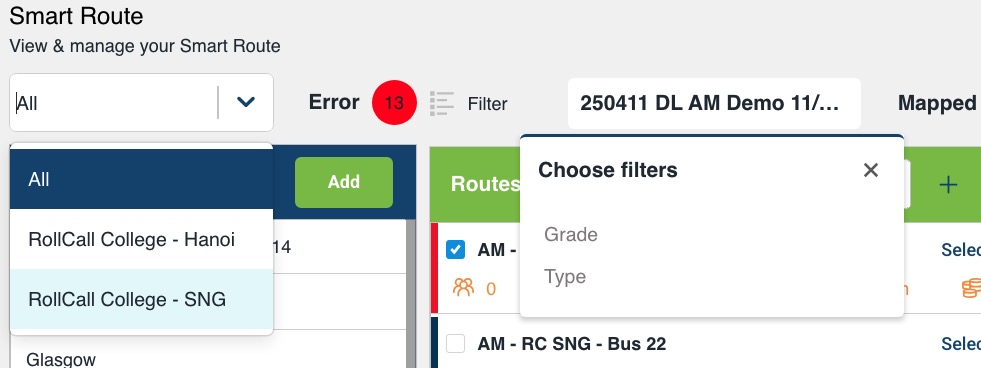
Smart Route includes powerful filters to narrow down your view:
By Campus: Essential for multi-campus schools to ensure routes terminate correctly.
By Grade: Helps identify leavers (e.g., Year 12) or new intakes (e.g., Year 0 or 7).
By Student Type: User defined field in the student record. Clients need to contact support to set up or change the Student Type Options available. Popular choices for defining student type categories are:
by travel mode (e.g., Car, Walk, Ride, Train)
by bus use (e.g. Full-time, Part-Time, Occasional)
Creating Stops and Waypoints
You can dynamically create stops and waypoints directly from the map:
Click on a location.
Choose to create a stop or a waypoint.
Set details:
Stop name
Campus
Zone
Size
Save the stop.
Only stops can have children allocated. Waypoints are for routing logic only.
Building a Route
Click New Route.
Use the Select Tool to:
Click on student houses.
Allocate them to the route.
Choose clustered or door-to-door pickup based on policy.
Select appropriate bus stops.
Add a campus as the final stop.
Allocating Students and Calculating Routes
Once stops and students are selected, click Allocate.
The system:
Matches students to nearest stop.
Displays distance to stop.
Click Calculate Route to generate the map route (via Google Maps).
Add waypoints if the suggested path is unsuitable.
Route Settings and Fine-Tuning
Assign capacities to buses.
Toggle between AM/PM or clone from AM to PM.
Change stop order to optimise travel.
Back out stops or students as needed.
Print manifests.
Distance Warnings
You can define distance thresholds (e.g., 500m or 1km). Students beyond this will be highlighted in red, helping identify if door-to-door service is appropriate.
Saving and Reusing Versions
Save versions using a standard naming convention (e.g.,
20250411_DLIN).Reload previous versions.
When reloading, system prompts to map any new students.
Drafting and Publishing Routes (COMING SOON)
Click Apply to Draft to move routes into staging.
Drafts allow for:
Review.
Communication with parents.
Objection window (e.g., 1 week).
When ready, mark routes as Live.
Students are automatically moved off old routes onto new ones.
More Upcoming Features
Global Allocation Tool:
Select all students and stops.
Define bus capacities.
Auto-optimise route distribution (paid feature).
Geofencing:
Draw areas to analyse clusters.
Mass-assign stops or students.
Need help?
For help enabling Smart Route or training your team, contact RollCall Support at support@rollcall.com.au.
Was this article helpful?
That’s Great!
Thank you for your feedback
Sorry! We couldn't be helpful
Thank you for your feedback
Feedback sent
We appreciate your effort and will try to fix the article