Overview
This guide explains how to create and apply Waypoints within Smart Routes in RollCall.
Waypoints are used to help direct buses along a preferred route without creating additional student stops.
What is a Waypoint?
A Waypoint is an invisible routing marker that changes the direction of travel between stops.
Waypoints:
- Help guide buses around obstacles
- Influence the route path
- Do not appear as student pickup/drop-off stops
- Are shown differently on the map from regular stops
Example Use Case
If:
- Stop A and Stop B are connected
- But there is a bridge or road restriction between them
You can:
- Add a Waypoint to redirect the bus around the obstacle
Similar to using waypoints in Google Maps
Methods of Creating a Waypoint
There are two ways to create a waypoint in Smart Routes.
Method 1 - Creating a Waypoint
Step 1 – Open Smart Route
Select:
- Smart Route

Step 2 & 3 – Locating Waypoints & Adding a Waypoint
Within Smart Routes:
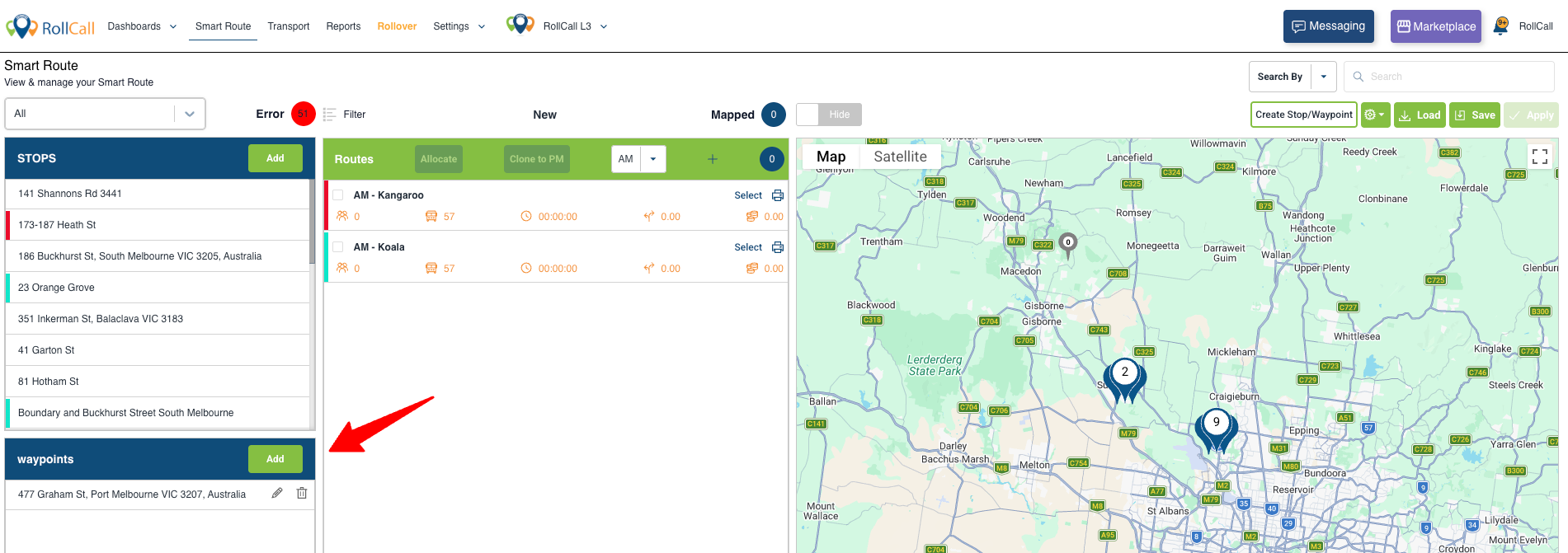
- Locate Waypoints found at the bottom left of the screen
Click:
- Green Add button
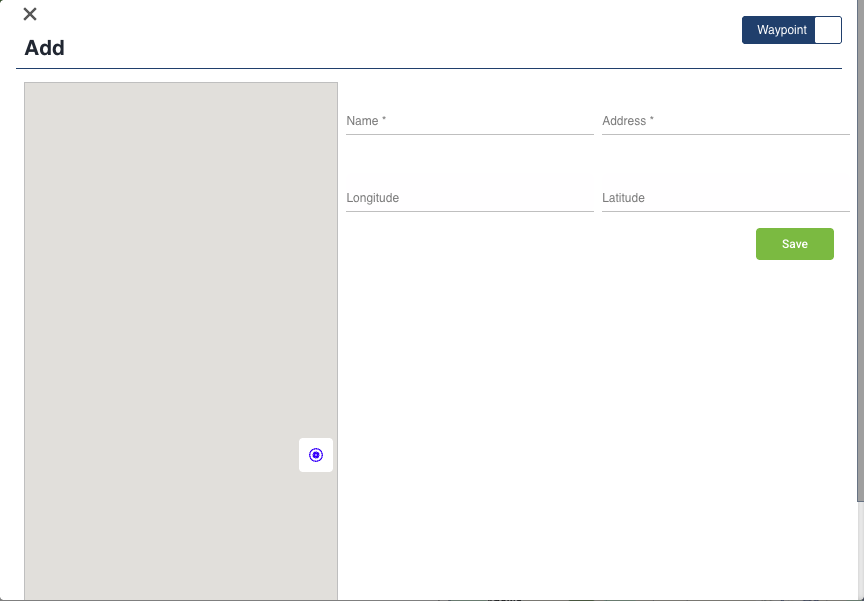
A Waypoint setup window will appear.
Waypoint Fields
Required Fields
| Field | Description |
|---|---|
| Name | Name of the waypoint |
| Address | Physical address/location |
Auto-Populated Fields
| Field | Description |
|---|---|
| Longitude | Automatically generated |
| Latitude | Automatically generated |
⚠ Longitude and Latitude cannot be manually entered.
They automatically populate once the address is entered.
Step 4 – Save the Waypoint
Method 2 – Creating a Waypoint Directly from the Map
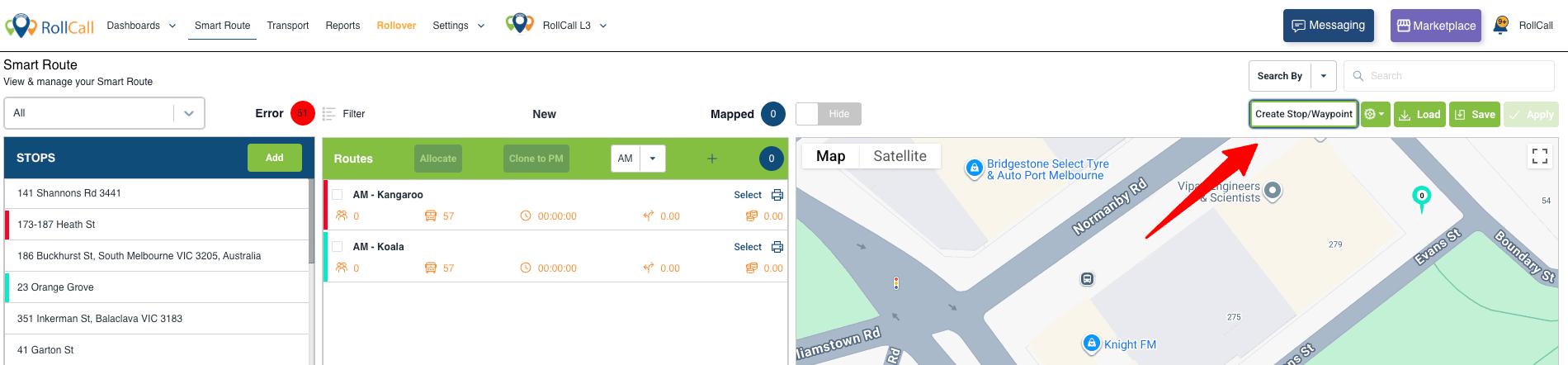
Step 1 – Locate the Create Stop / Waypoint Button
Within Smart Routes:
- Locate the Create Stop / Waypoint button
- Found at the top right-hand side of the screen
Step 2 – Activate Create Mode
Click:
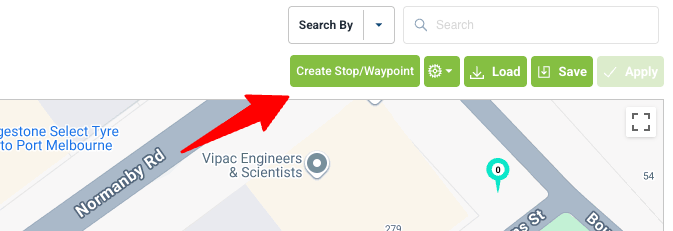
- Create Stop / Waypoint
Once activated:
- The button will display in a solid green colour
This indicates creation mode is active.
Step 3 & 4 – Place the Waypoint & Add Waypoint
On the map:
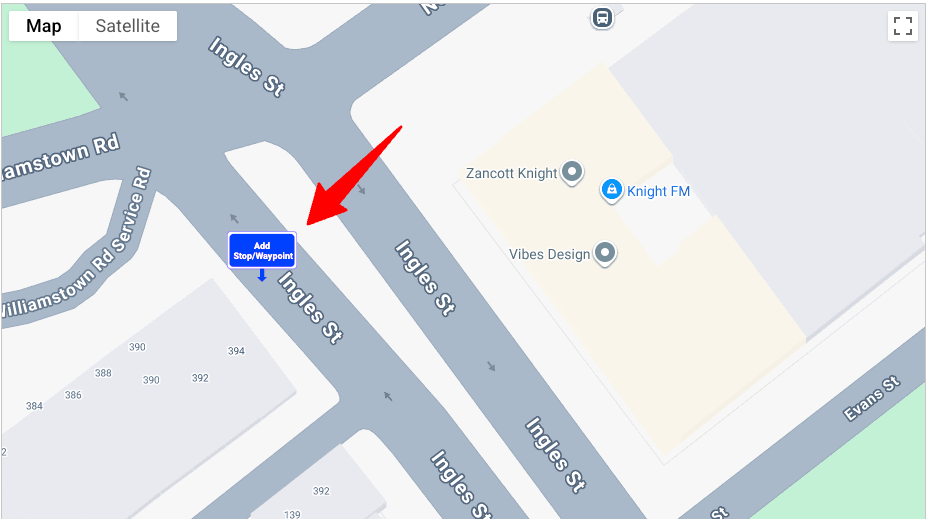
- Double-click the location where you want the waypoint placed
A rectangular popup will appear:
- Add Stop / Waypoint
- Click the rectangle
Step 5 – Enter Waypoint Information
The Waypoint Information box will appear.
Enter:
- Waypoint Name
- Address
The Longitude and Latitude fields will automatically populate.
Step 6 – Save the Waypoint
Click:
- Save
The waypoint will now appear on the map.
Viewing Waypoints on the Map
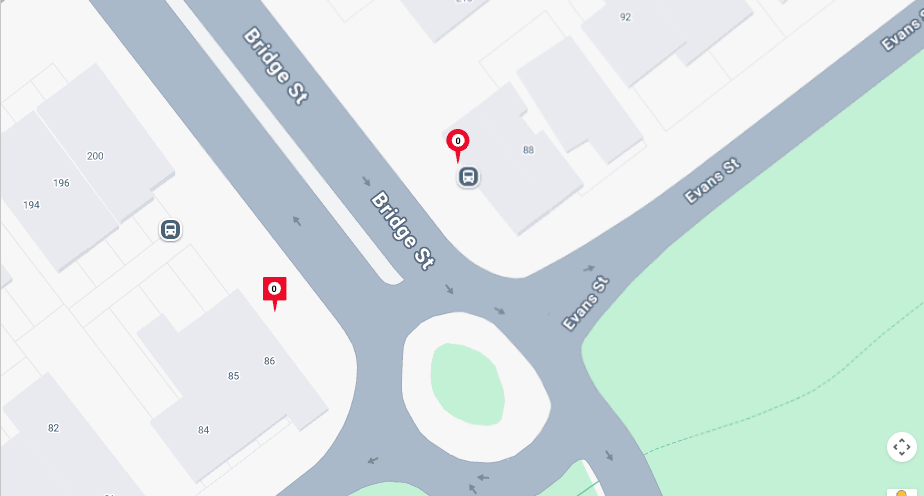
Waypoint Appearance
When zoomed in:
- Waypoints appear as Squares
- Stops appear as Circles
This helps distinguish routing markers from actual transport stops.
Adding a Waypoint to a Route
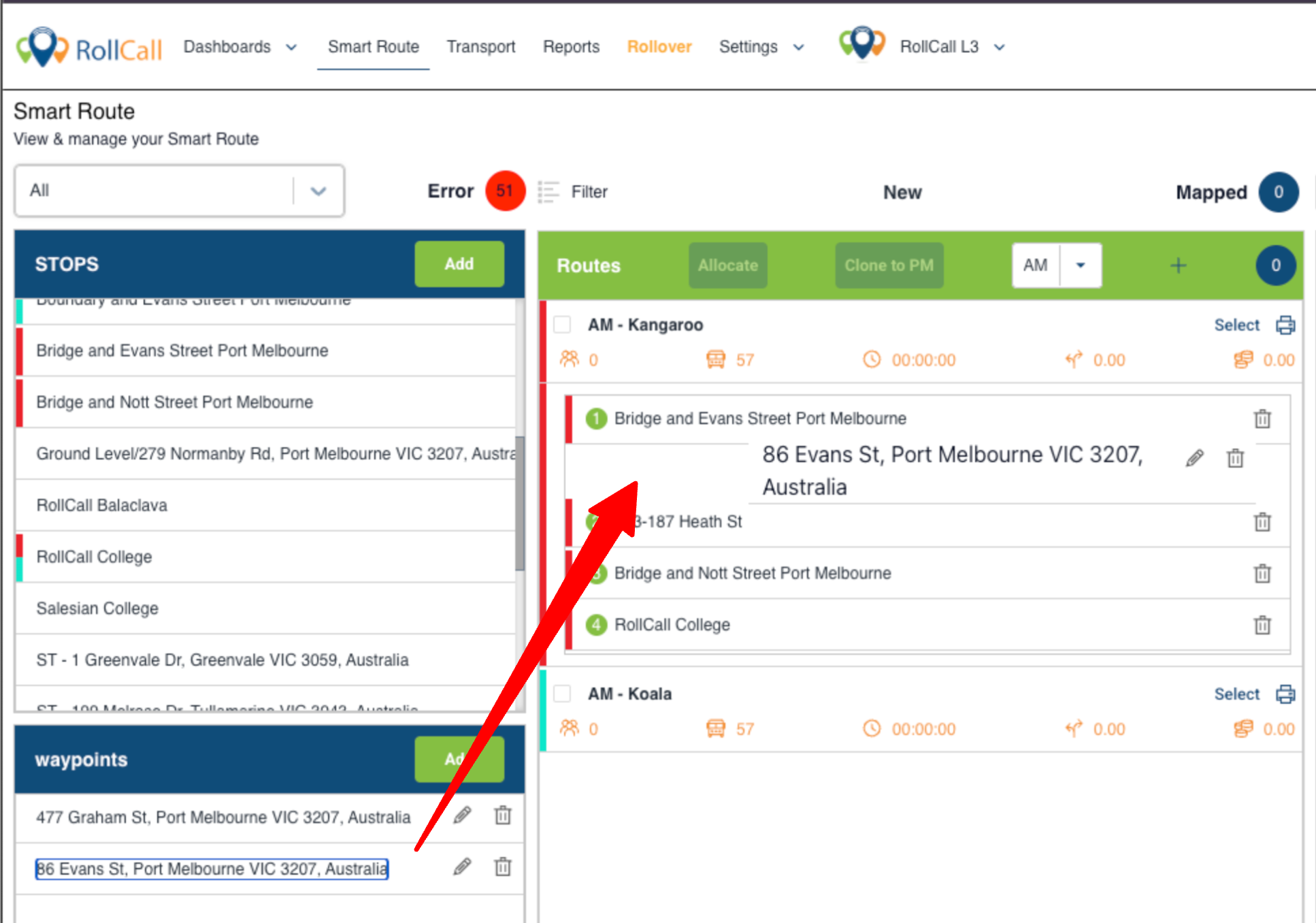
Step 1 – Drag the Waypoint
To apply a waypoint:
- Drag the waypoint from the left-hand panel
- Drop it onto the route
Step 2 – Confirm Route Direction Changes
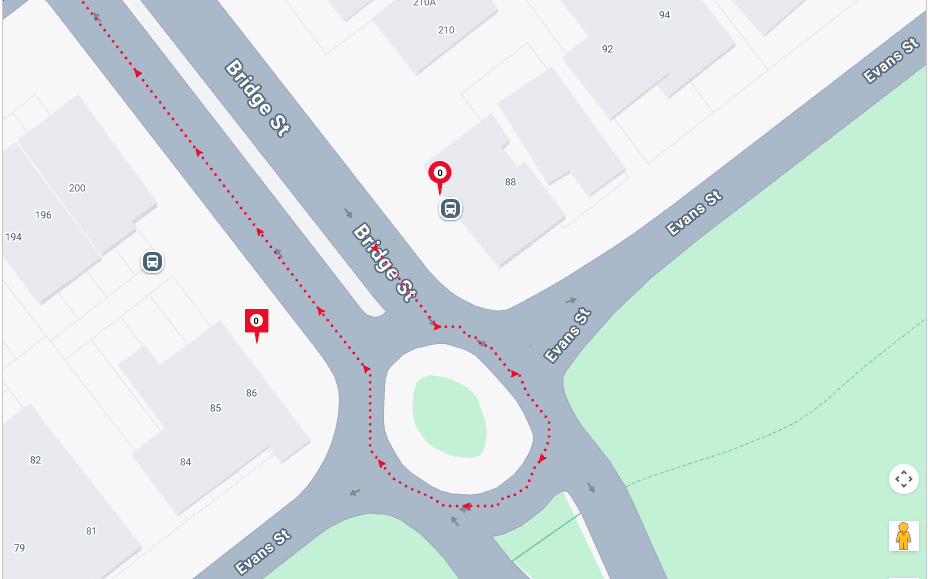
Once added:
- The route path updates
- Direction changes are shown using:
- Dotted lines
- The waypoint will display in the route’s assigned colour
Step 3 – Save Route Changes
After all changes are complete:
- Click Save
⚠ If changes are not saved, the waypoint will not remain attached to the route.
Best Practice Recommendations
Use clear waypoint names
Add waypoints only when route direction needs adjusting
Zoom in to verify waypoint placement
Save after every route adjustment
Common Use Cases
| Scenario | Why Use a Waypoint |
|---|---|
| Low bridges | Redirect large buses |
| One-way streets | Force correct travel direction |
| Road closures | Avoid inaccessible roads |
| Unsafe turns | Create safer route flow |
Common Mistakes
| Issue | Cause |
|---|---|
| Waypoint not appearing | Route changes not saved |
| Incorrect route direction | Waypoint dropped in wrong location |
| Longitude/Latitude missing | Address not entered correctly |
| Waypoint confused with stop | Remember: squares = waypoints, circles = stops |
Was this article helpful?
That’s Great!
Thank you for your feedback
Sorry! We couldn't be helpful
Thank you for your feedback
Feedback sent
We appreciate your effort and will try to fix the article