Smart Route - Number Icons on Biteable.
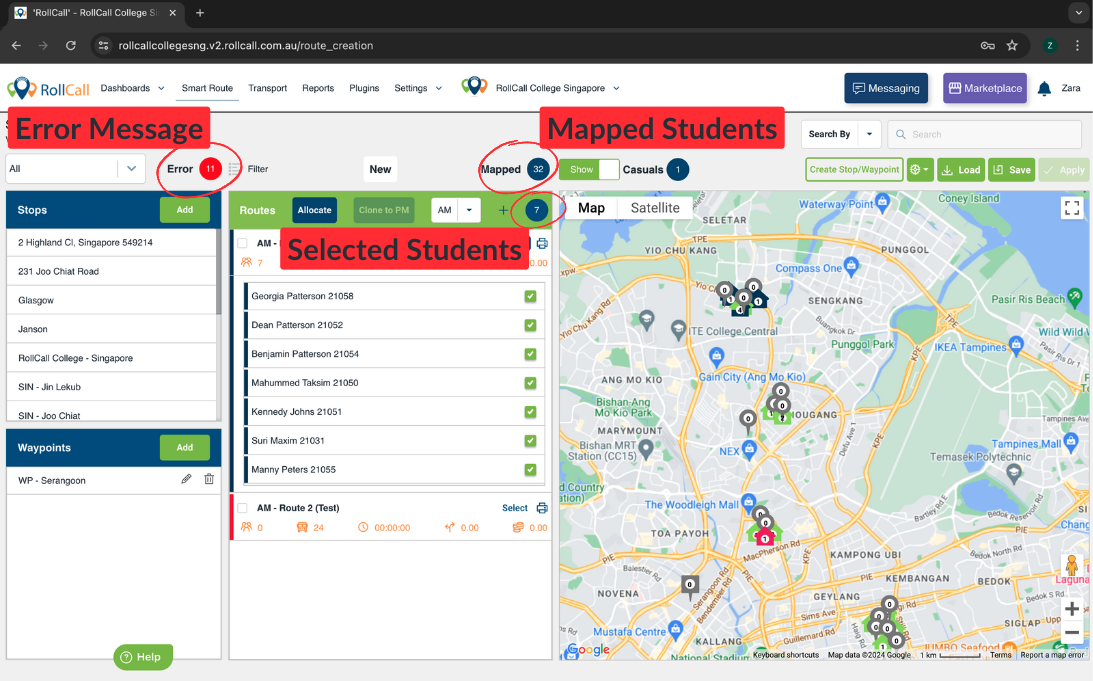
Error Message
This shows the number of Students not correctly mapping - ideally this should = 0
note. Check the Students and their reason for not mapping by clicking on the number icon
Mapped Students
This shows the number of students currently displayed on the map
note. Use the 'Hide' toggle to show Casual Students on the map
Selected Students
This shows the number of Students that have been selected for Route allocation
Was this article helpful?
That’s Great!
Thank you for your feedback
Sorry! We couldn't be helpful
Thank you for your feedback
Feedback sent
We appreciate your effort and will try to fix the article