Parents now set up and access their RollCall account directly through the app. You only need to do this once, and the same account works across all RollCall schools your children attend.

Step 1: Enter Your Email Address
Open the RollCall Parent App and enter your email address.
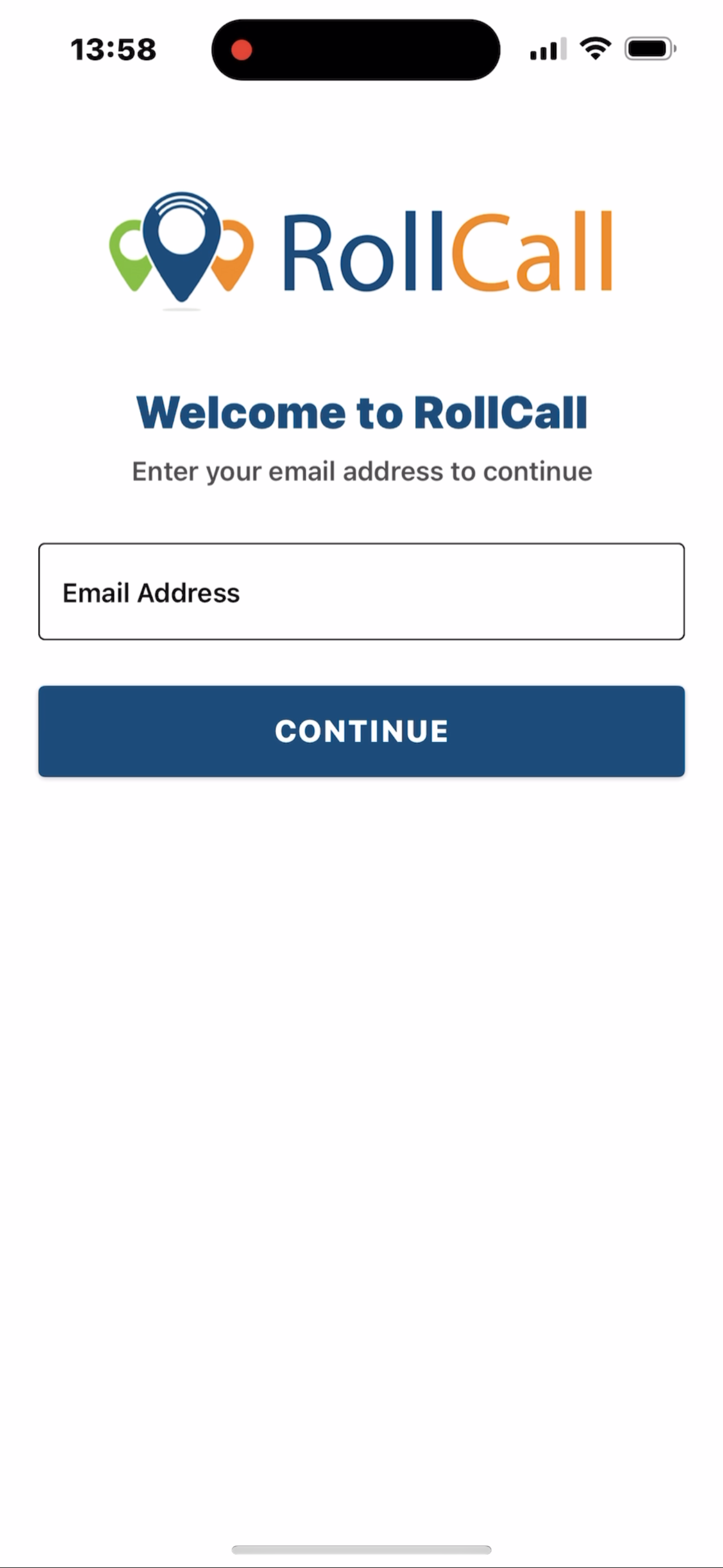
- This screen only asks for your email — this is expected
- The app uses your email to find your school connection and guide you through the next steps
- Tap Continue once your email is entered.

Step 2: Choose How to Receive Your Verification Code
If your email is recognised, you’ll be asked how you’d like to receive a security code.
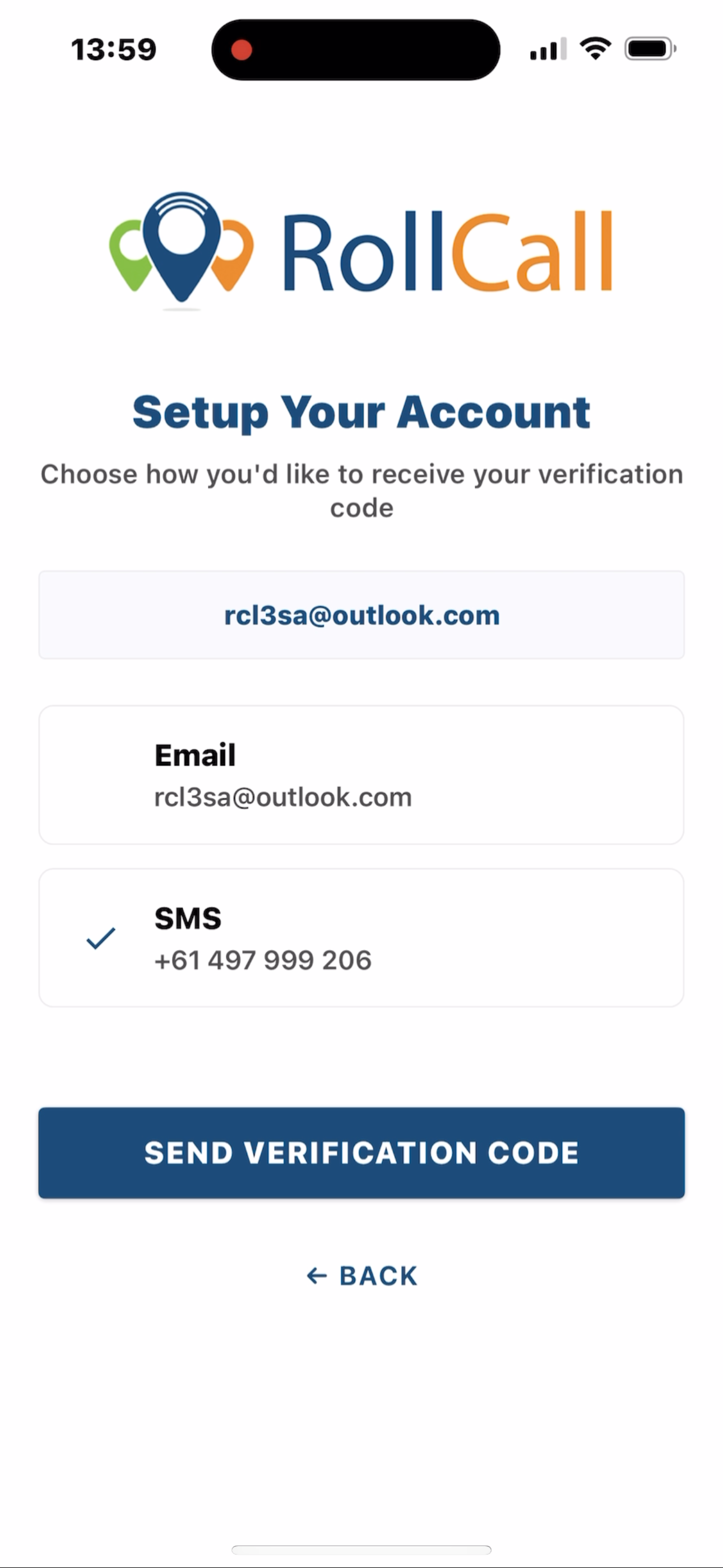
You may see:
- SMS (only shown if the school already has your phone number on file)
Select one option to continue.
ℹ️ If SMS is not shown, it means the school does not currently have a mobile number saved for you.

Step 3: Enter the 6-Digit Verification Code
A 6-digit verification code will be sent to your chosen method.
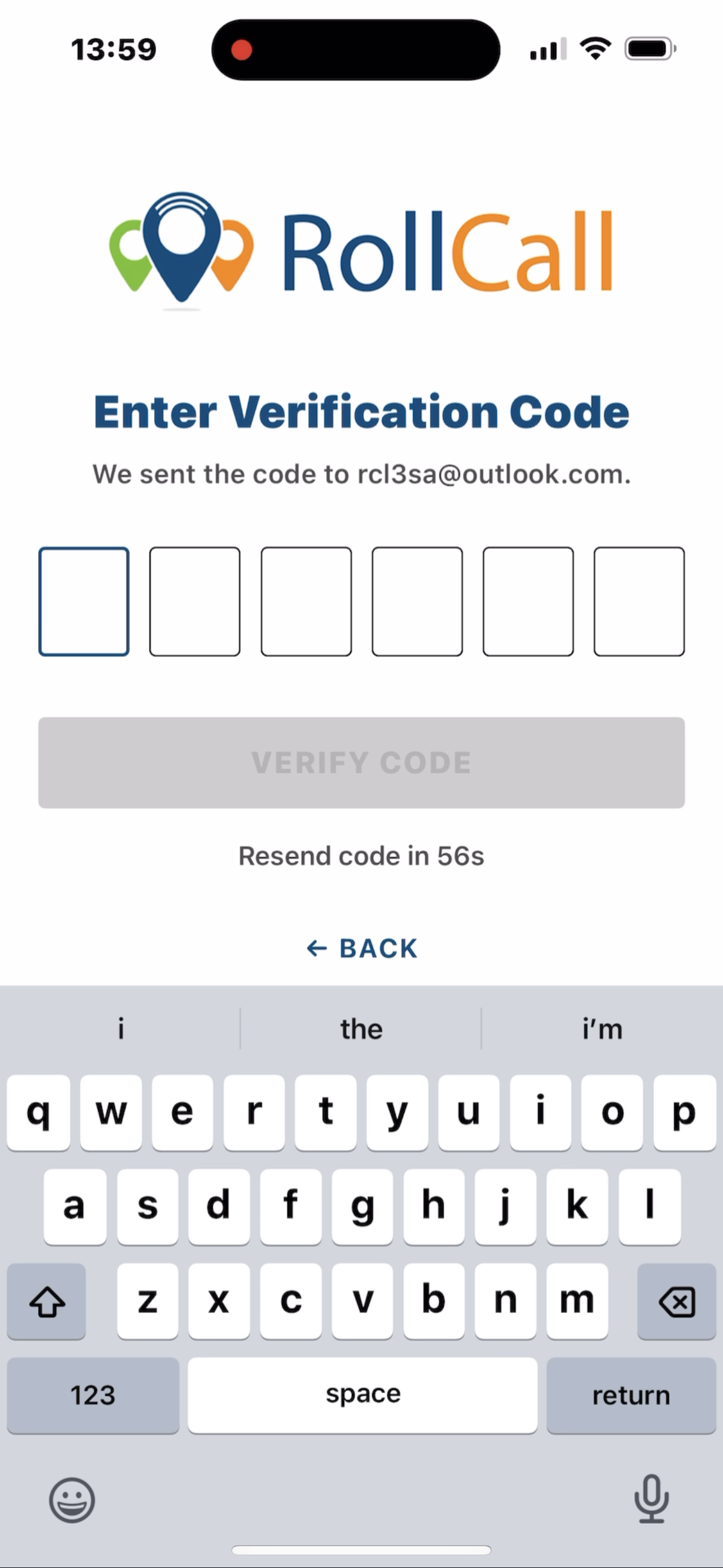
How this screen works:
- The cursor starts in the first box automatically
- Each digit moves you to the next box
- Once all 6 digits are entered, verification happens automatically
If the code is incorrect:
- You’ll see an error message
- The boxes clear automatically
- You can try again or resend the code

Step 4: Create Your Password
Once your code is verified, you’ll be prompted to create a password.
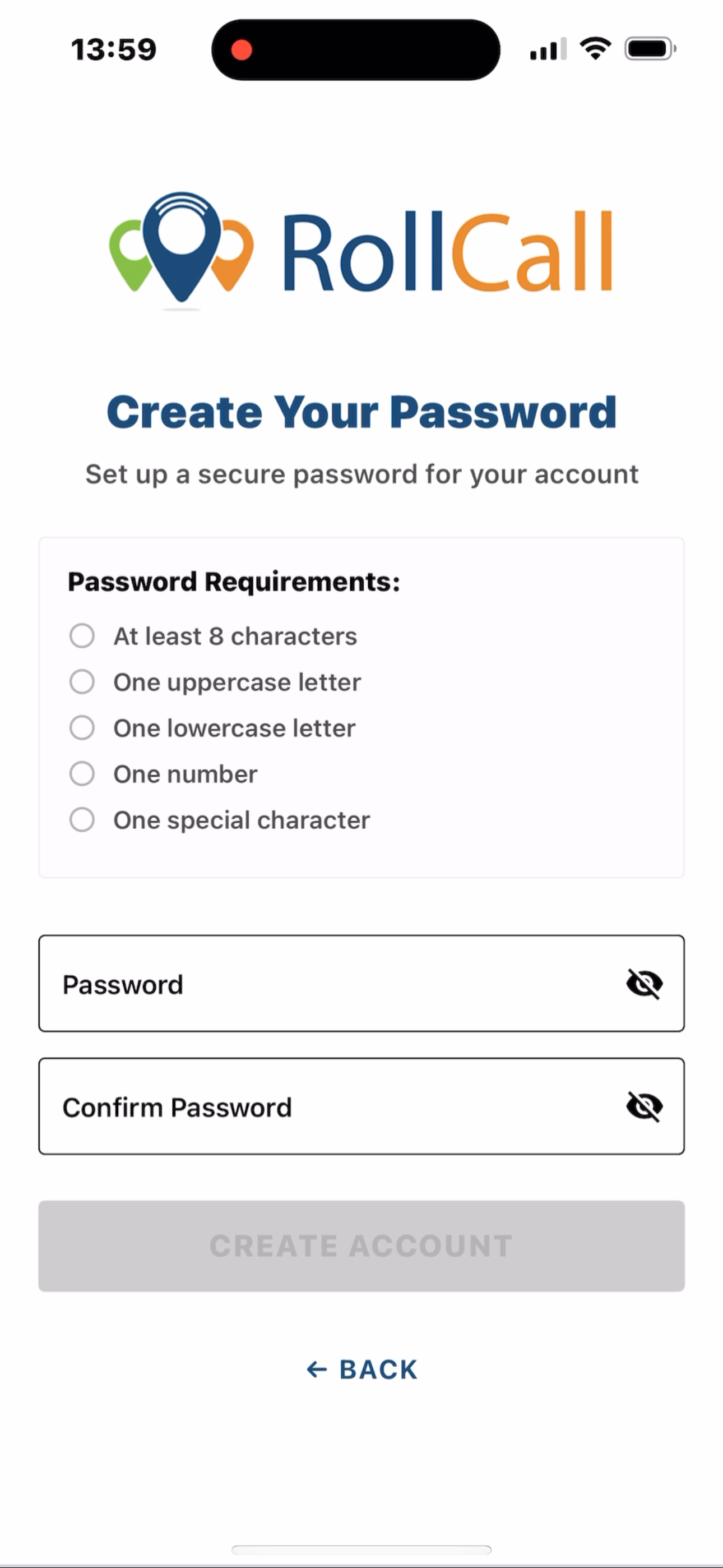
- Password requirements are shown on screen
- You’ll see real-time feedback as you type
- The continue button activates only when requirements are met and passwords match

Step 5: Account Activated
Your account is now active.
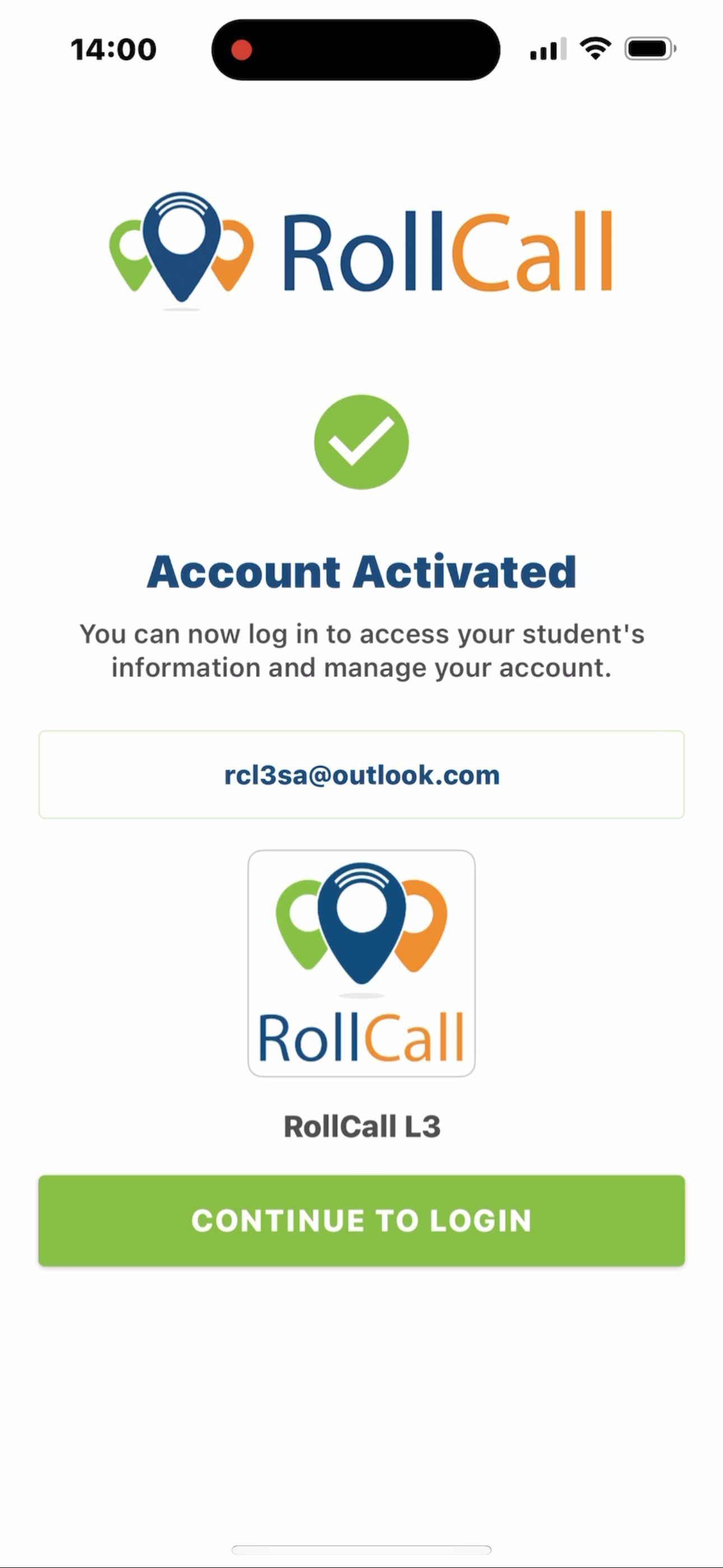
What happens next:
- You’ll be returned to the login screen
- Your email address is already filled in
- If you’re linked to multiple schools, they’re all connected automatically
From now on, you’ll use this same email and password to access RollCall.

What If You See “Account Does Not Exist” or “Inactive”?
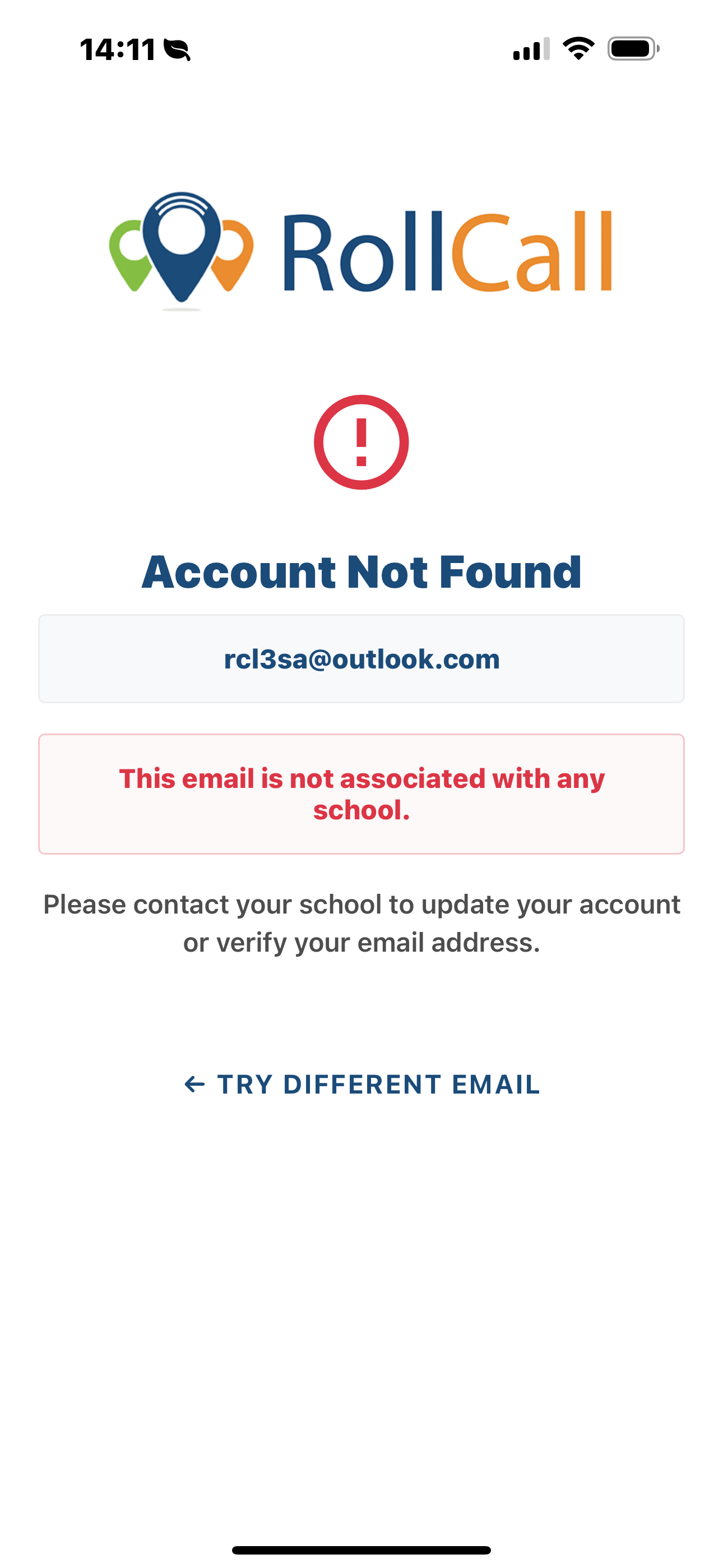
This message appears if:
- Your email isn’t linked to any current students
- Your parent record is inactive or historic
- Your details don’t match what the school has on file
In this case, you’ll need to contact the school directly so they can update your details.

Helpful Things to Know
- You only need to set up your account once
- The same account works across multiple RollCall schools (for example, primary and secondary)
- Welcome emails are no longer required to get started
- Your email is remembered on future logins (you can clear it if needed)

Need Help?
If you’re unable to proceed after following these steps:
- Double-check the email you entered
- Try resending the verification code
- Contact your school to confirm your details are registered correctly

Why This Change Was Made
This new setup makes access faster for parents, reduces delays caused by expired links, and improves account security — all without requiring schools to manage logins or passwords.
RollCall Parent App - Mobile Sign Up Process
Was this article helpful?
That’s Great!
Thank you for your feedback
Sorry! We couldn't be helpful
Thank you for your feedback
Feedback sent
We appreciate your effort and will try to fix the article