Schools using RollCall Pay now have a dedicated dashboard for monitoring payment performance and transaction activity.
Step 1: Navigate to RollCall Pay
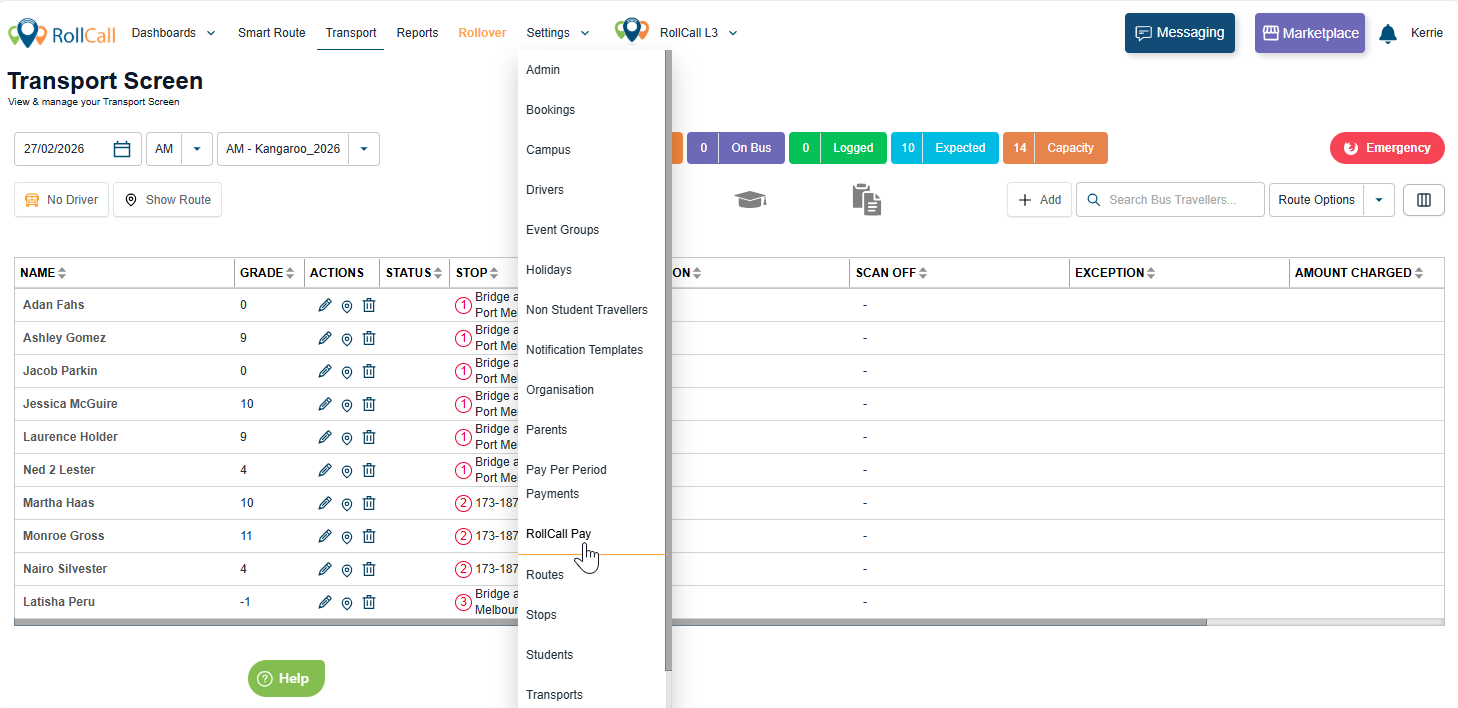
From the main menu, go to Settings > RollCall Pay.
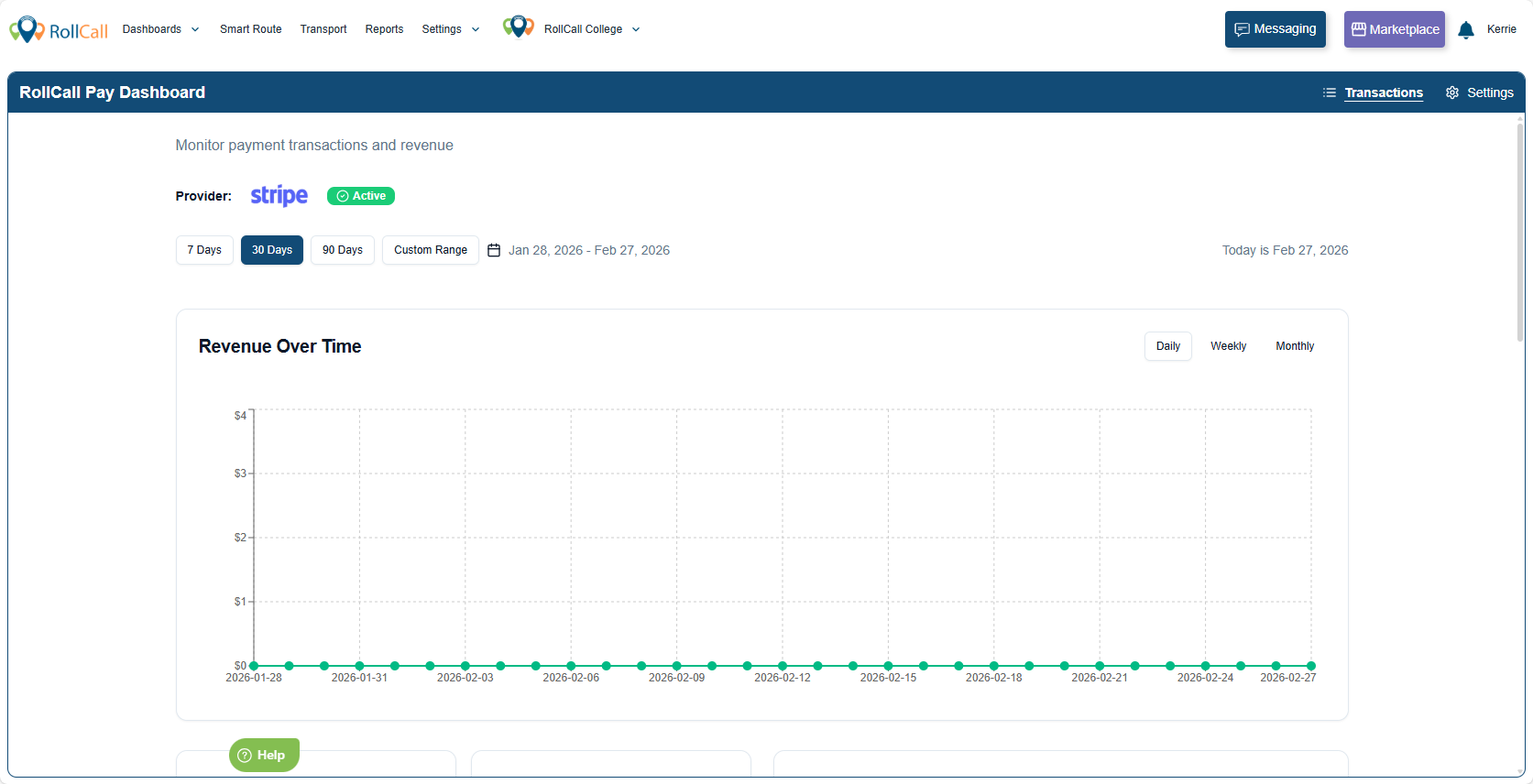
Your Payment Dashboard will be displayed.
Step 2: Open RollCall Pay Settings
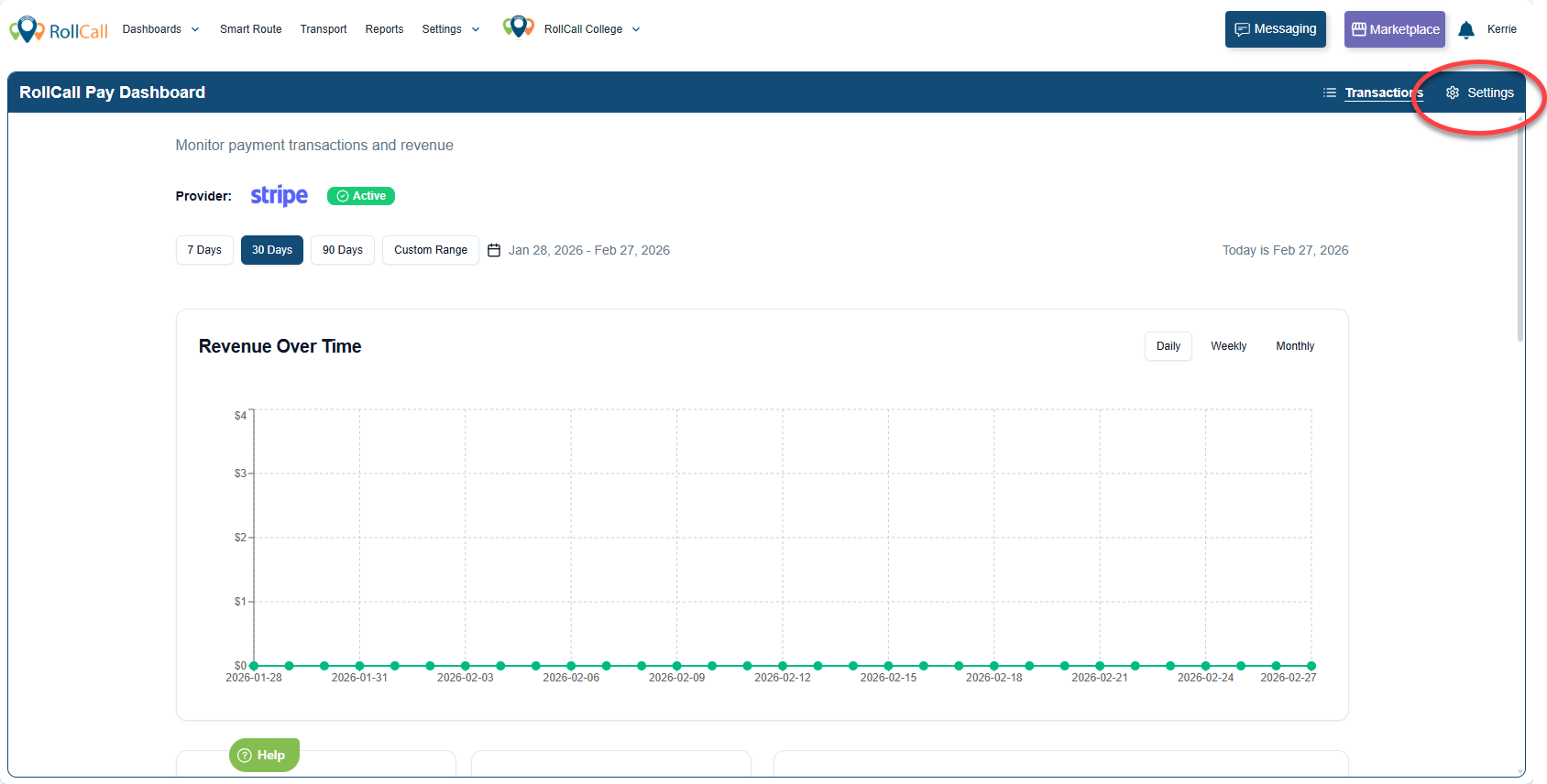
Click Settings in the top right corner of the Payment Dashboard.
Step 3: Modify your API Credentials
If you need to update your API credentials, follow this step.
If you would like to modify your surcharges instead, proceed to Step 4: Modify Your Surcharges.
This step allows you to enter and verify updated payment gateway details to ensure:
Your API credentials are correct
The payment gateway connection is working
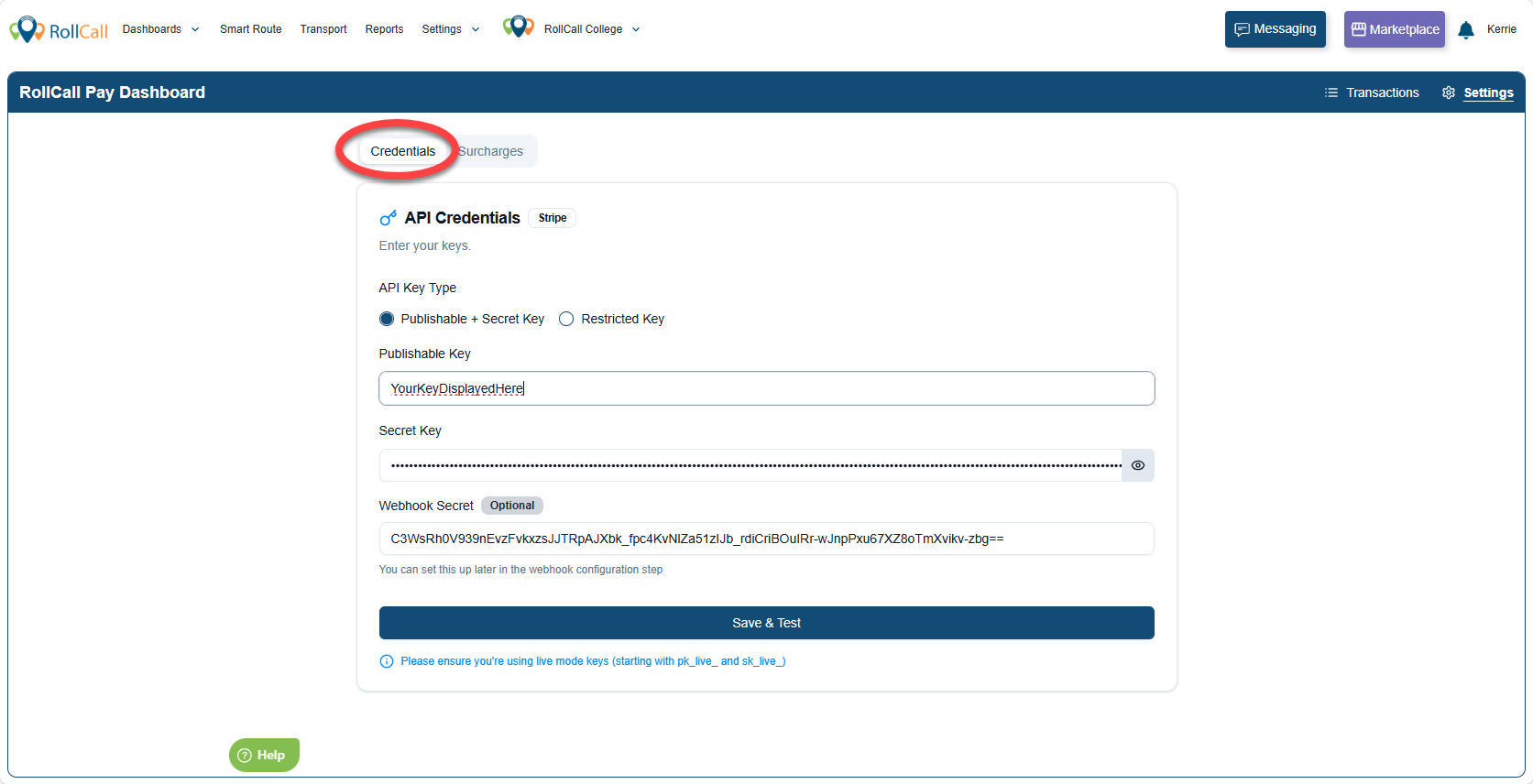
Enter your updated credentials and click Save and Test.
If successful, your credentials will be saved and a confirmation message will appear.

Optional Step 4: Modify your Surcharges
This step allows you to update your payment surcharge settings.
You can modify:
Currency
Percentage Surcharge
Fixed Surcharge
To update your settings:
Change the Currency by selecting your preferred payment currency from the dropdown
Adjust the Percentage Surcharge by updating the surcharge rate (%)
Adjust the Fixed Surcharge by updating the surcharge amount
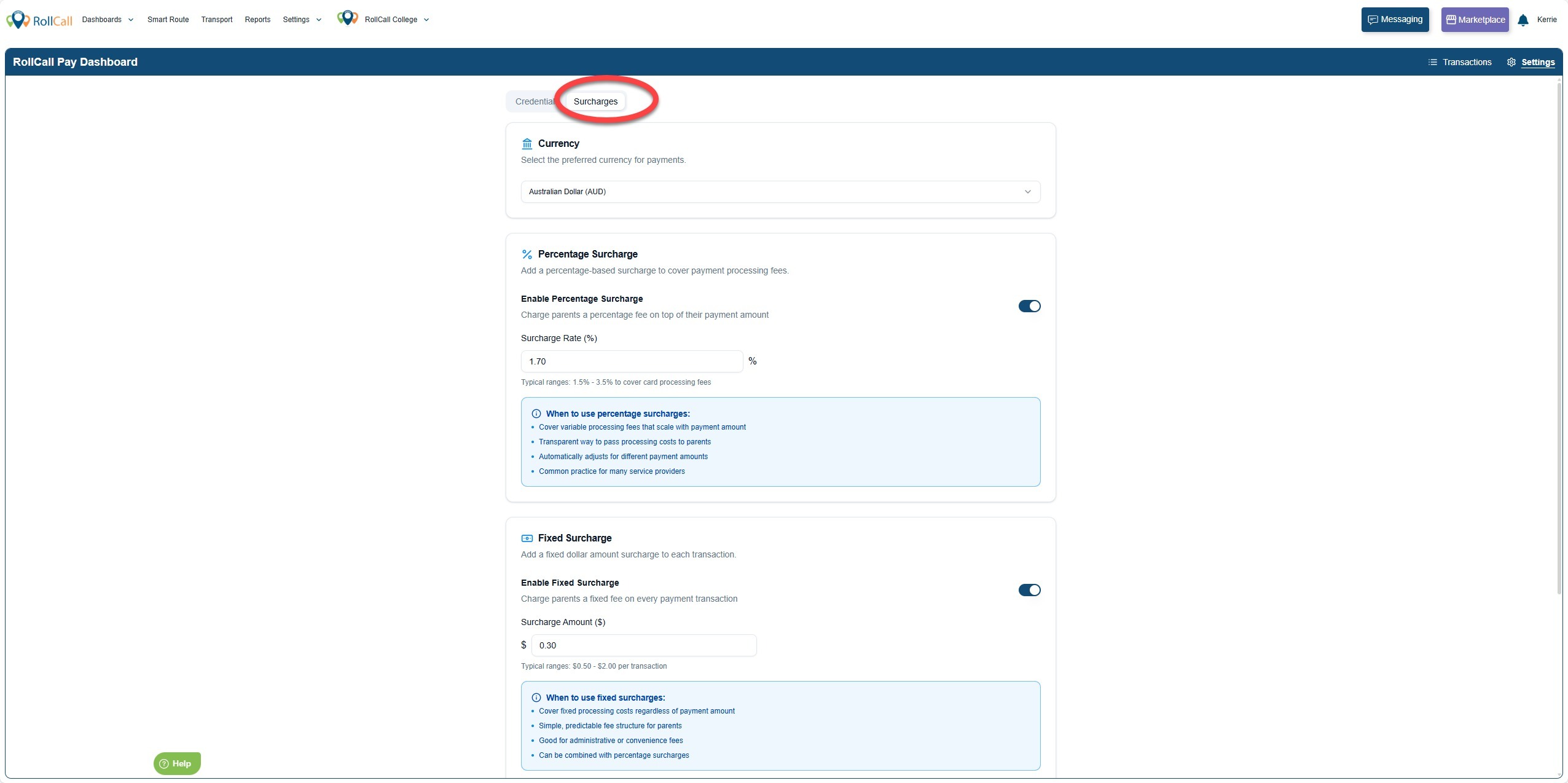 An example calculation will update automatically so you can review the impact before saving.

Once you are satisfied with the new surcharge settings, click Save Settings to apply the changes.
Was this article helpful?
That’s Great!
Thank you for your feedback
Sorry! We couldn't be helpful
Thank you for your feedback
Feedback sent
We appreciate your effort and will try to fix the article