Overview
NAB Gateway is a payment provider that schools can configure in RollCall for transport payments.
Once configured:
Parents can make payments through:
Parent Web
RollCall Parent App
Parents can securely save cards for future use
Schools can monitor and reconcile transactions through the Admin Console
Who This Affects
This feature is designed for:
School Administrators
Configuring payment providers
Reviewing transactions
Reconciling payments
Parents
Paying transport charges
Managing saved payment methods
Setting Up NAB Gateway
Step 1 – Open Payment Provider Settings
Navigate to:
- Integrations → RollCall Pay → NAB Payment Gateway
From here:
Create a new payment provider
OR edit an existing provider configuration
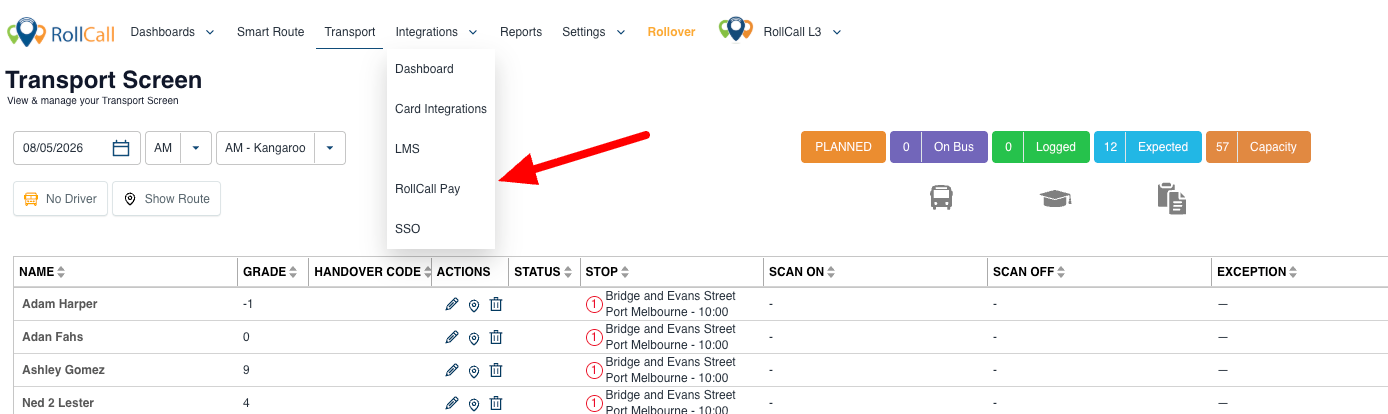
Step 2 – Select NAB Gateway
Under available providers:
Select NAB Gateway
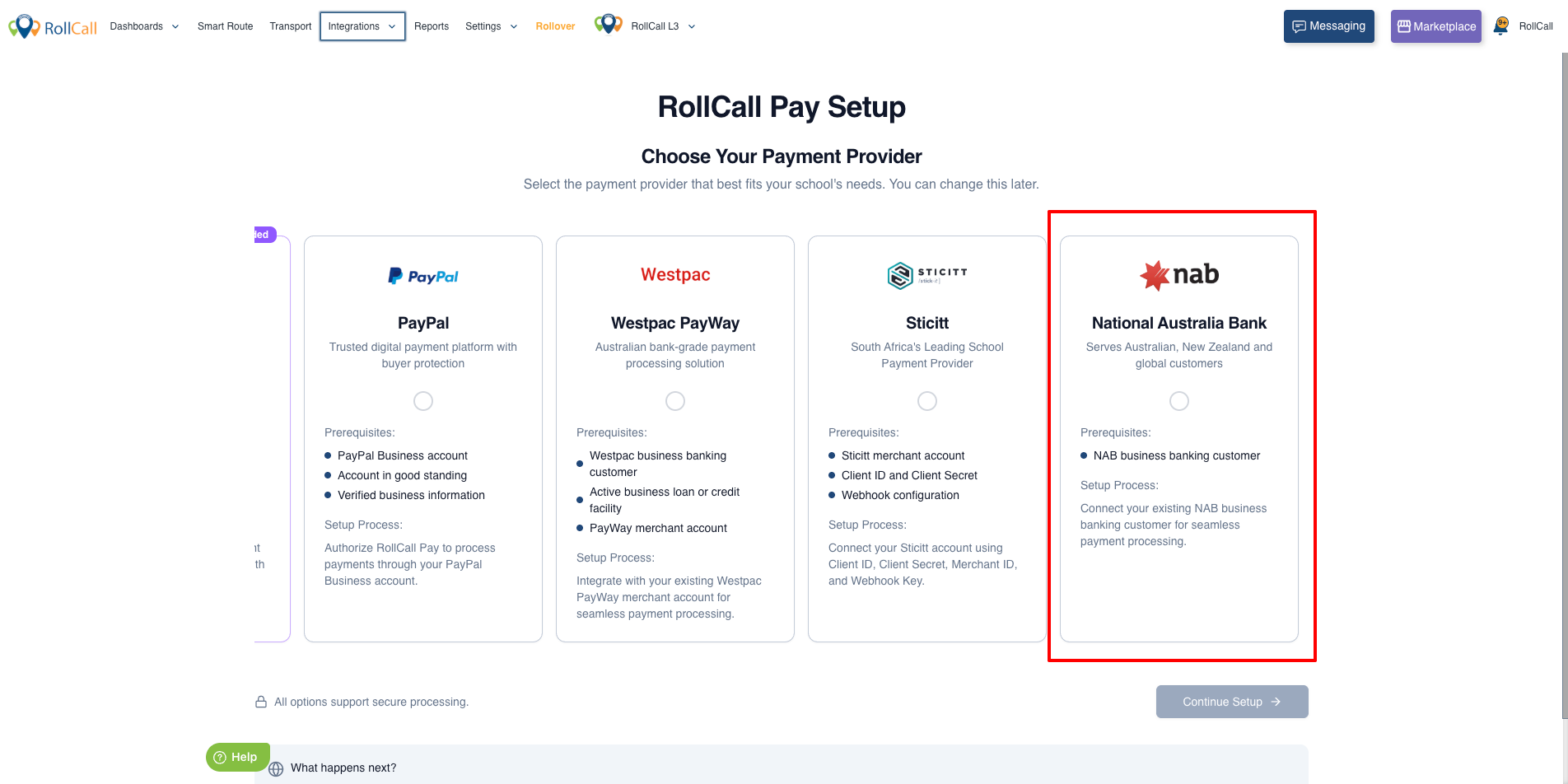
Step 3 – Complete the Setup Wizard
Enter the required NAB Gateway details:
| Field | Description |
|---|---|
| Merchant ID | Provided by NAB Gateway |
| Private Key | Secure API credential |
| Currency | Preferred payment currency |
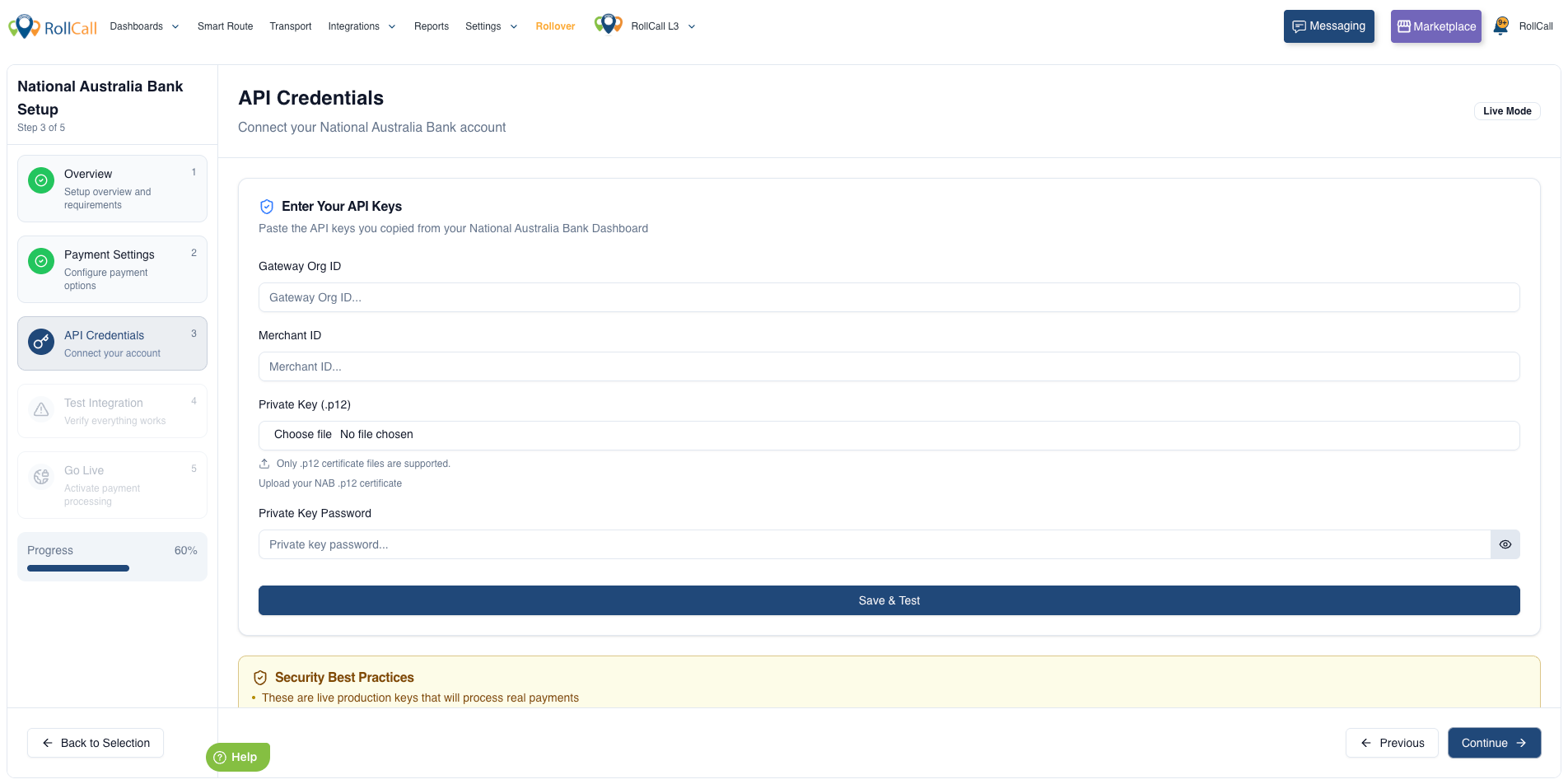
Once completed:
Click Save
Managing Transactions
Step 4 – Review Payment Transactions
Navigate to:
Integrations → RollCall Pay
Scroll down the page
This screen allows administrators to:
Review payment records
Check successful or failed transactions
Support reconciliation and payment follow-up
Parent Payment Process
Step 5 - Transactions
In:
Parent Web
OR RollCall Parent App
Parents:
Open the Transactions tab
Follow on-screen instructions
Step 6 – Enter Payment Details
At checkout:
Enter card details using the secure embedded payment form
Optionally select:
Save Card
Submit payment
Step 7 – Using Saved Cards
For future payments:
Parents can select a previously saved card during checkout
Parents can also:
Open the Saved Payment Methods screen
Manage stored cards
Available in:
Parent Web
RollCall Parent App
What You’ll See
Admin Console
Administrators will see:
NAB Gateway listed as a payment provider
Payment configuration wizard
Transaction records and payment outcomes
Parent Web & Parent App
Parents will see:
NAB Gateway as a payment option
Secure embedded card entry form
Save card option
Payment status messages after submission
Important Notes ⚠
Provider Setup Required
NAB Gateway must be fully configured before:
Parents can see it during checkout
Use Live Credentials
For live school environments:
Use Live NAB Gateway credentials
⚠ Test credentials are not accepted in production.
Validation Errors
If:
Merchant ID
OR Private Key
is invalid:
The setup wizard displays a validation error
The provider cannot be saved until corrected
Saved Cards
Parents can:
Save cards during checkout
Reuse saved cards for future NAB Gateway payments
Saved cards are linked to:
The parent’s account
Failed Payments
If a parent reports:
Failed payment
Unclear payment result
Administrators should first check:
Payments → Transactions
before advising the parent to retry.
Best Practice Recommendations
- Use live credentials for production schools
- Verify provider setup before parent rollout
- Regularly monitor transaction records
- Encourage parents to save cards for faster checkout
- Check transaction logs before escalating payment issues
Common Issues
| Issue | Cause |
|---|---|
| NAB Gateway not visible at checkout | Provider not configured |
| Cannot save provider | Invalid Merchant ID or Private Key |
| Parent payment failed | Bank decline or payment gateway issue |
| Saved card missing | Parent not logged into same account |
| Payment unclear | Check Transactions screen for status |
Was this article helpful?
That’s Great!
Thank you for your feedback
Sorry! We couldn't be helpful
Thank you for your feedback
Feedback sent
We appreciate your effort and will try to fix the article