Overview
If your Westpac PayWay Secret Key has changed, you will need to update it in RollCall to ensure payments continue to process successfully.
The Secret Key is managed through the Westpac PayWay Merchant Portal and can be updated in the RollCall RollCall Pay integration settings.
How to Identify an Expired Secret Key
If the Westpac PayWay Secret Key has expired or is no longer valid, you may notice the following behaviour:
In the Admin Console
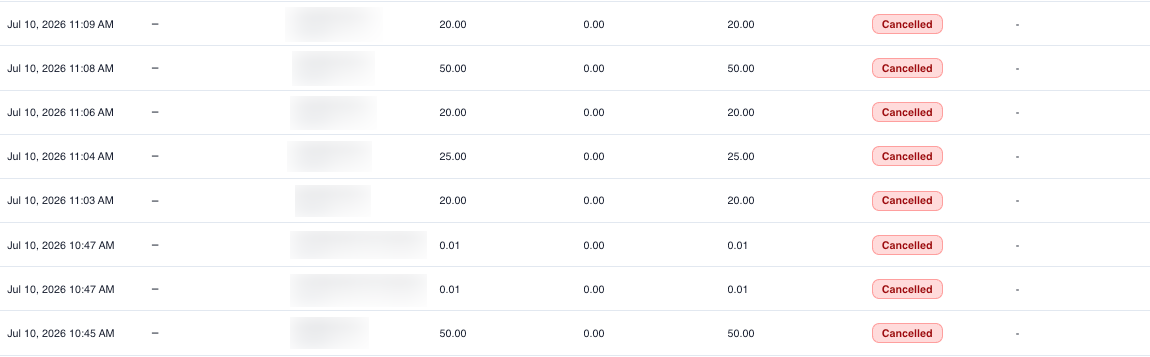
All new PayWay transactions display a status of Cancelled in the Payments → Transactions screen.
In the RollCall Parent App
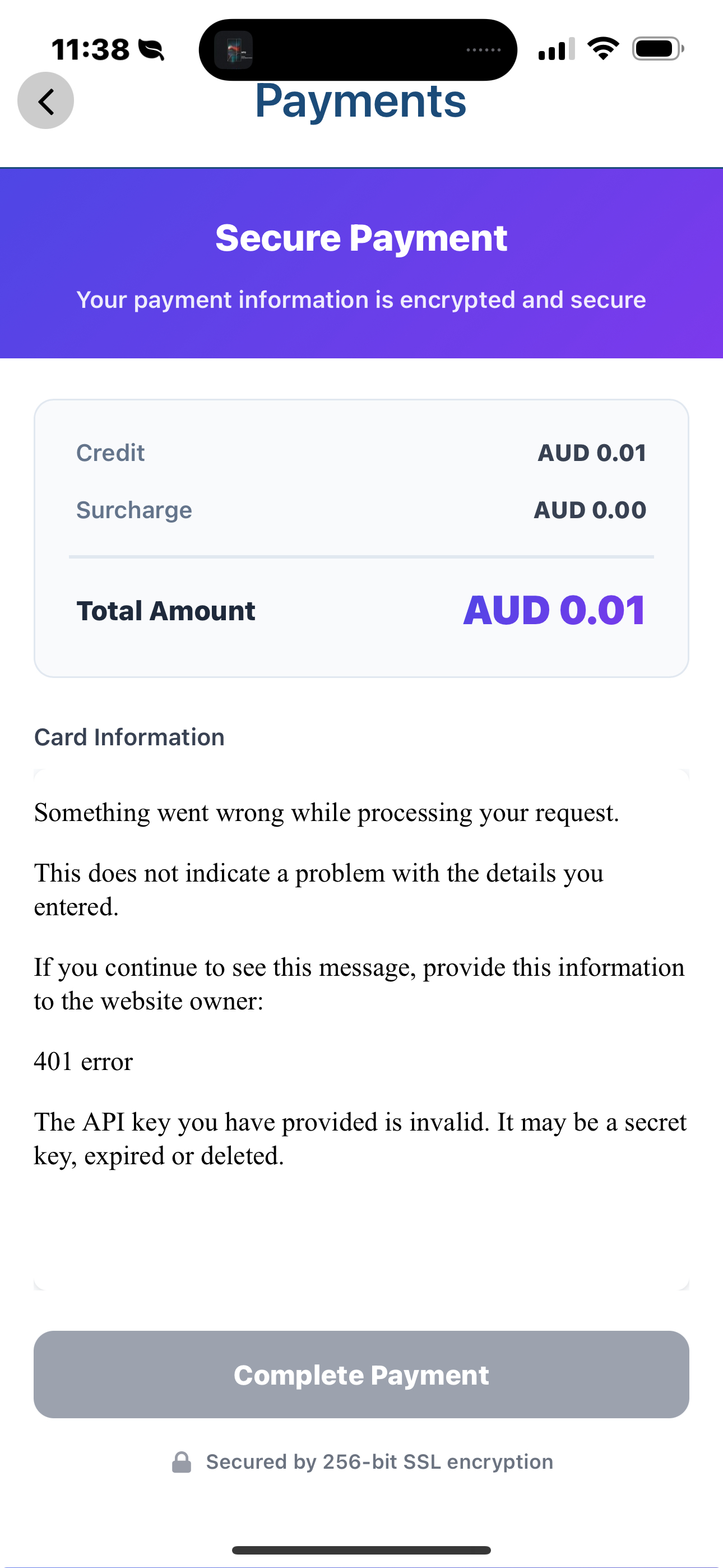
Parents attempting to make a payment will receive an error message at the bottom of the payment screen indicating that the Secret Key needs to be updated.
Payments will not be processed until the Secret Key has been updated in RollCall.
Tip: If all PayWay transactions are being cancelled and parents are unable to complete payments, the first thing to check is that the Secret Key stored in the RollCall Pay integration matches the current SECRET key in the Westpac PayWay Merchant Portal.
This flows naturally into the update steps and gives schools a quick way to diagnose the issue before making any configuration changes.
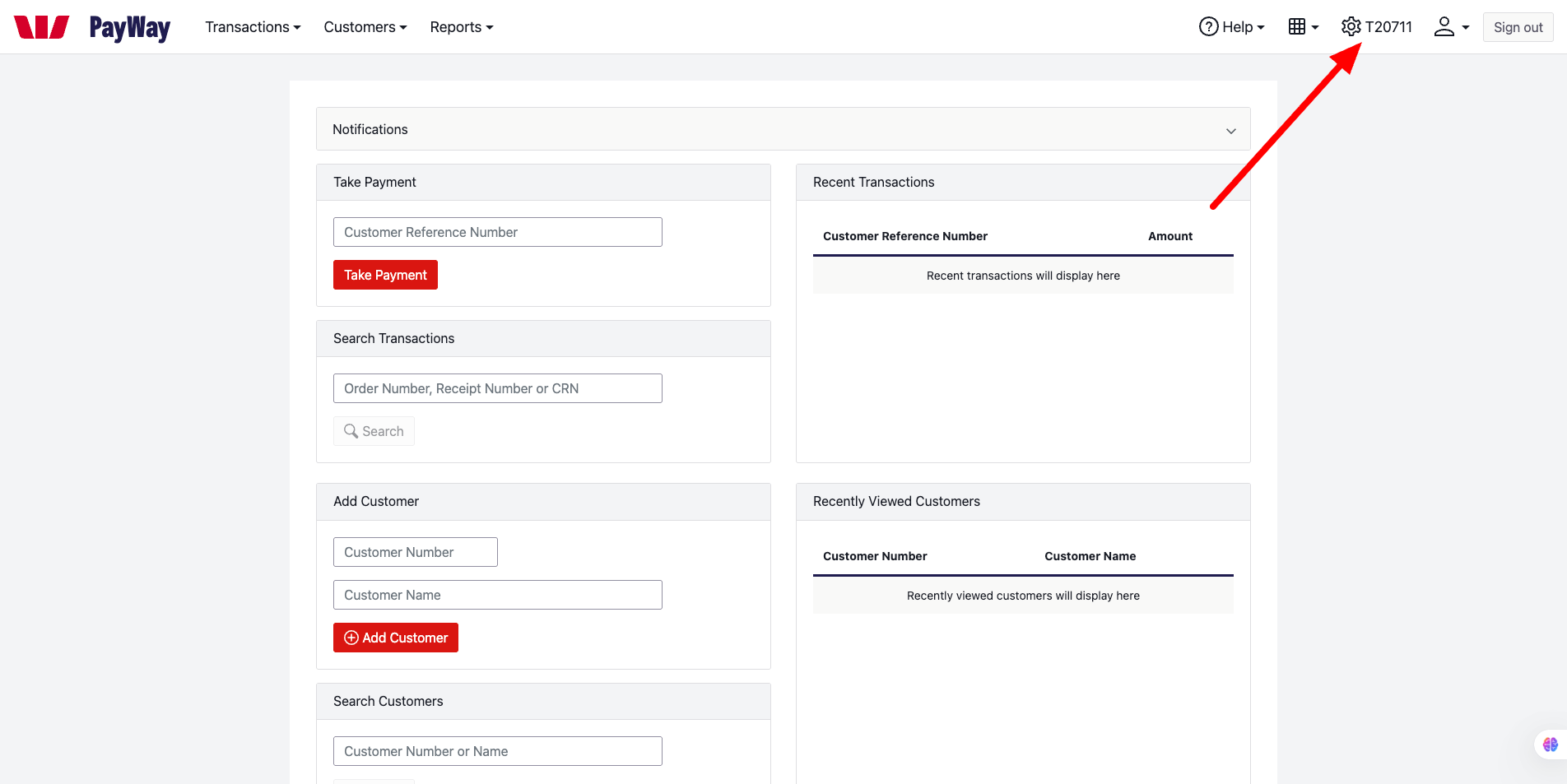
Step 1 – Log in to the Westpac PayWay Merchant Portal
Log in to your Westpac PayWay Merchant Portal using your administrator credentials.
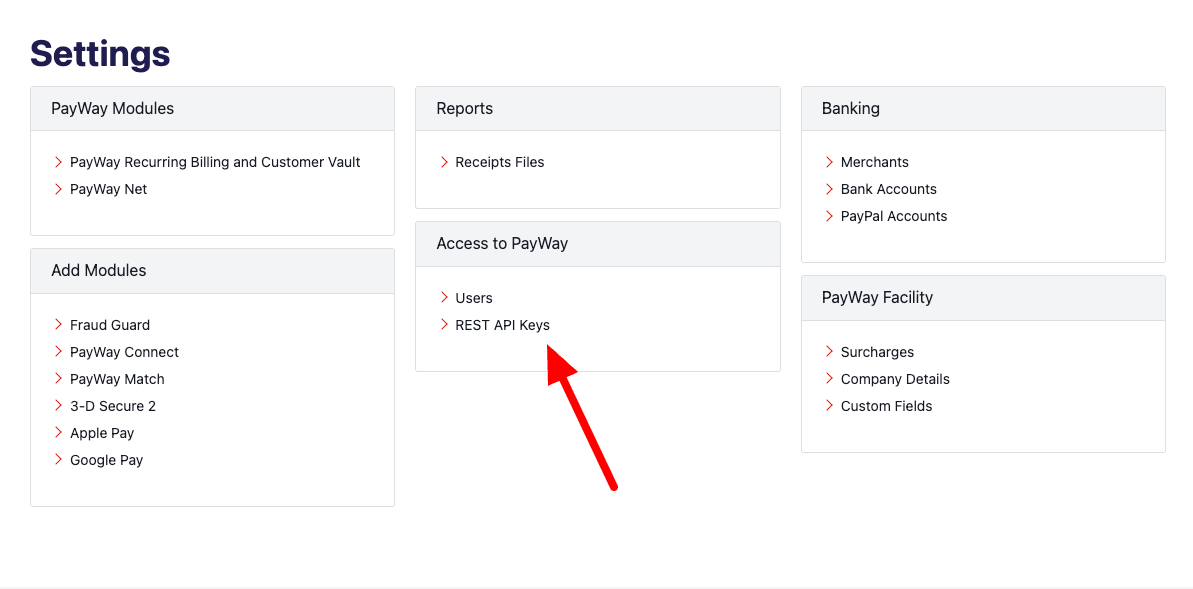
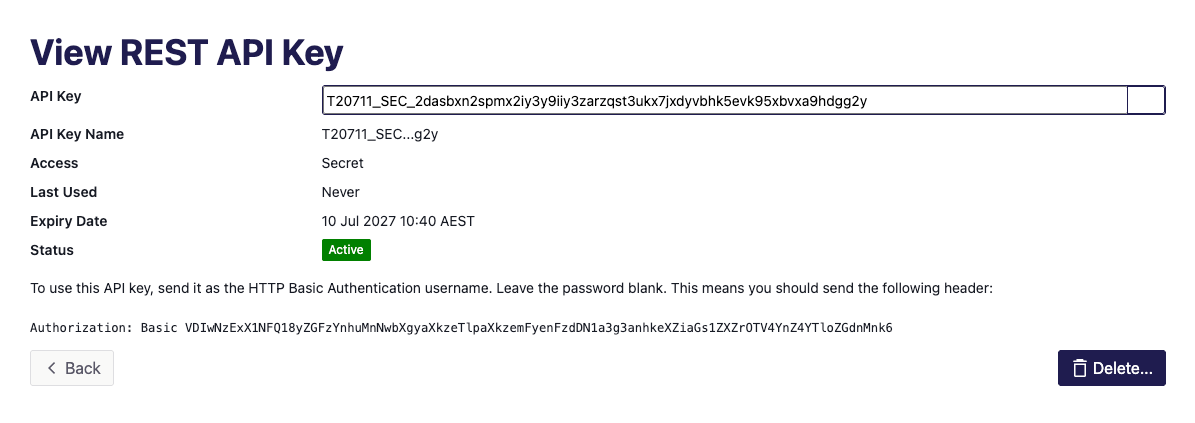
Step 2 – Locate the REST API Keys
- Click the Settings icon (⚙️).
- Select REST API Keys.
This page displays the API keys associated with your PayWay account.
Step 3 – Copy the Secret Key
Locate the key labelled SECRET.
Copy the Secret Key to your clipboard.
Note: If a Secret Key does not already exist, create one before continuing.
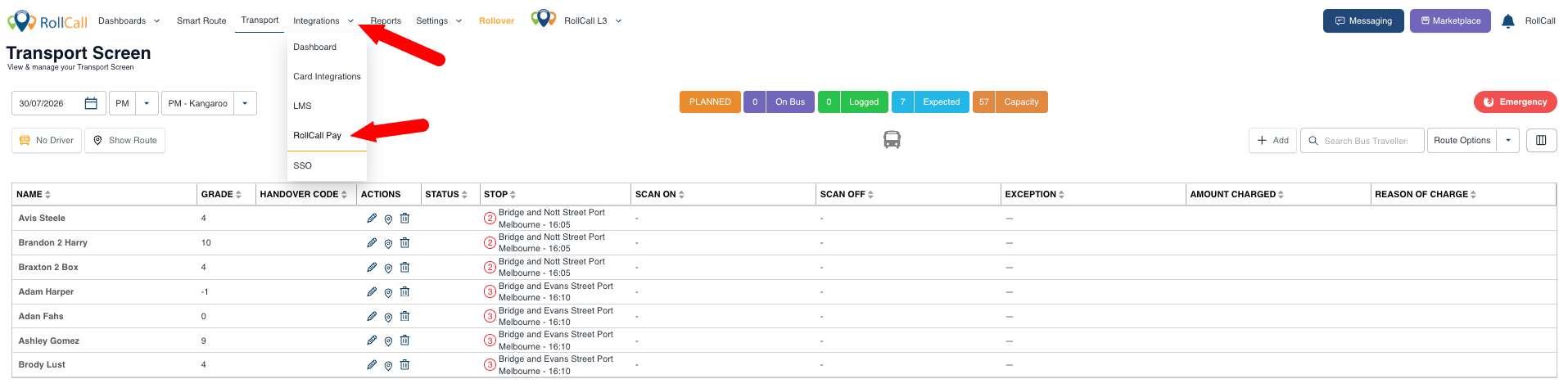
Step 2 — Open RollCall Settings
Log in to RollCall and navigate to:
Integrations → RollCall Pay
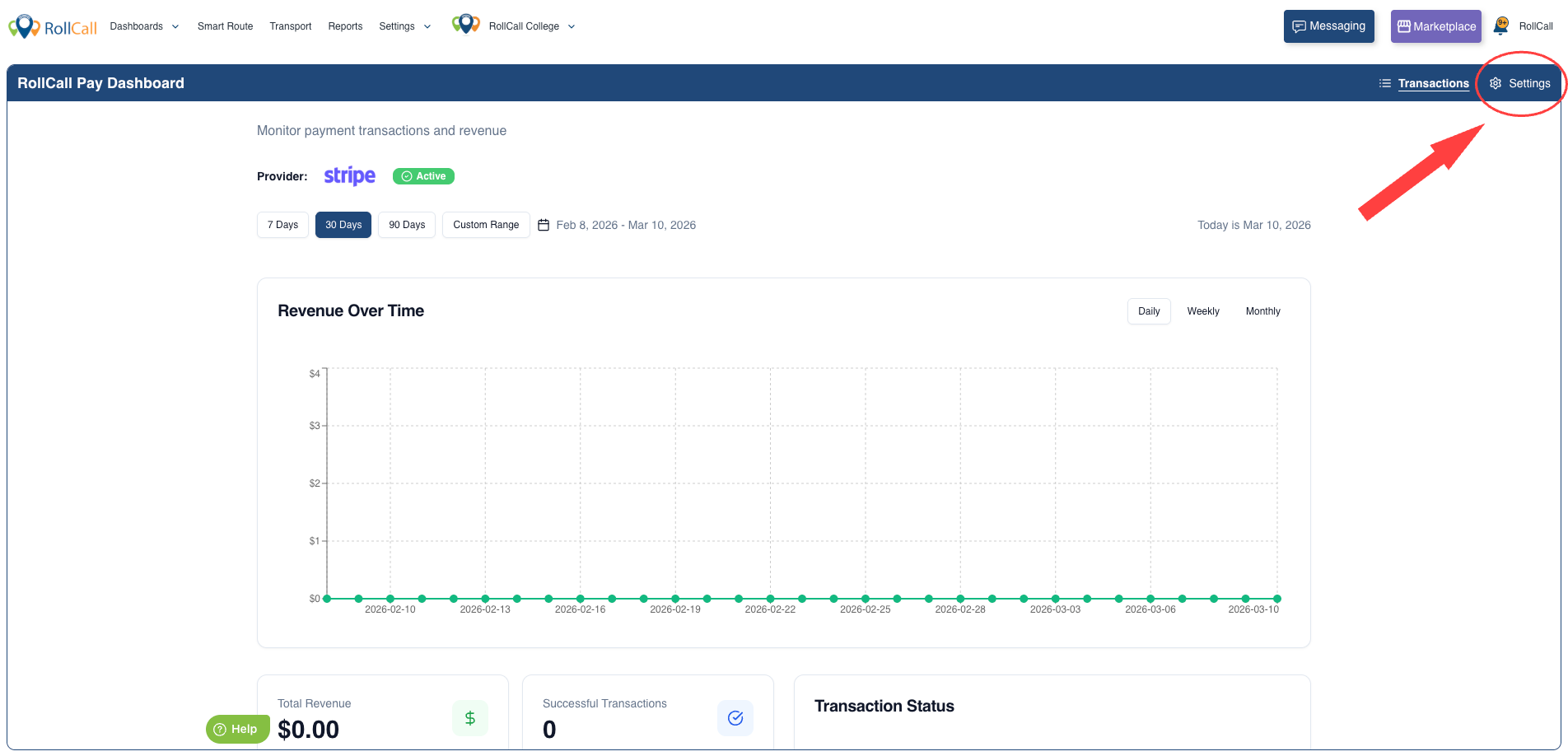
Step 3 — Open Pay Settings
In the top-right corner of the screen, click: Settings
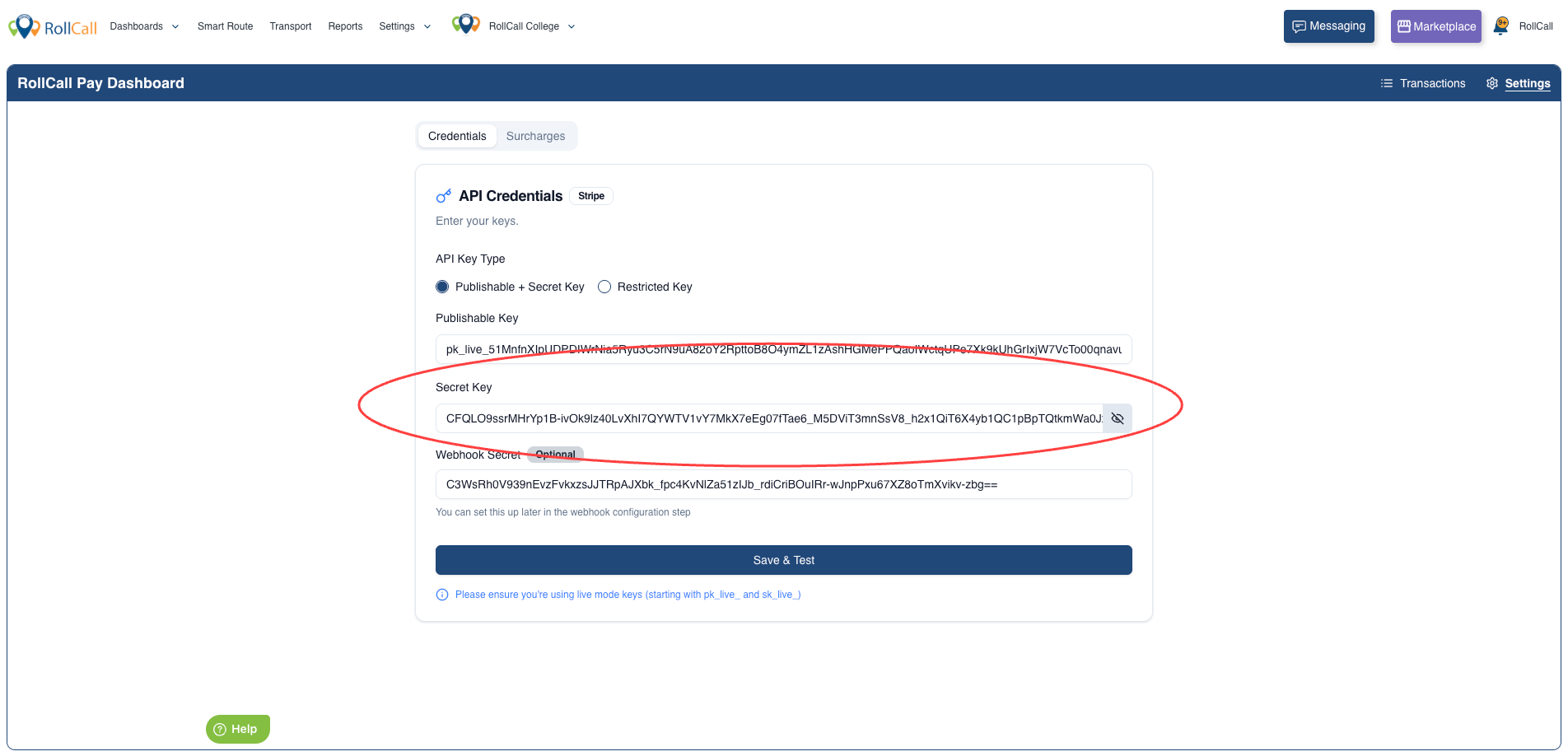
Step 4 — Update the Secret Key
Locate the field labelled:
Secret Key
Replace the existing value with the new PayWay API Key you received in the email.
Step 5 — Save the changes
Save or apply the update in RollCall to complete the process.
⚠️ Important
You only need to update the Secret Key.
Do not change any of the following settings:
Publishable Key
API Key Type
Webhook Secret
✅ Quick Navigation Path
Settings → RollCall Pay → Settings → Secret Key
Was this article helpful?
That’s Great!
Thank you for your feedback
Sorry! We couldn't be helpful
Thank you for your feedback
Feedback sent
We appreciate your effort and will try to fix the article