Parents - Managing Your Parent Access
Modified on Mon, 30 Mar at 9:55 AM
The Manage Parent Access feature allows school administrators to control whether parents can access the RollCall Parent App and Parent Web Portal.
Administrators can:
Enable or disable access for individual parents
Manage access in bulk
Filter and search parents to quickly update permissions
View engagement status and parent types while managing access
This tool ensures schools maintain full control over which parents are able to log in and interact with the RollCall platform.
Default Parent Access Settings
Parent access defaults depend on when the school was created.
School Type | Default Parent Access |
|---|---|
Existing schools | Access enabled for all parents |
Newly created schools | Access disabled for all parents |
If parent access is disabled, the parent cannot log in or set up their account until access is enabled.
Navigating to Manage Parent Access
Open the Parent Settings screen.
At the top of the page, locate the Manage Parent Access button.
Click Manage Parent Access.
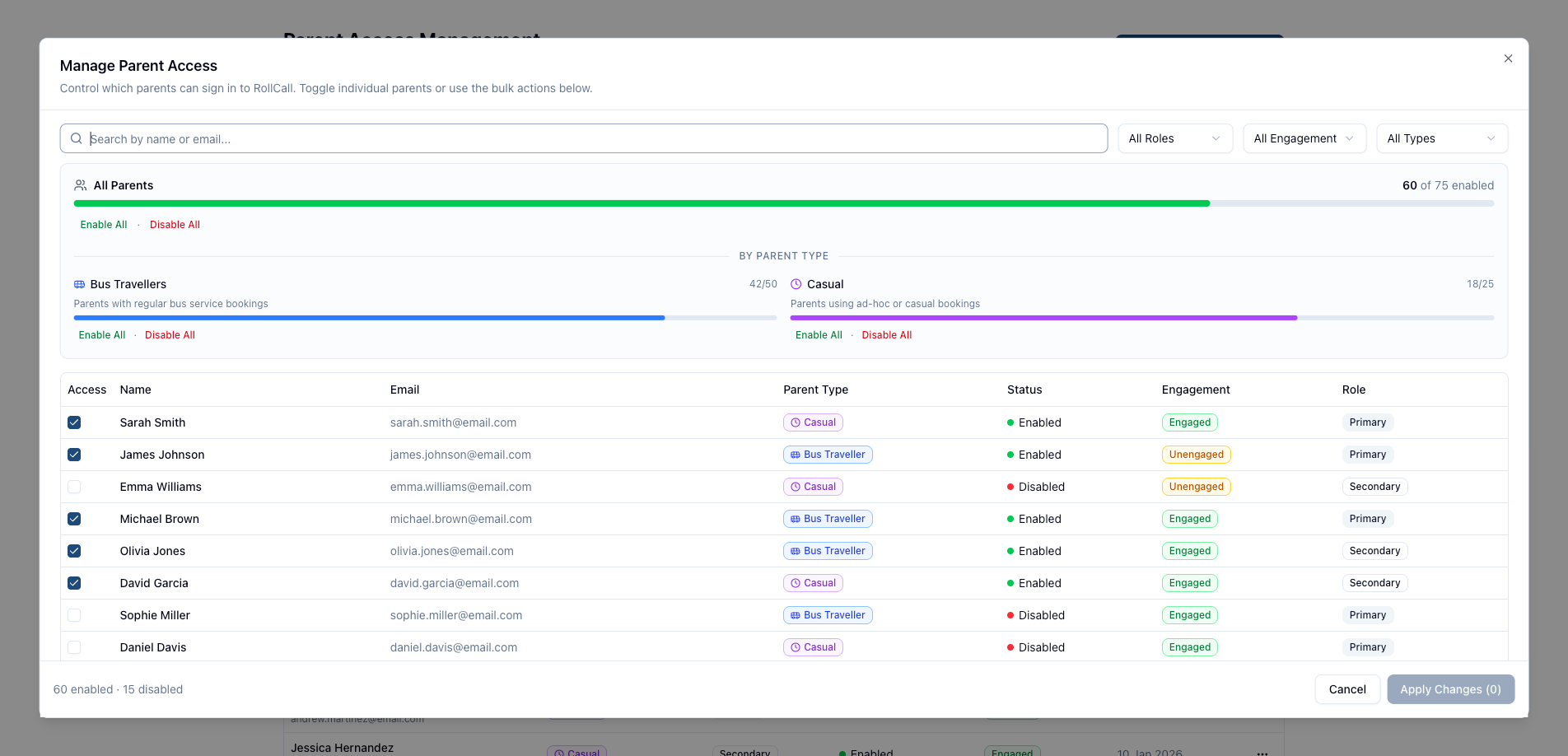
The Parent Access Management modal will open.
This modal allows you to manage access for all parents at once.
Understanding the Parent Access Management Screen
The modal displays a scrollable table of all parents with several useful columns.
| Column | Description |
|---|---|
| Checkbox | Toggle parent access on or off |
| Parent Name | Name of the parent |
| Parent's registered email address | |
| Parent Type | Bus Traveller or Casual |
| Access Status | Shows whether access is enabled or disabled |
| Engagement Status | Indicates whether the parent is Engaged or Unengaged |
| Role | Primary or Secondary parent |
Visual Indicators
Access Enabled → Parent can log in and use RollCall
Access Disabled → Parent cannot access the system
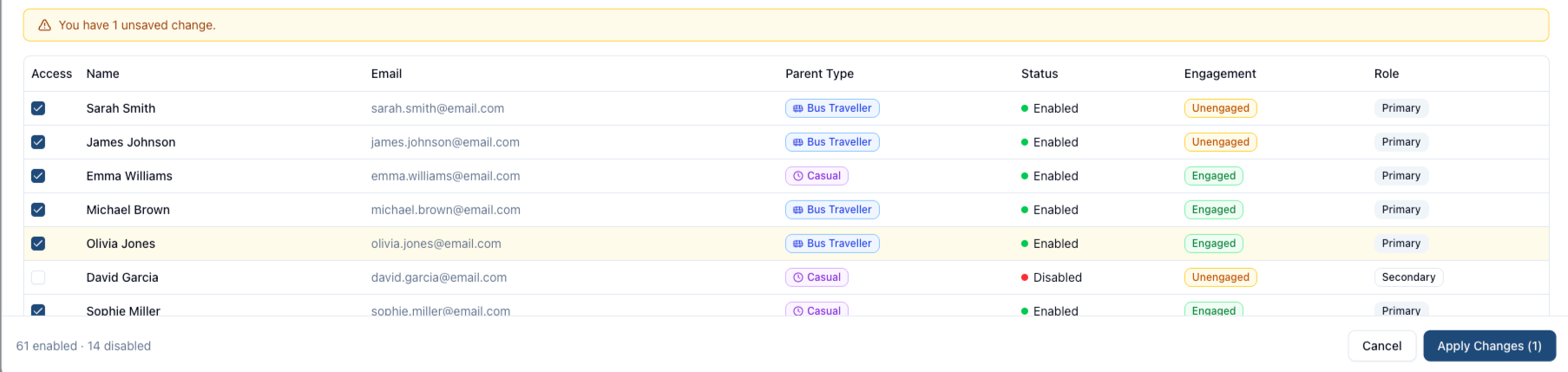
Amber highlighted rows → Changes have been made but not yet saved
Searching and Filtering Parents
To make large parent lists easier to manage, you can search or filter.
Search
Use the search bar to locate parents by:
Parent name
Email address
Filters
Filter parents using the dropdown options:
Role – Primary or Secondary parent
Engagement Status – Engaged or Unengaged
Parent Type – Bus Traveller or Casual
Filters help administrators quickly find and update specific groups of parents.
Enabling or Disabling Parent Access
Individual Parent Access
To change access for a single parent:
Locate the parent in the table.
Toggle the checkbox in the first column.
The row will turn amber to indicate a pending change.
The change will not apply until you Apply Changes.
Bulk Access Management
Bulk actions allow you to update access for large groups of parents quickly.
Overall Access Controls
At the top of the panel, you will see a progress bar showing the number of parents with access enabled.
Example: 60 of 75 enabled

You can:
- Click Enable All to grant access to every parent

Click Disable All to remove access from all parents

Access by Parent Type
Parents are grouped into two categories:
Bus Travellers
Parents with students who have regular bus service bookings.
Shown with a blue progress bar
Displays how many parents currently have access enabled

Actions:
Enable All Bus Travellers

Disable All Bus Travellers

Casual
Parents with students using ad-hoc or casual bookings only.
Shown with a purple progress bar
Displays how many parents currently have access enabled

Actions:
Enable All Casual Parents

Disable All Casual Parents

Live Updates
All counts and progress bars update in real time as you toggle checkboxes or apply bulk actions.
Saving Changes
Changes are stored as a draft until applied.
Indicators of Unsaved Changes
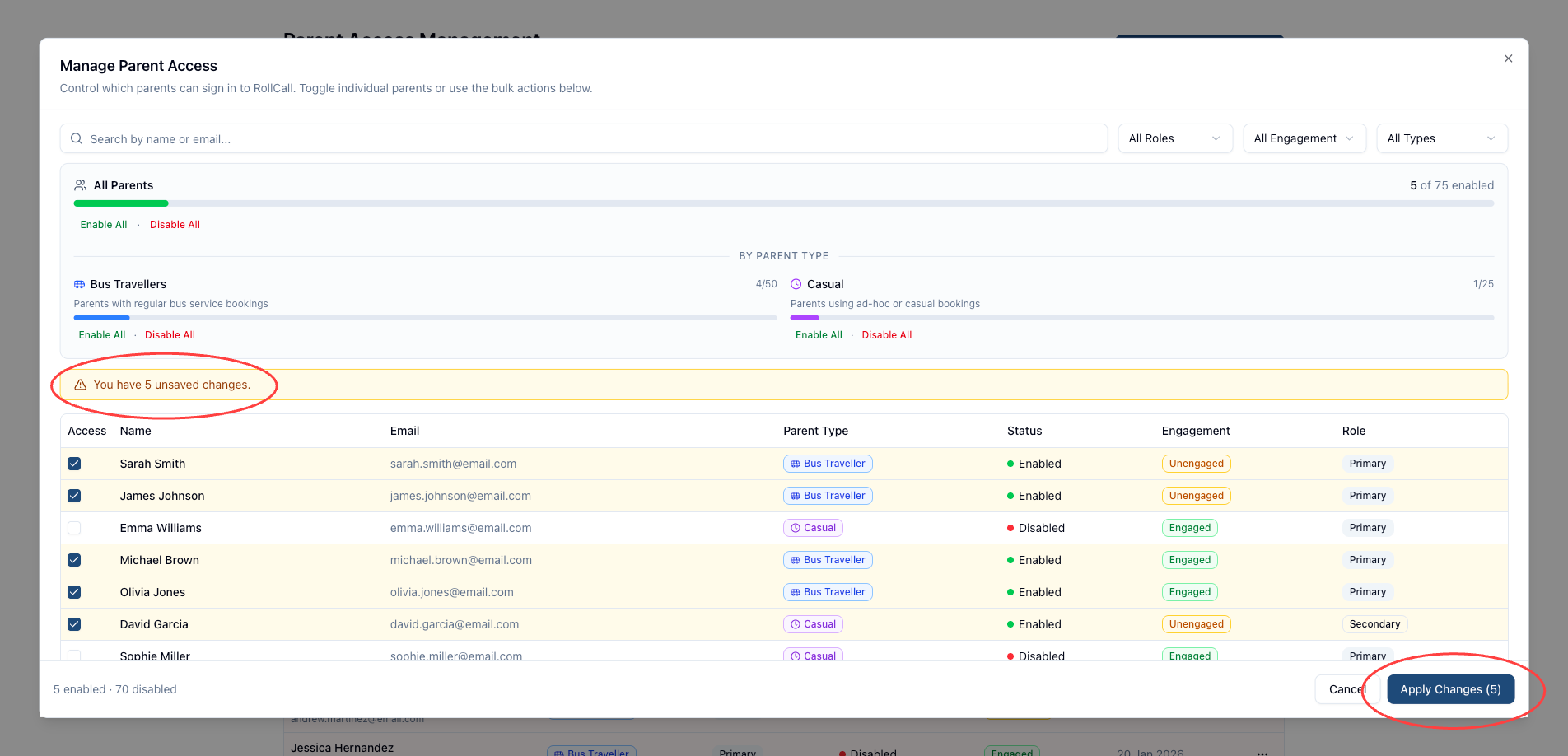
Rows with pending changes are highlighted amber
An amber banner appears indicating unsaved changes
The Apply Changes button displays the number of pending changes
Example:
Applying Changes
To save your updates:
Click Apply Changes
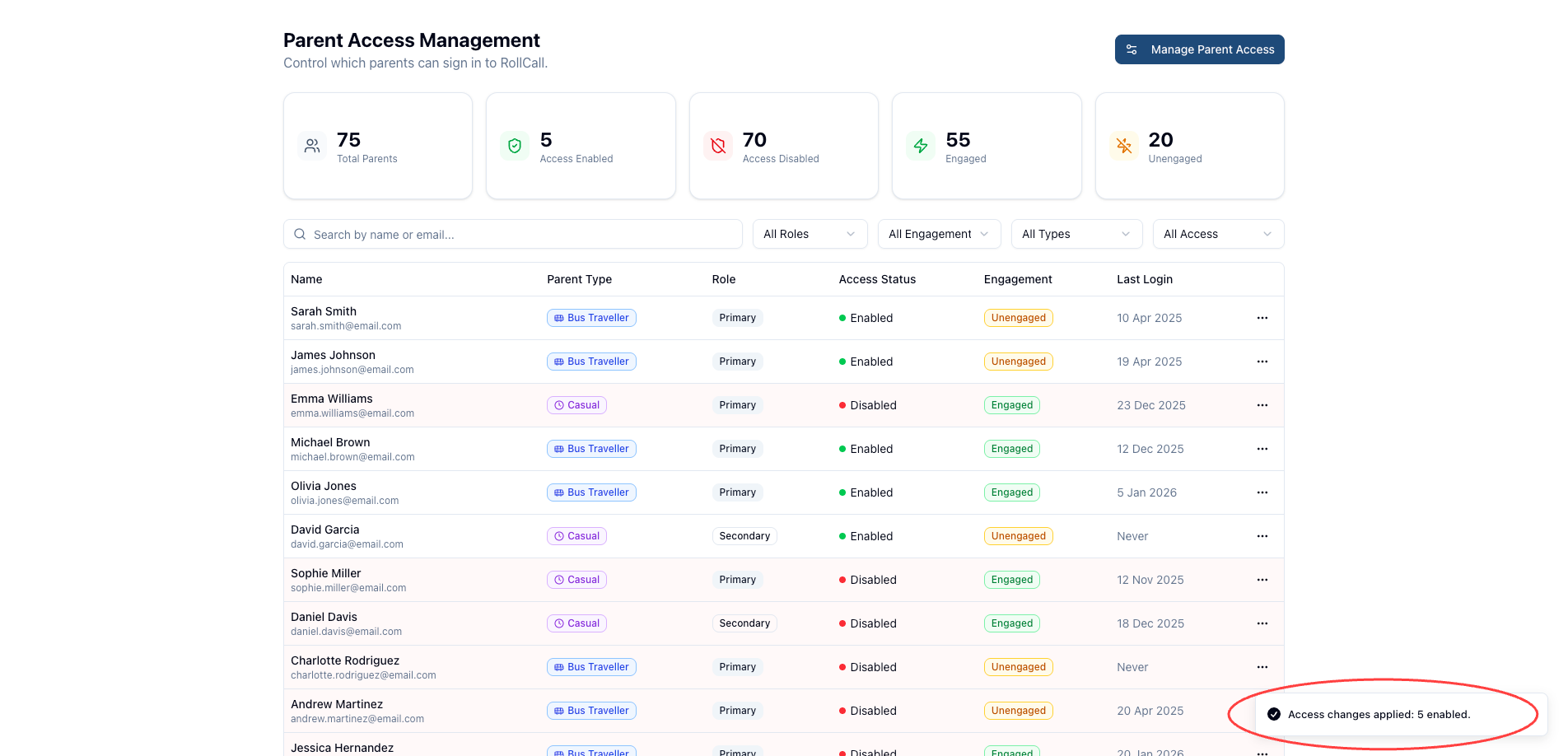
The system will apply all modifications
You will receive a confirmation notification such as:
Closing Without Saving
If you attempt to close the modal with unsaved changes, you will see a confirmation message:

Options:
Keep Editing
Discard Changes
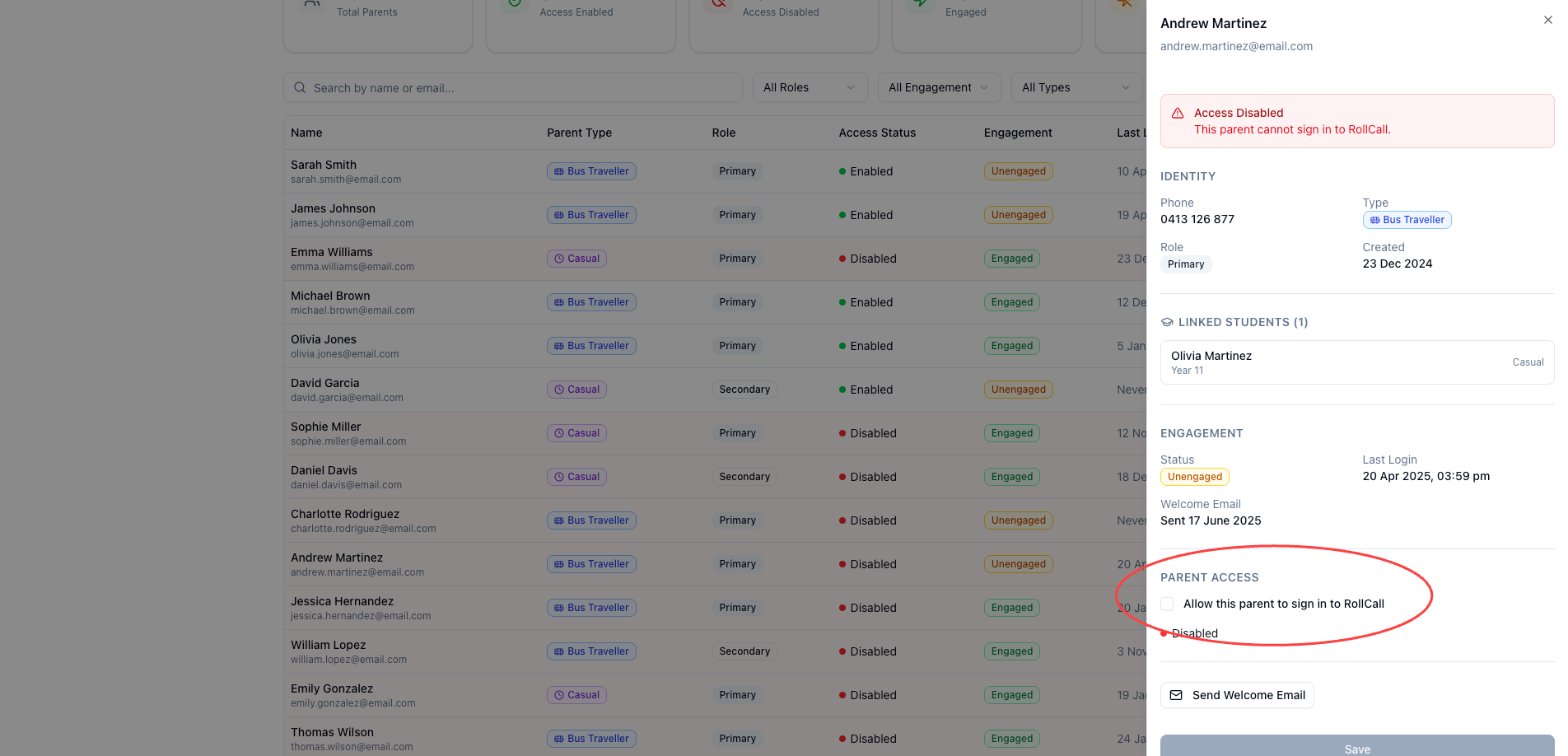
Editing Access from an Individual Parent Profile
Parent access can also be managed from the Parent Edit screen.
Open the parent’s profile.
Scroll to the bottom of the settings page.
Locate the Parent Access checkbox.
Enable or disable access as required.
Save the parent record.
What Happens When Parent Access is Disabled
If parent access is turned OFF, the parent cannot use RollCall.
This applies to:
Parent App Login
Parents cannot log into the mobile app.
Parent Web Portal Login
Parents cannot log into the web portal.
Account Setup via OTP
If the parent attempts to set up their account:
The process stops before an OTP is sent
The parent sees the message:
- "Parent access is not currently available. Please contact your school for assistance."
Welcome Email Restrictions
Welcome emails cannot be sent to parents without access enabled.
If an administrator attempts to send one, the system will display the error:
Welcome emails cannot be sent to parents without access enabled. Enable Parent Access for these parents to send welcome emails.
Bulk Email Behaviour
If sending welcome emails in bulk:
Emails will send to parents with access
Parents without access will be skipped
The error message will show how many parents were skipped
Identifying Parents Without Access
Administrators can easily identify parents without access.
Indicators include:
A visual status indicator in the parent list, as shown in shaded Red
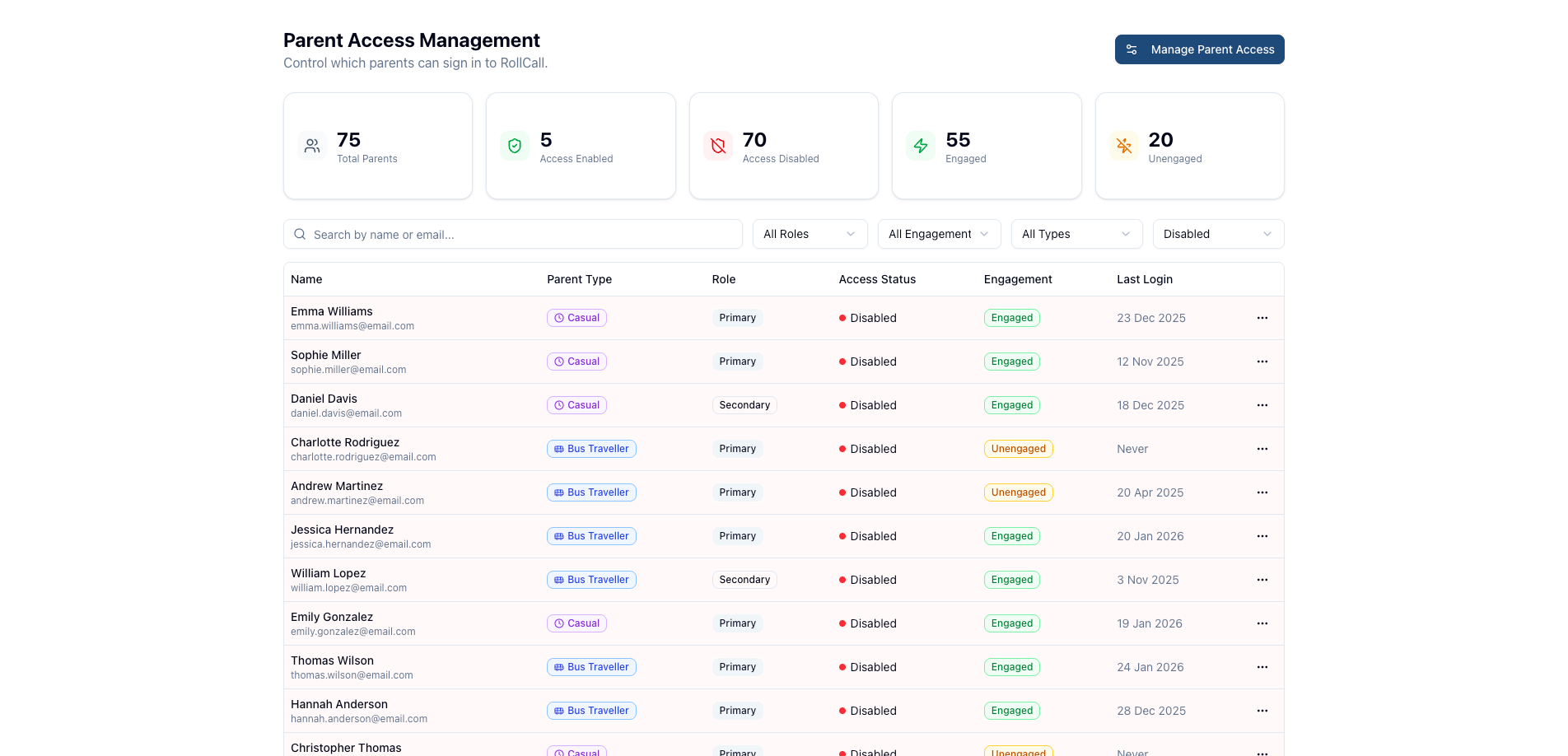
A banner warning when viewing the parent’s settings page

This ensures administrators can quickly recognise parents who cannot log in.
Was this article helpful?
That’s Great!
Thank you for your feedback
Sorry! We couldn't be helpful
Thank you for your feedback
Feedback sent
We appreciate your effort and will try to fix the article