ROLLCALL HOW-TO · DRIVER APP
Driver Device Daily Operation
Which version is this for? This guide describes the current RollCall Driver App. Some fleets and devices (including Nokia G22 handsets) may run an earlier version whose screens look different. If your screen doesn't match, ask your operator or RollCall Support which version your device runs. Your physical device, NFC extender, cards and tags are not affected by this guide.
Switching on the device
- Press the power button on the right-hand side of the unit.
- Wait for the device to start, then tap the RollCall logo.
- Check that mobile data is active.
- Check the battery. Connect to charging straight away if it's below 30%.
Important: low battery is the number one reason the RollCall device fails to start or work correctly. Phones and tablets switch off mobile data, GPS and NFC to save battery, so a device with low battery will likely have problems.
Log in and start your route
- Open the RollCall app.
- Log in with the phone number and PIN your admin team gave you.
- Select your route from the list.
Read any message and choose Yes or No. The app may ask you to confirm, for example:
- "Are you sure you want to select [route]?"
- "[route] is already logged in, would you still like to proceed?"
- "[route] is in progress/completed with another driver, would you still like to proceed?"
- If the route is already logged in or in progress with another driver, check with your depot before choosing Yes. On routes set up for more than one driver, you may go straight in without a question.
- Check your route name at the top of the screen.
- Check your student manifest and stops.
- Check that GPS has a fix on your location. A warning at the top tells you to wait if it hasn't.
Important: only log in to a route when it's operating. Logging in too early and then driving part of the route while tracking is on causes problems with activity recording and fare charging.
Change route
- Open the menu (top left) and select Change Route.
- Select your route and answer any Yes/No question.
- Check the route name, manifest, stops and GPS as above.
Scanning students
- Watch the device as students tap their card or tag. Blue = ON. Grey or purple = OFF. Orange means the scan is being sent; wait and don't rescan. See Driver App – Colour Grading Guide.
Manually register a student who can't scan (same process for ON and OFF):
- Tap the tag icon next to their name.
- Confirm the manual registration if asked.
- Handover alerts: if your school uses handover codes, the app may show Handover Required: PAR ("Must be collected by parent") or Handover Required: SIB ("Escorted by sibling on bus") before the scan completes. Read it, follow your handover procedure, then confirm. This can appear for card scans and manual scans.
- Correct a mistake by registering the student again, or by cancelling during the confirmation.
- Check your counters regularly (CURRENT, LOGGED, EXPECTED) so every passenger is registered.
Important: not registering students who travel has consequences for student safety and fare collection. Follow your operator's policies on registering all students and on reporting student compliance or device problems.
RollCall Support: 1300 821 116 for immediate help if your device isn't working.
If the device loses connection
Scans are saved on the device until they can be sent.
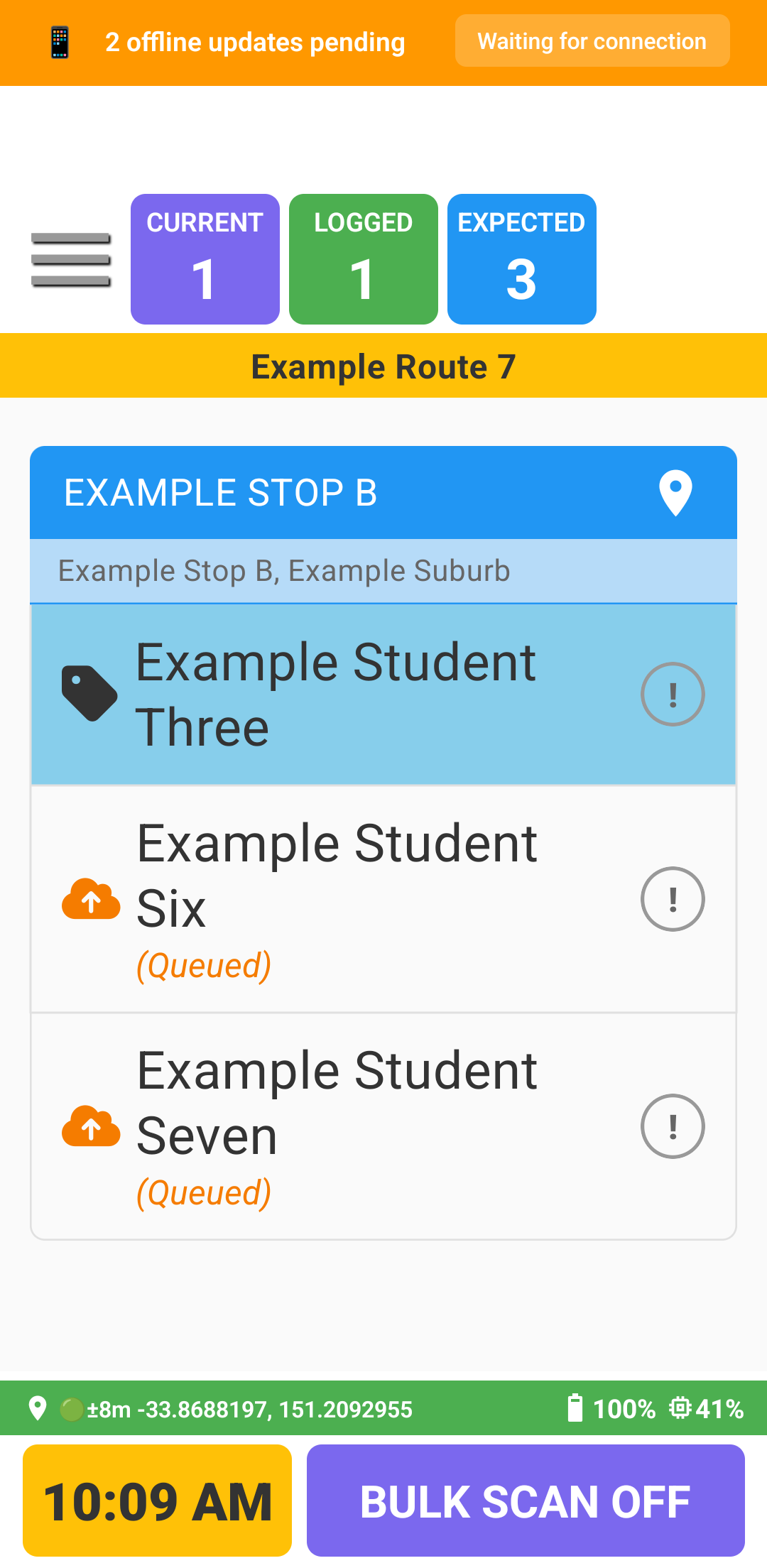
- A banner shows how many updates are waiting, for example 2 offline updates pending.
- Waiting for connection means you're offline. When you're back online, the app syncs automatically, or tap Sync Now.
- Rows waiting to send show a cloud-upload icon and (Queued) instead of the tag icon.
- Offline Queue in the menu shows what's waiting.
Ending your route and logging out
- Do your physical bus check. Walk to the back of the bus and check that no students remain on board, as your operator's policy requires. This physical check is always required, whatever the app shows.
- Check the counters. On most routes the route is treated as complete when CURRENT is back to 0 and at least one student was logged. On RollCall-Single routes, completion compares SCANNED with EXPECTED.
- Is this route completed? When all students have been scanned off, the app may ask "All students have been scanned off. Would you like to complete this trip?" with an Auto-completion countdown of 5 minutes. Tap Yes once you've finished your physical check, or No if students are still travelling. If you do nothing, the trip completes automatically at the end of the countdown.
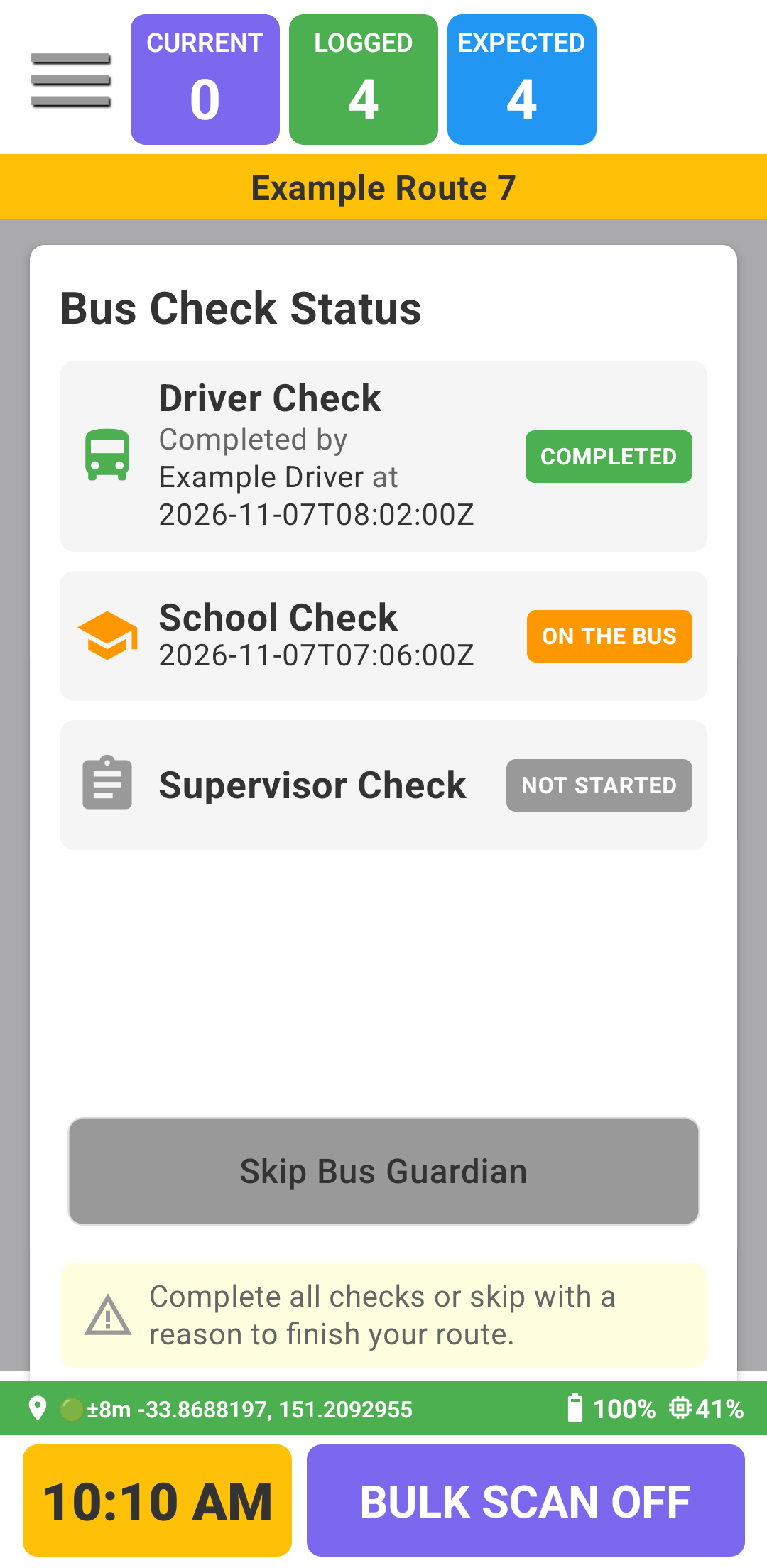
Bus Guardian checks (if your school has them on). The Bus Check Status screen lists the checks set up for your route (Driver Check, School Check, Supervisor Check), each showing NOT STARTED, ON THE BUS or COMPLETED.
- Complete each check by tapping the device on the relevant check card or token (for example the driver check card at the back of the bus). See Guide to Bus Guardian (Check Scan Card).
- If a check cannot be completed, contact your depot and follow your operator's approved procedure. Do not treat the app's Route Complete message as proof that the bus is empty.
- Route Complete. The app asks "This route has been completed. Do you want to log off?" and counts down from 60 seconds (Logging off in …). Tap Log Off to log off now, or Continue to stay logged in. If you do nothing, it logs off automatically at the end of the countdown.
Make sure your updates have synced before powering off or handing over the device.
- Check there's no offline updates pending banner.
- If updates are pending, move somewhere with mobile coverage and tap Sync Now, or wait for them to send.
- If you log off from the menu with updates still pending, the app warns Updates still pending. Those updates only send when you or the same driver signs back in on this device. If you're passing the device to another driver, wait for sync first.
- Press the power button and select Power Off.
- Store the device. See Caring for your RollCall Driver Device or your operator's procedures.
Need help? Contact the RollCall support team if you get stuck.
Was this article helpful?
That’s Great!
Thank you for your feedback
Sorry! We couldn't be helpful
Thank you for your feedback
Feedback sent
We appreciate your effort and will try to fix the article