Overview
The Driver App uses a colour grading system to help drivers quickly identify the status of each child during the boarding process. These colours provide immediate visual feedback so drivers can confirm scans, identify younger students, and ensure children board and exit the bus safely.
Understanding these colours helps drivers operate the app efficiently and safely.
Colour Status Guide
White – Not Scanned
Meaning:
The child has not yet been scanned onto the bus.
What the driver should do:
Ask the child to scan their NFC tag or card.
Confirm the scan before allowing the child to board.
Key Point:
White indicates that the child is not yet registered as onboard.
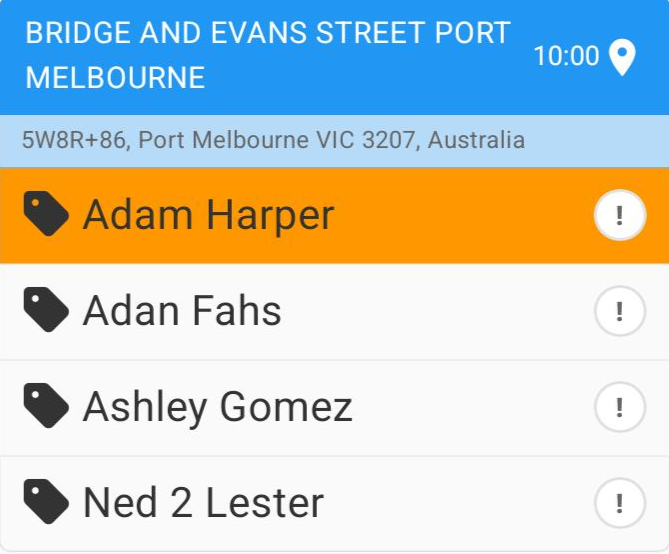
Orange – Scan Processing
Meaning:
The app is processing the NFC scan.
This colour appears briefly while the system:
Registers the NFC scan
Locates the device GPS position
What the driver should do:
Wait a moment for the scan to complete.
Do not rescan immediately.
Note:
If GPS has not yet been located, the student’s name may remain Orange slightly longer.
Blue – Successfully Scanned
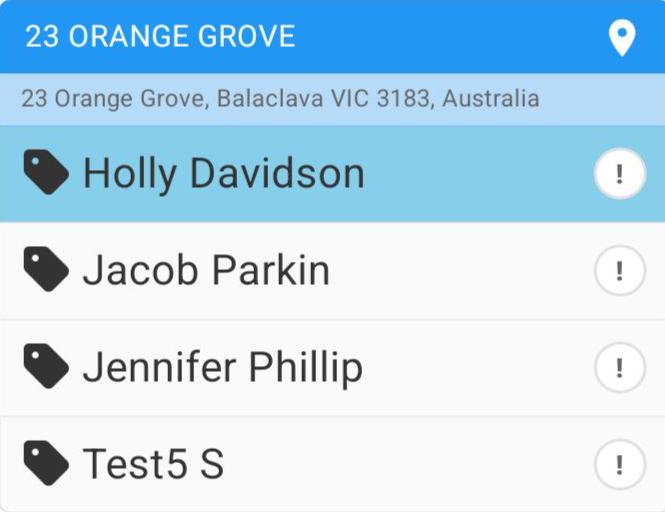
Meaning:
The child has been successfully scanned onto the bus.
What the driver should do:
No action required.
The child is confirmed as onboard.
Key Point:
Blue confirms the scan was successful and recorded correctly.
Purple – Younger Student Alert
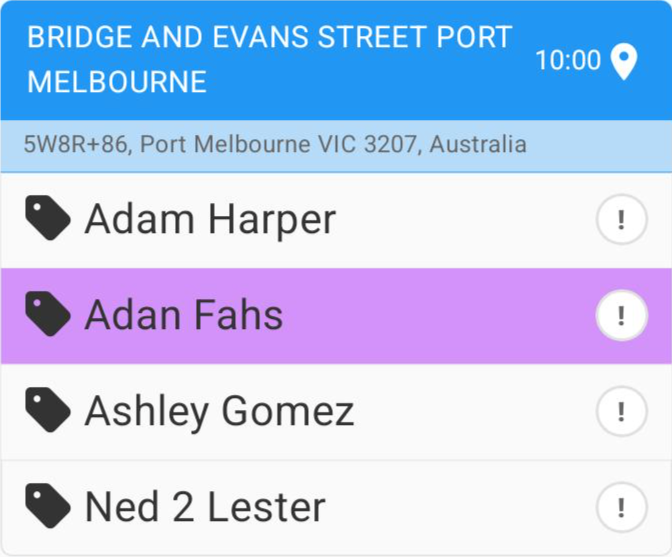
Meaning:
Students in Grade 5 and below appear in Purple.
Purpose:
This helps drivers remain extra cautious when these children exit the bus.
What the driver should do:
Pay close attention when the student disembarks.
Ensure the child exits at the correct stop.
Quick Reference Table
| Colour | Status | Meaning | Driver Action |
|---|---|---|---|
| White | Not Scanned | Child has not been scanned onto the bus | Ask the child to scan |
| Orange | Scan Processing | NFC scan registering or GPS locating | Wait briefly |
| Blue | Scanned Successfully | Child is confirmed onboard | No action required |
| Purple | Younger Student | Grade 5 or below | Exercise caution when they exit |
✅ Tip:
Always confirm that a student turns Blue after scanning to ensure they are correctly recorded as onboard.
Was this article helpful?
That’s Great!
Thank you for your feedback
Sorry! We couldn't be helpful
Thank you for your feedback
Feedback sent
We appreciate your effort and will try to fix the article