When your school receives an updated PayWay API Key by email, you’ll need to update the Secret Key in RollCall.
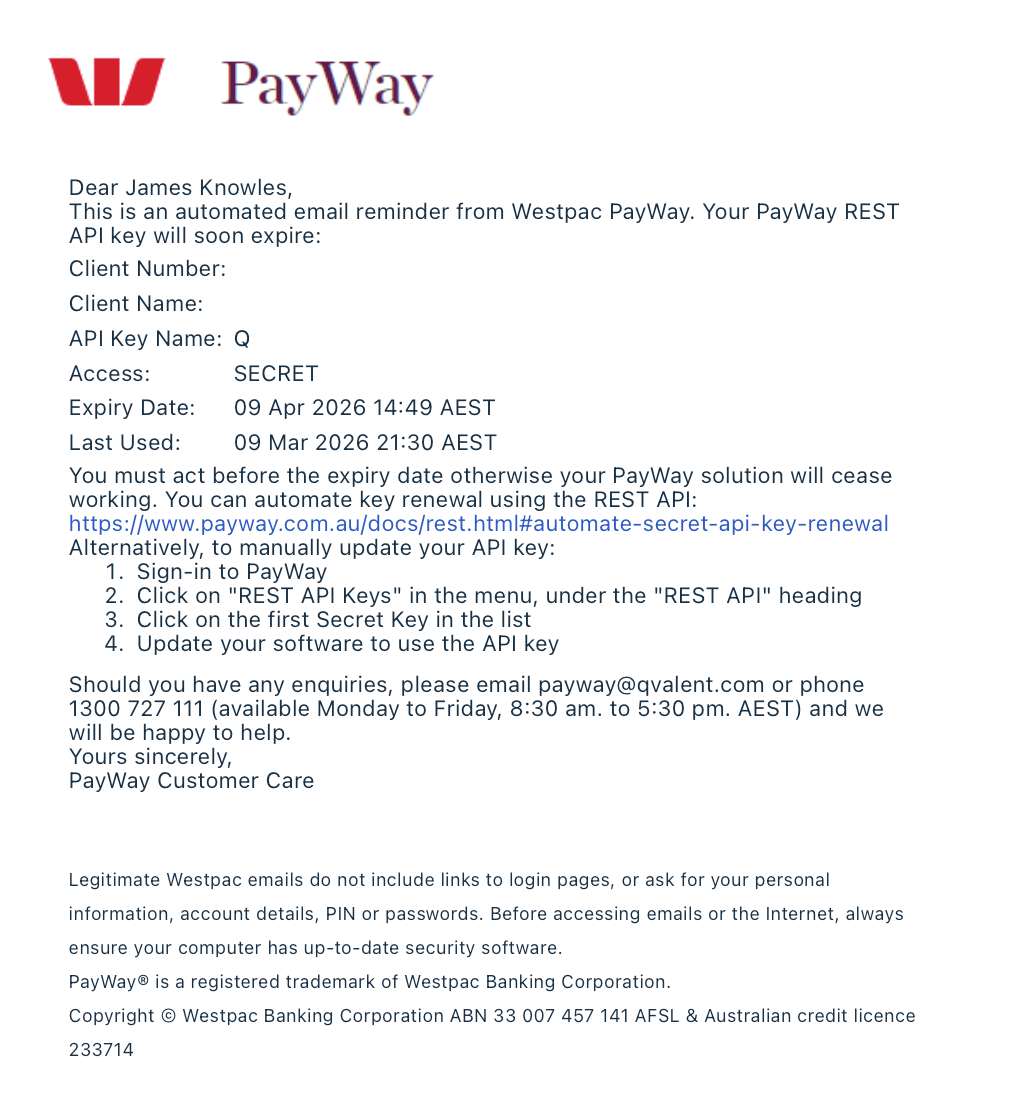
Step 1 — Receive the new API Key
Your school will receive the updated PayWay API Key via email.
Make sure you copy the Secret Key value from the email before proceeding.
Step 2 — Open RollCall Settings
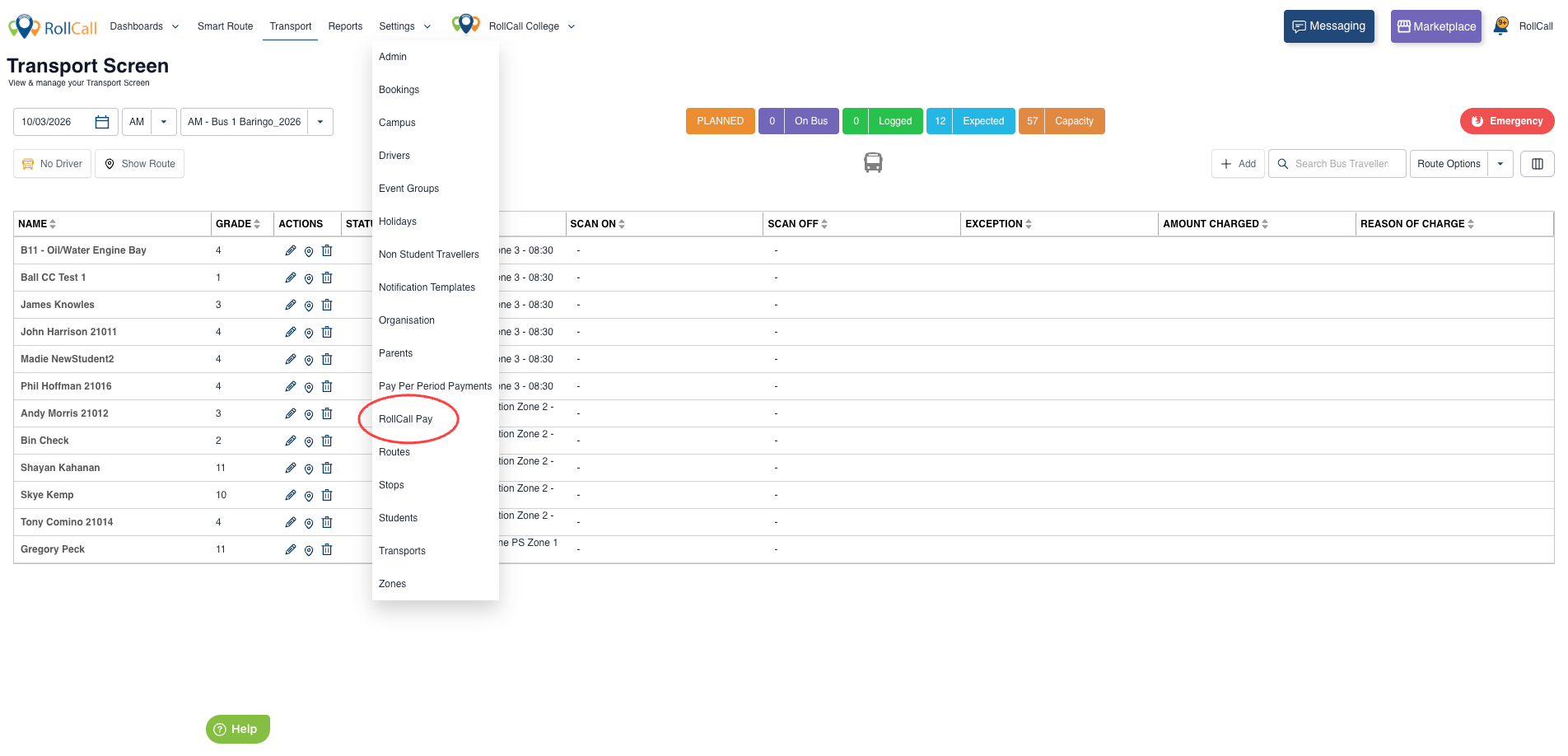
Log in to RollCall and navigate to:
Settings → RollCall Pay
Step 3 — Open Pay Settings
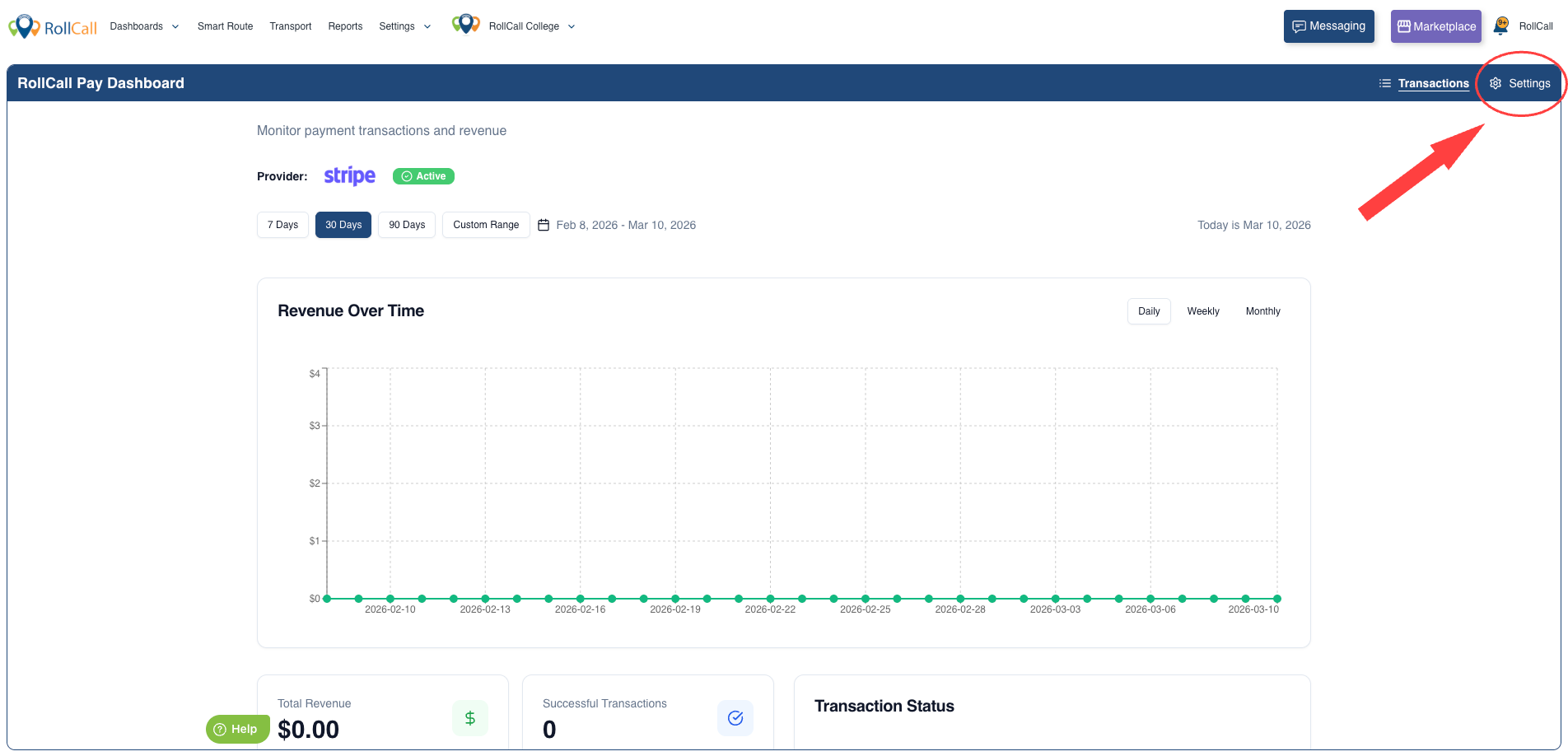
In the top-right corner of the screen, click: Settings
Step 4 — Update the Secret Key
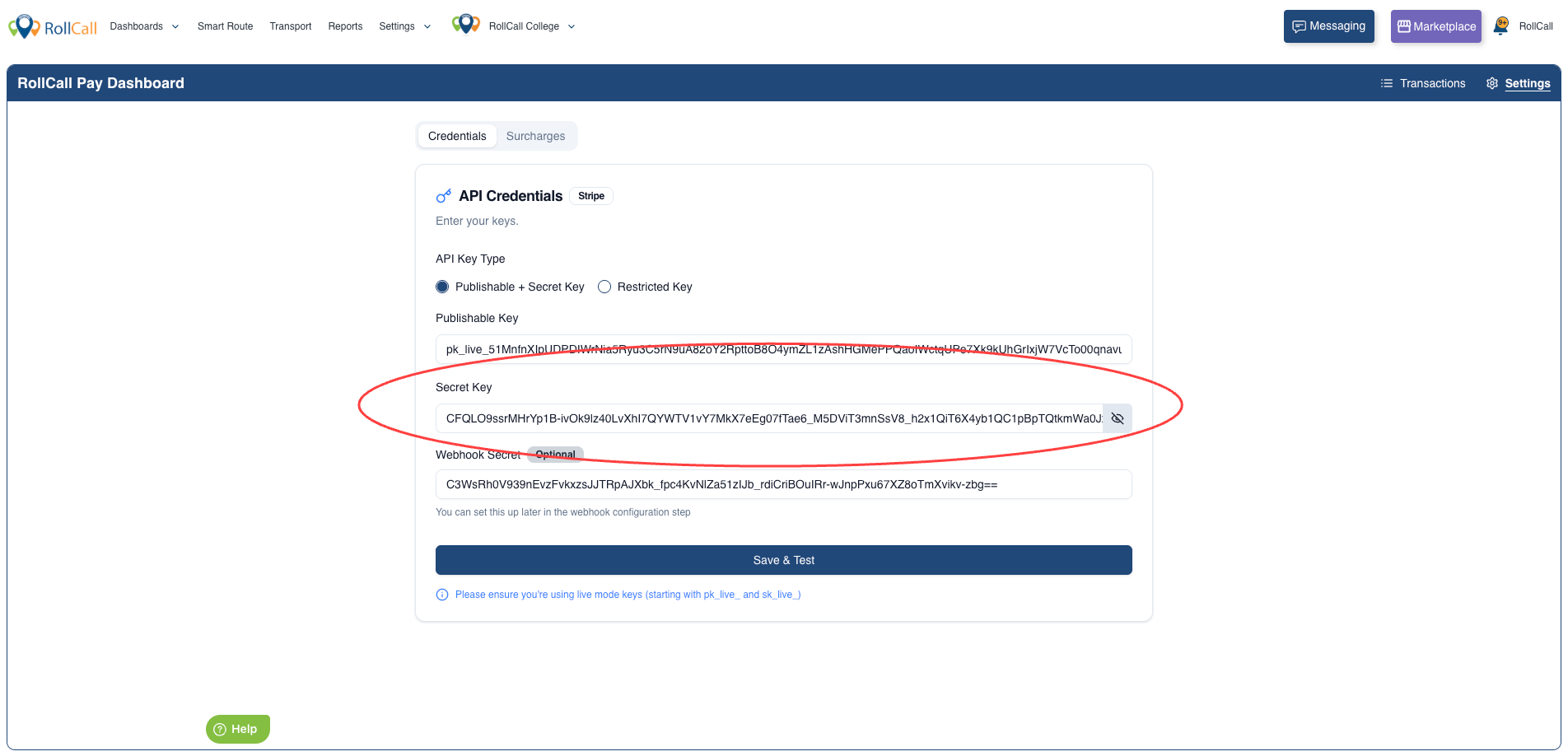
Locate the field labelled:
Secret Key
Replace the existing value with the new PayWay API Key you received in the email.
Step 5 — Save the changes
Save or apply the update in RollCall to complete the process.
⚠️ Important
You only need to update the Secret Key.
Do not change any of the following settings:
Publishable Key
API Key Type
Webhook Secret
✅ Quick Navigation Path
Settings → RollCall Pay → Settings → Secret Key
Was this article helpful?
That’s Great!
Thank you for your feedback
Sorry! We couldn't be helpful
Thank you for your feedback
Feedback sent
We appreciate your effort and will try to fix the article