ROLLCALL HOW-TO · DRIVER APP
RollCall Driver Device Manifest Overview
Which version is this for? This guide describes the current RollCall Driver App. Some fleets and devices (including Nokia G22 handsets) may run an earlier version whose screens look different. If your screen doesn't match, ask your operator or RollCall Support which version your device runs. Your physical device, NFC extender, cards and tags are not affected by this guide.
This is an overview of the main manifest screen on the RollCall driver device.
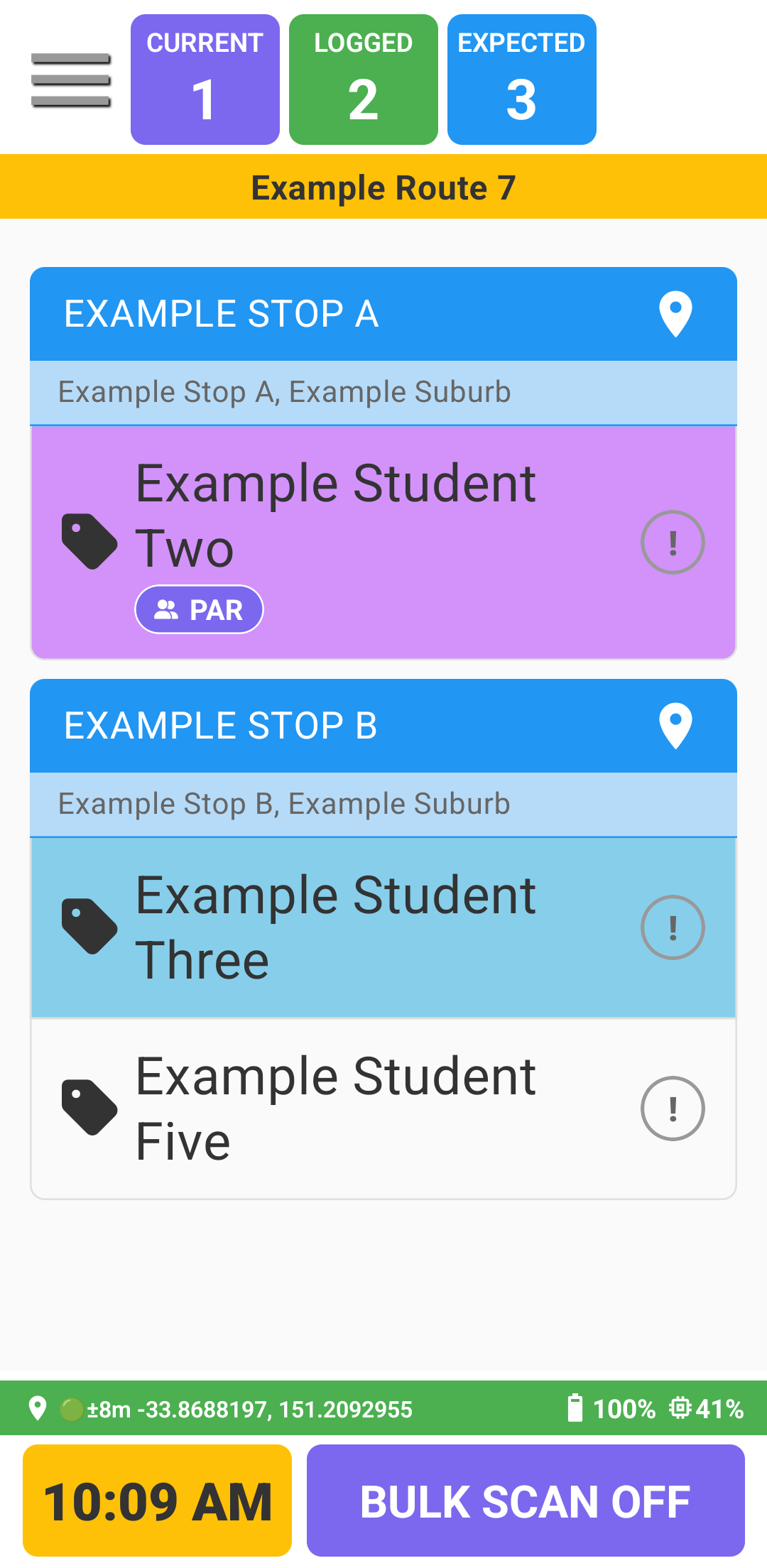
Top of the screen
- Counters: see below.
- Route name: check it matches the route you're driving.
Counters
| Counter | Meaning |
|---|---|
| CURRENT | Students currently on the bus |
| LOGGED | Total students scanned on |
| EXPECTED | Total booked, plus any non-allocated students who boarded |
On RollCall-Single routes there is no CURRENT counter, and LOGGED is shown as SCANNED, next to EXPECTED.
Student list
Students are grouped under their stops. Each row shows the student's name and status colour, a tag icon for manual scanning, and a ! button for student information:
- White: not scanned yet.
- Orange: a scan is being sent (online). Wait; don't rescan.
- Blue: ON the bus.
- Grey: OFF the bus.
- Purple: OFF, needs attention (a student with no handover code at or below the school's grade level, or a PAR/SIB handover).
If your school uses handover codes, a handover badge (for example PAR) may show beside younger students.
When the device is offline
A banner shows pending updates, for example 2 offline updates pending, with Waiting for connection or Sync Now. Queued rows show a cloud-upload icon and (Queued) instead of the tag icon.
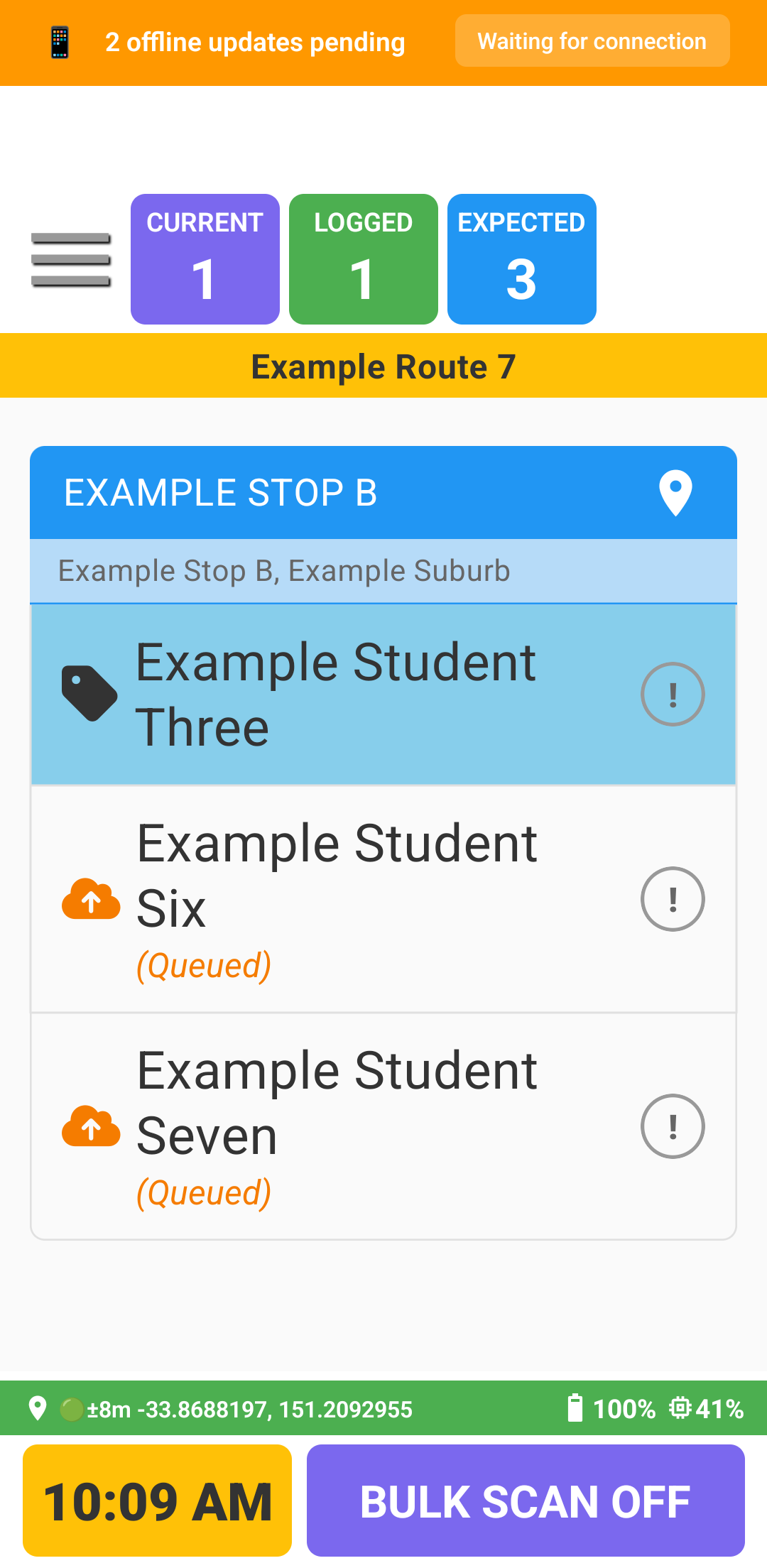
Bottom of the screen
- Device status bar: GPS status (tap it for GPS details), battery level and memory use.
- Clock (bottom left).
- Bulk Scan Off (purple button, bottom right) appears where your school has enabled bulk off, usually AM routes and excursions.
Need help? Contact the RollCall support team if you get stuck.
Next Steps / Related Articles
Was this article helpful?
That’s Great!
Thank you for your feedback
Sorry! We couldn't be helpful
Thank you for your feedback
Feedback sent
We appreciate your effort and will try to fix the article